 Use New chat when you need a fast answer and a clear next step. This page helps you go from question to action in minutes.
## Questions this page should answer
1. Which agent should handle this request?
2. What prompt format gets an actionable answer?
3. How do you keep context clean across different tasks?
## Before you start
* Pick one clear goal for this chat.
* Know what output you need: diagnosis, action plan, or draft copy.
* Choose whether this should stay ad-hoc or become a workflow later.
## What this page gives you
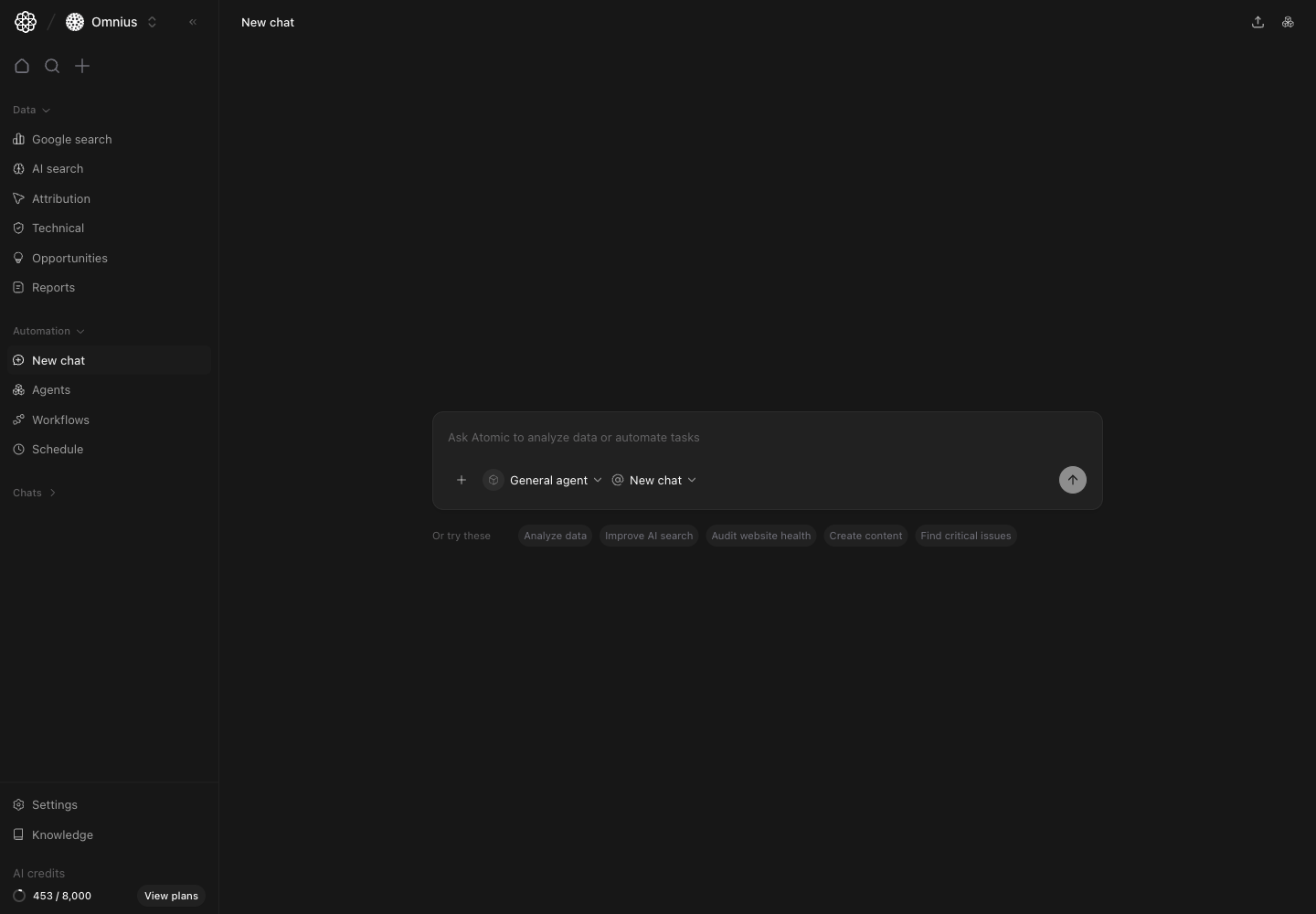
* A central prompt composer for one-off requests.
* An agent selector to match task type with the right specialist.
* A chat-context selector to continue an old thread or start clean.
* Quick prompt starters for common marketing tasks.
## How the composer is organized
* Main input box: write the task in plain language.
* Agent selector: pick the specialist that should answer.
* Chat selector: choose `New chat` when you want clean context.
* Quick starter chips: launch common requests quickly.
Start with a new chat for analysis work, then continue the thread only if the follow-up is part of the same task.
## Choose the right agent before sending
Use New chat when you need a fast answer and a clear next step. This page helps you go from question to action in minutes.
## Questions this page should answer
1. Which agent should handle this request?
2. What prompt format gets an actionable answer?
3. How do you keep context clean across different tasks?
## Before you start
* Pick one clear goal for this chat.
* Know what output you need: diagnosis, action plan, or draft copy.
* Choose whether this should stay ad-hoc or become a workflow later.
## What this page gives you
* A central prompt composer for one-off requests.
* An agent selector to match task type with the right specialist.
* A chat-context selector to continue an old thread or start clean.
* Quick prompt starters for common marketing tasks.
## How the composer is organized
* Main input box: write the task in plain language.
* Agent selector: pick the specialist that should answer.
* Chat selector: choose `New chat` when you want clean context.
* Quick starter chips: launch common requests quickly.
Start with a new chat for analysis work, then continue the thread only if the follow-up is part of the same task.
## Choose the right agent before sending
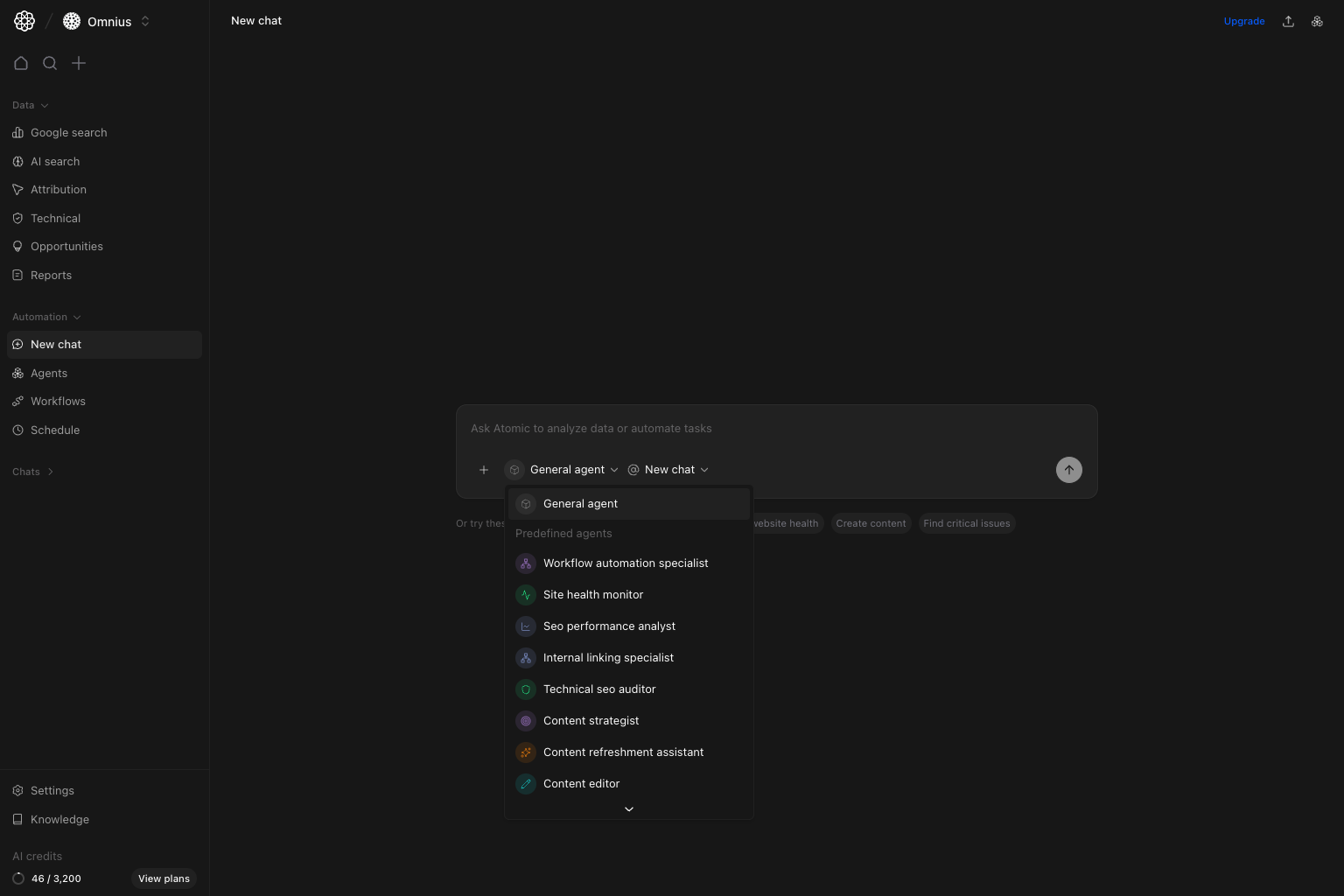 Agent choice changes output quality more than prompt wording.
* `General agent`: broad planning and mixed questions.
* `SEO performance analyst`: traffic and ranking diagnosis.
* `Technical SEO auditor`: crawl, index, and issue-focused tasks.
* `Content strategist` or `Content editor`: content planning and rewriting.
* `Workflow automation specialist`: requests that should be turned into repeatable flows.
Agent choice changes output quality more than prompt wording.
* `General agent`: broad planning and mixed questions.
* `SEO performance analyst`: traffic and ranking diagnosis.
* `Technical SEO auditor`: crawl, index, and issue-focused tasks.
* `Content strategist` or `Content editor`: content planning and rewriting.
* `Workflow automation specialist`: requests that should be turned into repeatable flows.
Important: If output quality is weak, switch the agent first before rewriting the prompt.