 Use Workflows to turn repeated tasks into reliable operations. This page helps you create the workflow, run it, debug it, and schedule it.
## Questions this page should answer
1. Which recurring task should become a workflow first?
2. Are runs completing with useful outputs, not just green status?
3. Where should we fix steps, inputs, or schedule to improve reliability?
## Before you automate
* Start with one repeated task your team already does manually.
* Define the exact output you expect before building.
* Keep version one short and clear.
## What this page gives you
* A workflow library with reusable cards.
* Fast creation from templates or from scratch.
* A full editor for step logic and sequencing.
* Per-workflow run, execution, and history views.
* Schedule controls for recurring runs.
## How to read the workflow library
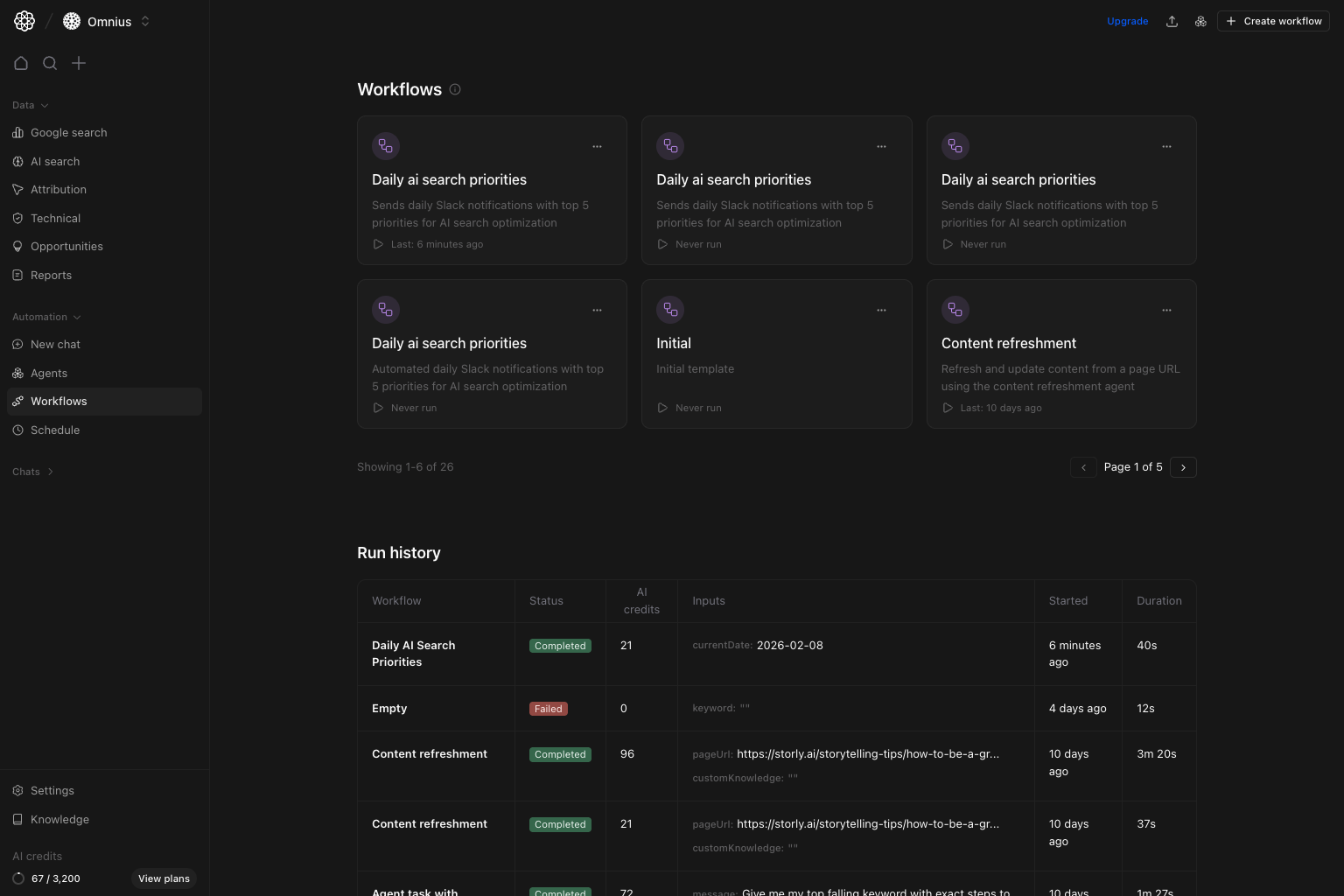
In the top section:
* Each card is one automation.
* The card title and subtitle tell you the business job.
* `Last` or `Never run` tells you adoption and recency.
* The three-dot action on cards helps with quick maintenance actions.
Use the table below cards as your global operations feed:
* `Status`: run health.
* `AI credits`: cost per run.
* `Inputs`: confirms run context.
* `Started` and `Duration`: speed and timing consistency.
When a run fails, inspect `Inputs` first, then step output.
## Create workflow (template or scratch)
Use Workflows to turn repeated tasks into reliable operations. This page helps you create the workflow, run it, debug it, and schedule it.
## Questions this page should answer
1. Which recurring task should become a workflow first?
2. Are runs completing with useful outputs, not just green status?
3. Where should we fix steps, inputs, or schedule to improve reliability?
## Before you automate
* Start with one repeated task your team already does manually.
* Define the exact output you expect before building.
* Keep version one short and clear.
## What this page gives you
* A workflow library with reusable cards.
* Fast creation from templates or from scratch.
* A full editor for step logic and sequencing.
* Per-workflow run, execution, and history views.
* Schedule controls for recurring runs.
## How to read the workflow library
In the top section:
* Each card is one automation.
* The card title and subtitle tell you the business job.
* `Last` or `Never run` tells you adoption and recency.
* The three-dot action on cards helps with quick maintenance actions.
Use the table below cards as your global operations feed:
* `Status`: run health.
* `AI credits`: cost per run.
* `Inputs`: confirms run context.
* `Started` and `Duration`: speed and timing consistency.
When a run fails, inspect `Inputs` first, then step output.
## Create workflow (template or scratch)
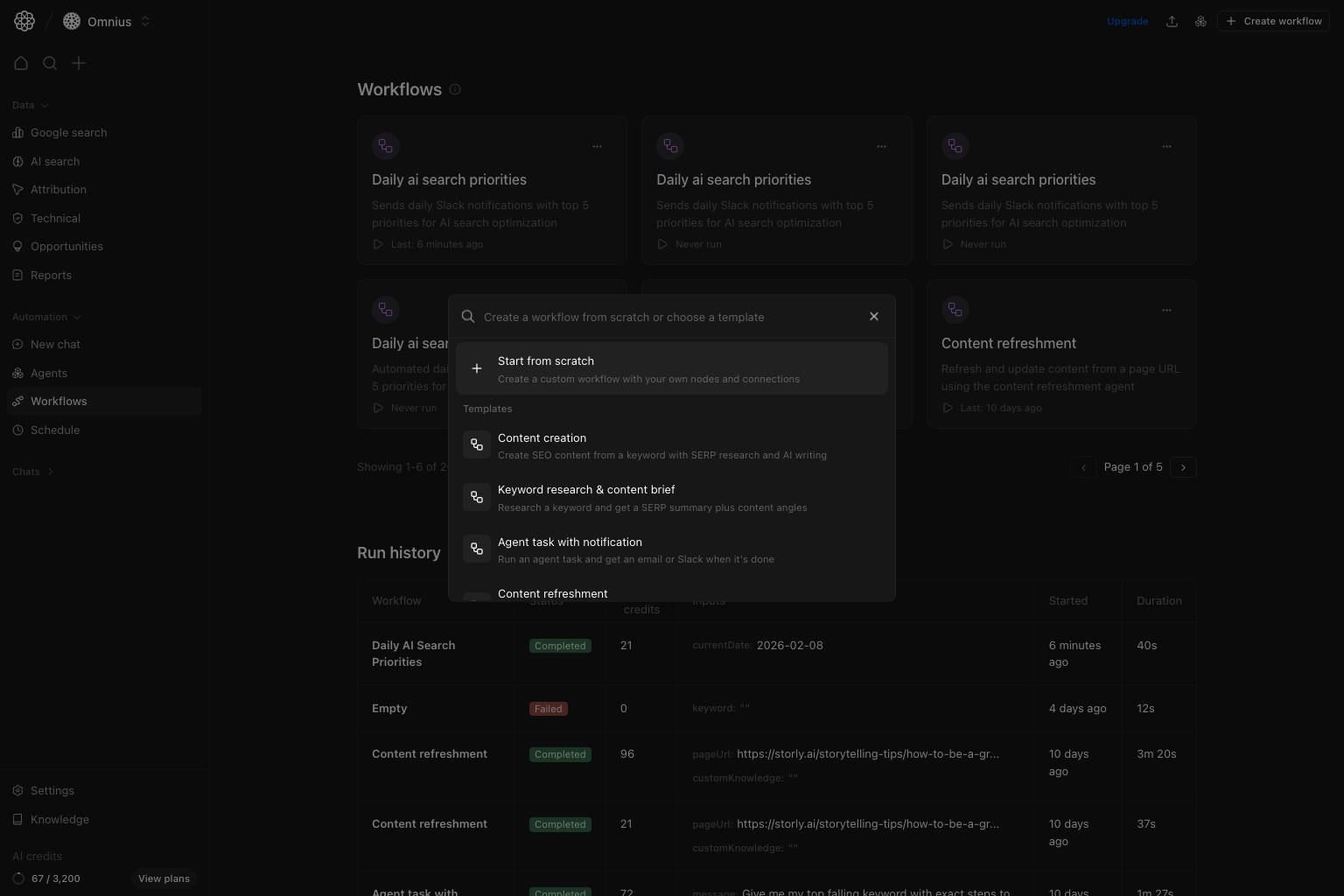 Use `Create workflow` to start from:
* `Start from scratch` for custom logic.
* Templates for common execution patterns.
Template-first is faster for most teams. Start from scratch only when your flow is unique.
## Edit workflow (builder)
Use `Create workflow` to start from:
* `Start from scratch` for custom logic.
* Templates for common execution patterns.
Template-first is faster for most teams. Start from scratch only when your flow is unique.
## Edit workflow (builder)
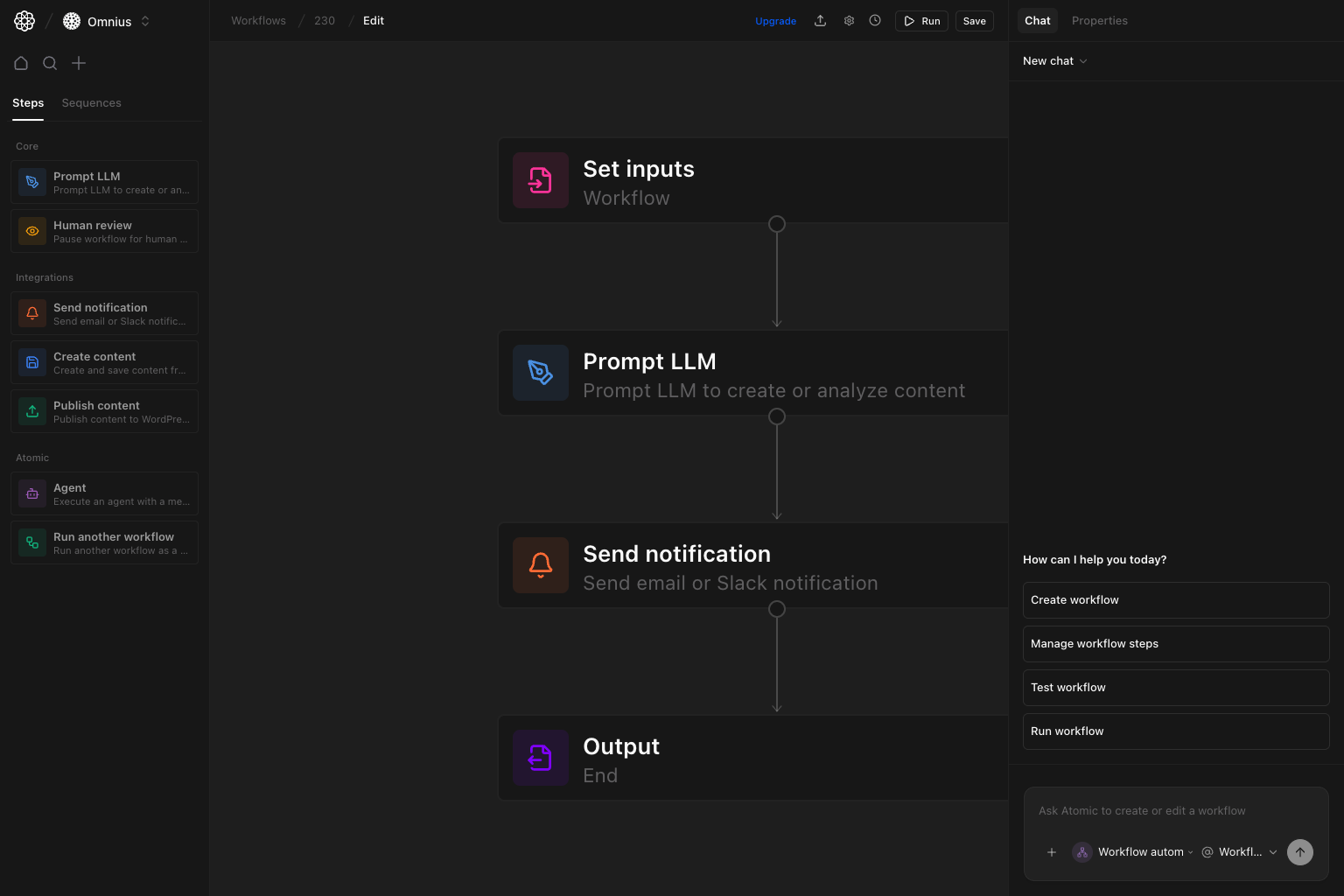 The editor is where you design and refine execution:
* Left panel: available step types.
* Center canvas: step order and flow.
* Right panel: AI assistant and properties.
* Top actions: run test, save, and chat-guided edits.
Keep steps explicit. Each step should do one clear job.
### Content image enrichment workflows
Use content enrichment steps when a draft already exists and needs useful inline visuals:
* `Get content from editor`: fetch the current content, source URL, and metadata for an existing content item.
* `Enrich content images`: add factual visuals to markdown or editor HTML through the existing Prompt LLM workflow path, using generated charts, screenshots, or direct image URLs when they add useful context.
* `Create content version`: save the enriched content as a new active editor version without overwriting older versions.
This pattern works well after `Generate article` or when refreshing older text-only drafts. Keep `target image count` balanced; weak visual opportunities should be skipped instead of forcing filler images.
### Human review steps
The editor is where you design and refine execution:
* Left panel: available step types.
* Center canvas: step order and flow.
* Right panel: AI assistant and properties.
* Top actions: run test, save, and chat-guided edits.
Keep steps explicit. Each step should do one clear job.
### Content image enrichment workflows
Use content enrichment steps when a draft already exists and needs useful inline visuals:
* `Get content from editor`: fetch the current content, source URL, and metadata for an existing content item.
* `Enrich content images`: add factual visuals to markdown or editor HTML through the existing Prompt LLM workflow path, using generated charts, screenshots, or direct image URLs when they add useful context.
* `Create content version`: save the enriched content as a new active editor version without overwriting older versions.
This pattern works well after `Generate article` or when refreshing older text-only drafts. Keep `target image count` balanced; weak visual opportunities should be skipped instead of forcing filler images.
### Human review steps
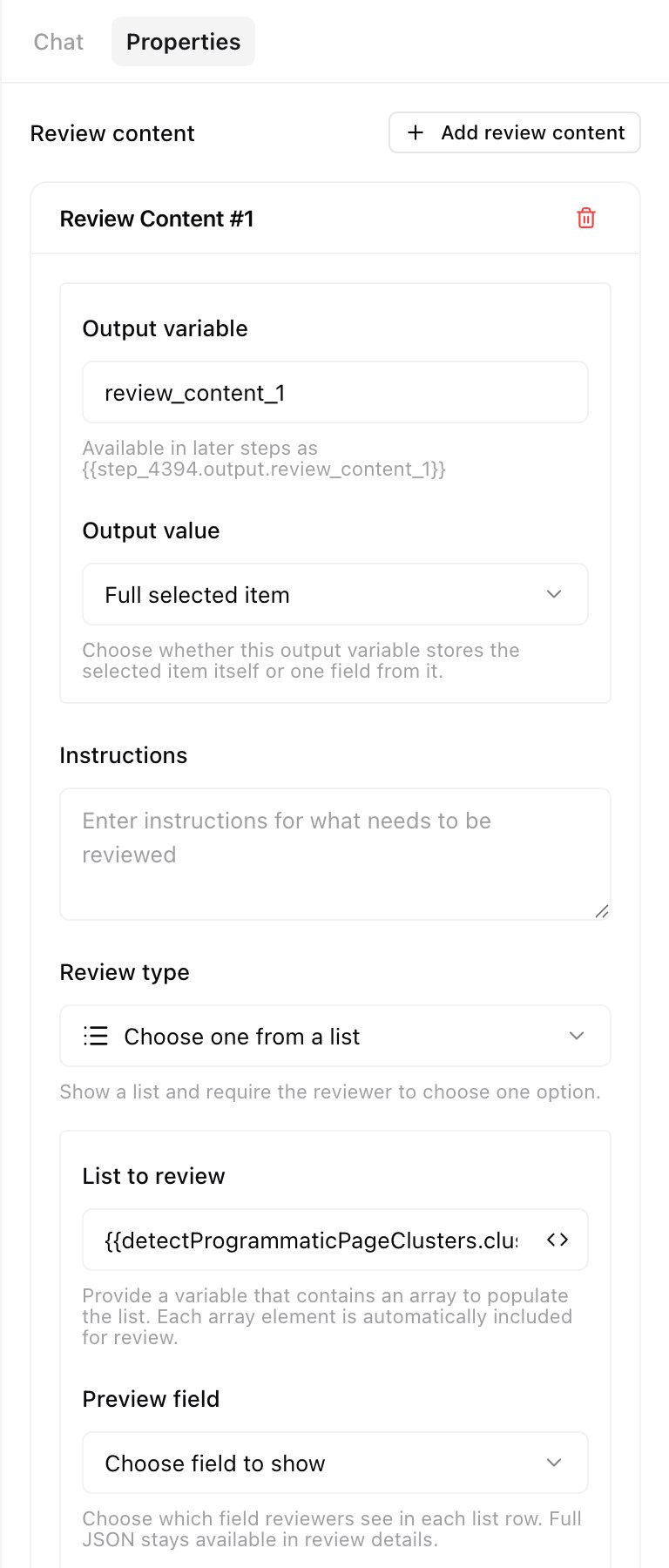 Use `Human review` when a workflow should pause for a person to approve a value or choose from generated options.
For list reviews, give the output a clear variable name. When the list is an array of JSON objects, choose the preview field reviewers should see in each row. Full JSON remains available in review details. Keep the full selected object as the downstream output unless the next step only needs one nested value.
### Programmatic page workflows
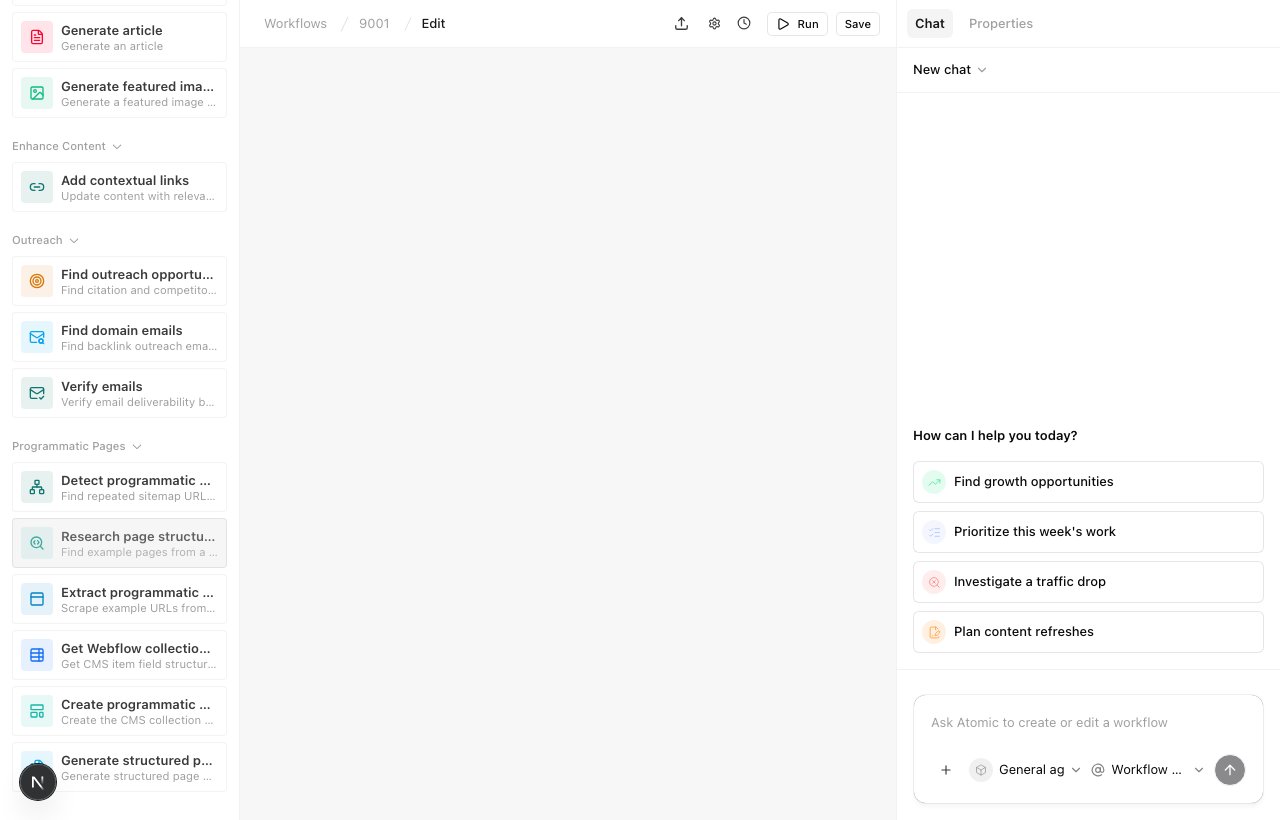
Programmatic workflow blocks are reusable. You can combine only the steps needed for the job:
* `Detect programmatic page clusters`: find repeated competitor URL patterns.
* `Research page structure from description`: start from a description, research relevant public pages, select example URLs, and return the same reusable page structure outputs as extraction.
* `Extract programmatic page structure`: inspect a `urls` array and return a reusable page generation schema, shared section structure, and full-page screenshot URLs for each analyzed example. Competitor alternative pages include named sections such as hero, trust bar, comparison table, differentiator cards, testimonials, pricing, FAQ, and final CTA.
* `Get Webflow collection structure`: read fields from an existing Webflow CMS collection.
* `Create programmatic collection structure`: create or reuse a Webflow CMS collection from an extracted page structure or existing collection structure.
* `Generate structured page content`: generate one CMS-ready page object from a writing prompt and `pageStructure`. The step researches first when web tools are available, then returns `generated_page`.
* `Publish mapped content`: map workflow values into WordPress or Webflow and publish or save drafts. For Webflow, use `Map fields` to fill fields one by one, or `Paste JSON` to pass the whole `generated_page` object.
Use `Research page structure from description` when you do not already have example URLs. Use `Extract programmatic page structure` when you already know which URLs should define the pattern. Use `Get Webflow collection structure` when you already have a Webflow collection and only need more pages for it.
Use `Human review` when a workflow should pause for a person to approve a value or choose from generated options.
For list reviews, give the output a clear variable name. When the list is an array of JSON objects, choose the preview field reviewers should see in each row. Full JSON remains available in review details. Keep the full selected object as the downstream output unless the next step only needs one nested value.
### Programmatic page workflows
Programmatic workflow blocks are reusable. You can combine only the steps needed for the job:
* `Detect programmatic page clusters`: find repeated competitor URL patterns.
* `Research page structure from description`: start from a description, research relevant public pages, select example URLs, and return the same reusable page structure outputs as extraction.
* `Extract programmatic page structure`: inspect a `urls` array and return a reusable page generation schema, shared section structure, and full-page screenshot URLs for each analyzed example. Competitor alternative pages include named sections such as hero, trust bar, comparison table, differentiator cards, testimonials, pricing, FAQ, and final CTA.
* `Get Webflow collection structure`: read fields from an existing Webflow CMS collection.
* `Create programmatic collection structure`: create or reuse a Webflow CMS collection from an extracted page structure or existing collection structure.
* `Generate structured page content`: generate one CMS-ready page object from a writing prompt and `pageStructure`. The step researches first when web tools are available, then returns `generated_page`.
* `Publish mapped content`: map workflow values into WordPress or Webflow and publish or save drafts. For Webflow, use `Map fields` to fill fields one by one, or `Paste JSON` to pass the whole `generated_page` object.
Use `Research page structure from description` when you do not already have example URLs. Use `Extract programmatic page structure` when you already know which URLs should define the pattern. Use `Get Webflow collection structure` when you already have a Webflow collection and only need more pages for it.
 For Webflow collections, extracted fields use Webflow field types based on content shape. Short scalar copy should stay `PlainText`. Repeated blocks, formatted lists, tables, embeds, and multi-paragraph content should be `RichText` so the generated page can render real rich content instead of delimiter text.
`Generate structured page content` accepts only `prompt` and `pageStructure`. Put the audience, topic, CTA, constraints, and known facts in the prompt. Do not add separate keyword, row, template, or slug fields.
The `Webflow programmatic collection structure` template adds a `Human review` step after cluster detection. Reviewers choose which detected URL set to copy, and the selected cluster's example URLs feed the page structure extraction step.
For Webflow collections, extracted fields use Webflow field types based on content shape. Short scalar copy should stay `PlainText`. Repeated blocks, formatted lists, tables, embeds, and multi-paragraph content should be `RichText` so the generated page can render real rich content instead of delimiter text.
`Generate structured page content` accepts only `prompt` and `pageStructure`. Put the audience, topic, CTA, constraints, and known facts in the prompt. Do not add separate keyword, row, template, or slug fields.
The `Webflow programmatic collection structure` template adds a `Human review` step after cluster detection. Reviewers choose which detected URL set to copy, and the selected cluster's example URLs feed the page structure extraction step.
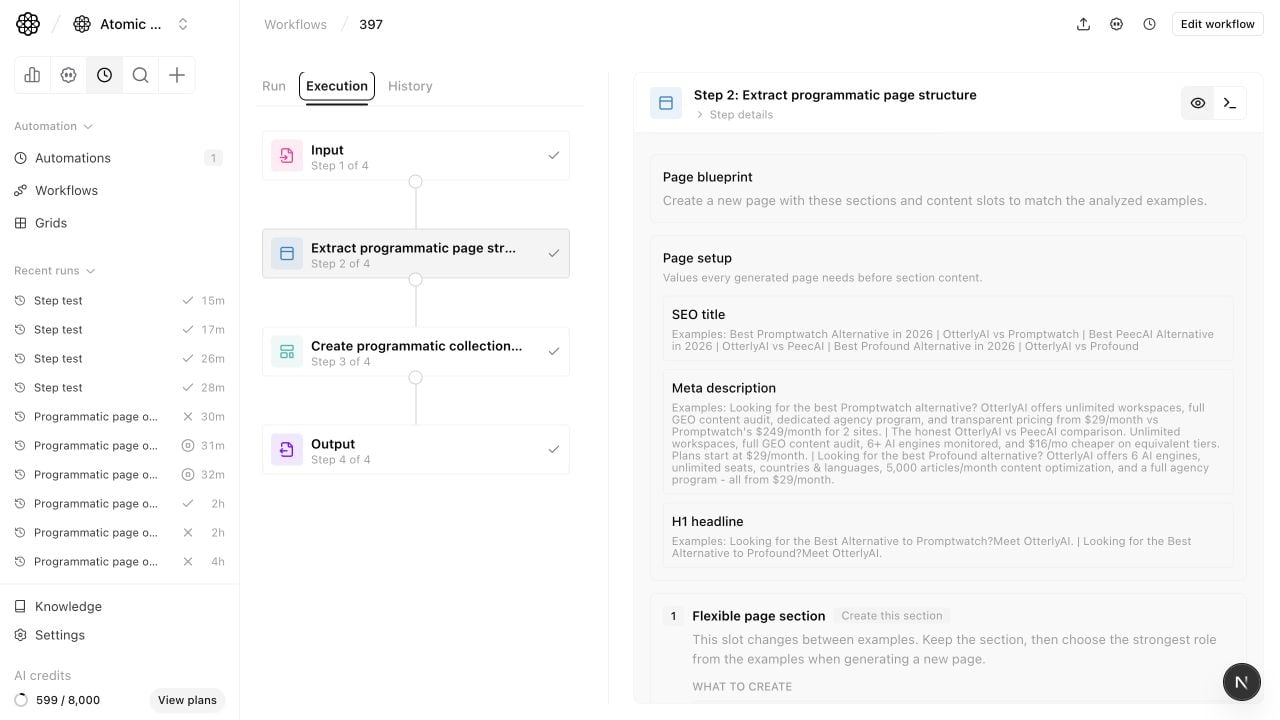 `Create programmatic collection structure` also returns a Webflow wireframe image. Use `wireframeImageUrl` or `wireframeMarkdown` to review the intended Collection Page layout, including visible hero/body bindings and SEO metadata fields that should be configured in Webflow page settings instead of placed as text blocks on the canvas.
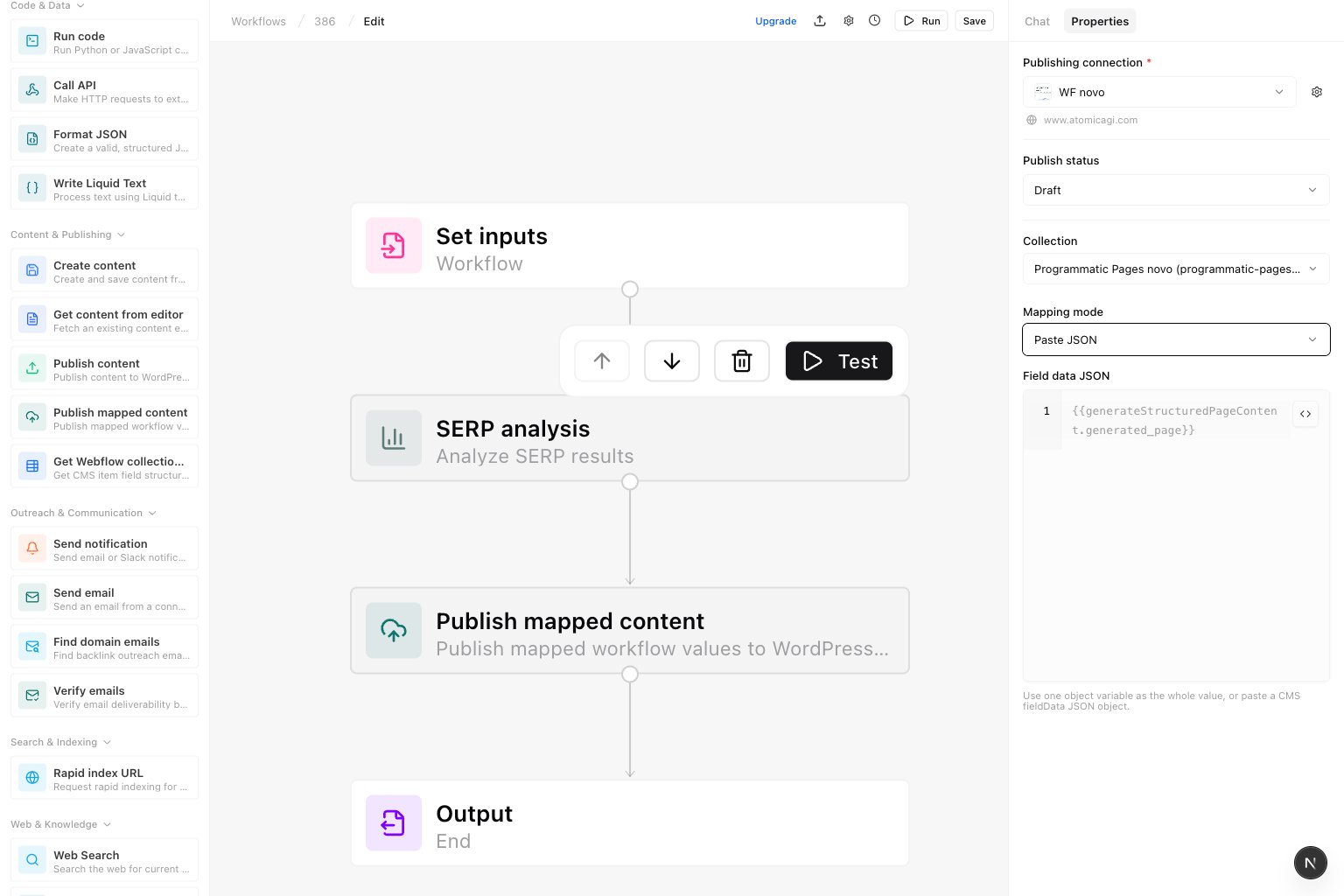 When a generated page already matches the Webflow collection fields, select `Paste JSON` and use `{{generateStructuredPageContent.generated_page}}`.
## Workflow run tab (inputs and output)
When a generated page already matches the Webflow collection fields, select `Paste JSON` and use `{{generateStructuredPageContent.generated_page}}`.
## Workflow run tab (inputs and output)
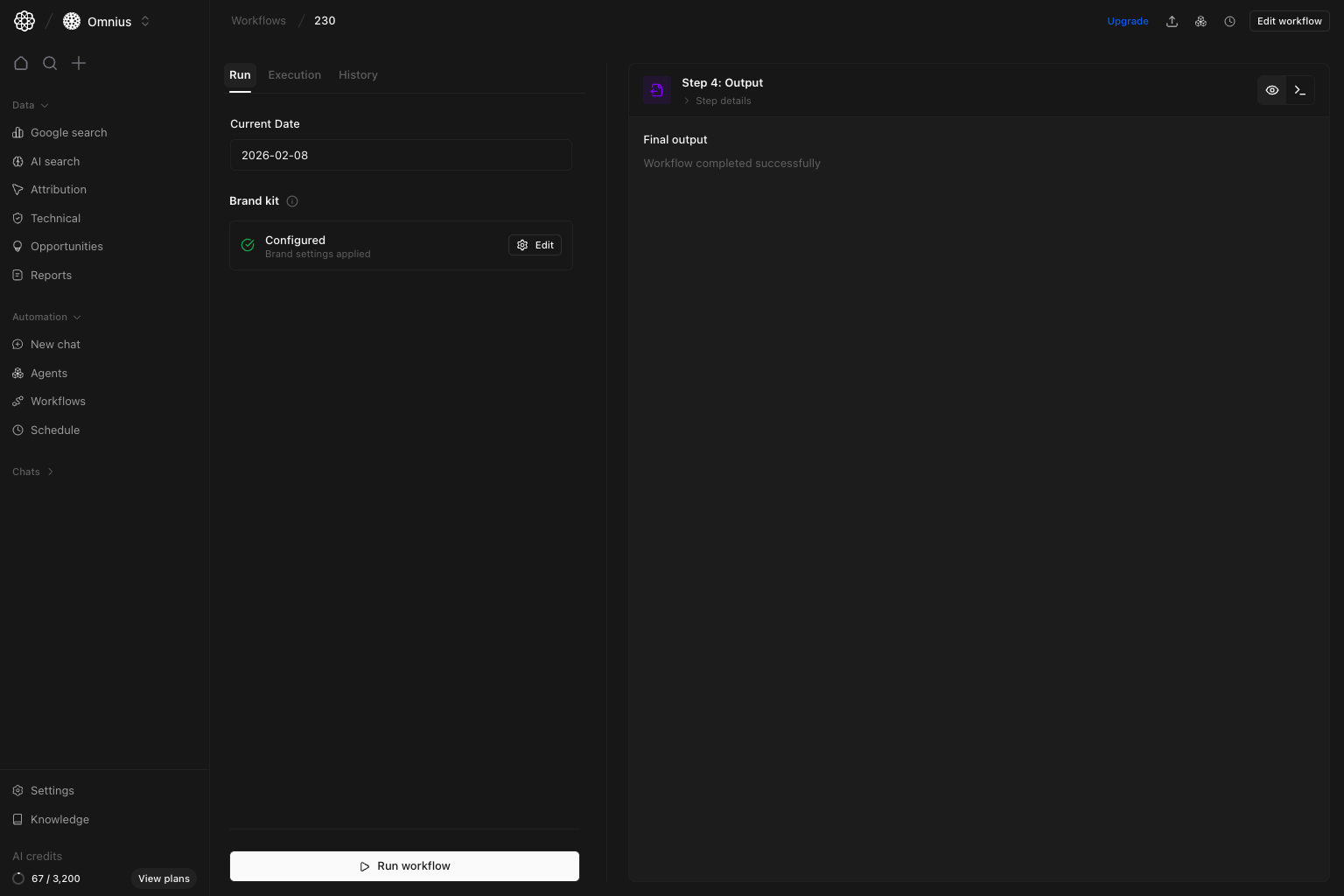 This is the control panel for a specific workflow:
* Set run inputs (for example, `Current Date`).
* Confirm brand context before run.
* Click `Run workflow` to execute.
* Read final output in the right panel.
Use this view when you need a clean rerun with controlled inputs.
## Execution tab (live step progress)
This is the control panel for a specific workflow:
* Set run inputs (for example, `Current Date`).
* Confirm brand context before run.
* Click `Run workflow` to execute.
* Read final output in the right panel.
Use this view when you need a clean rerun with controlled inputs.
## Execution tab (live step progress)
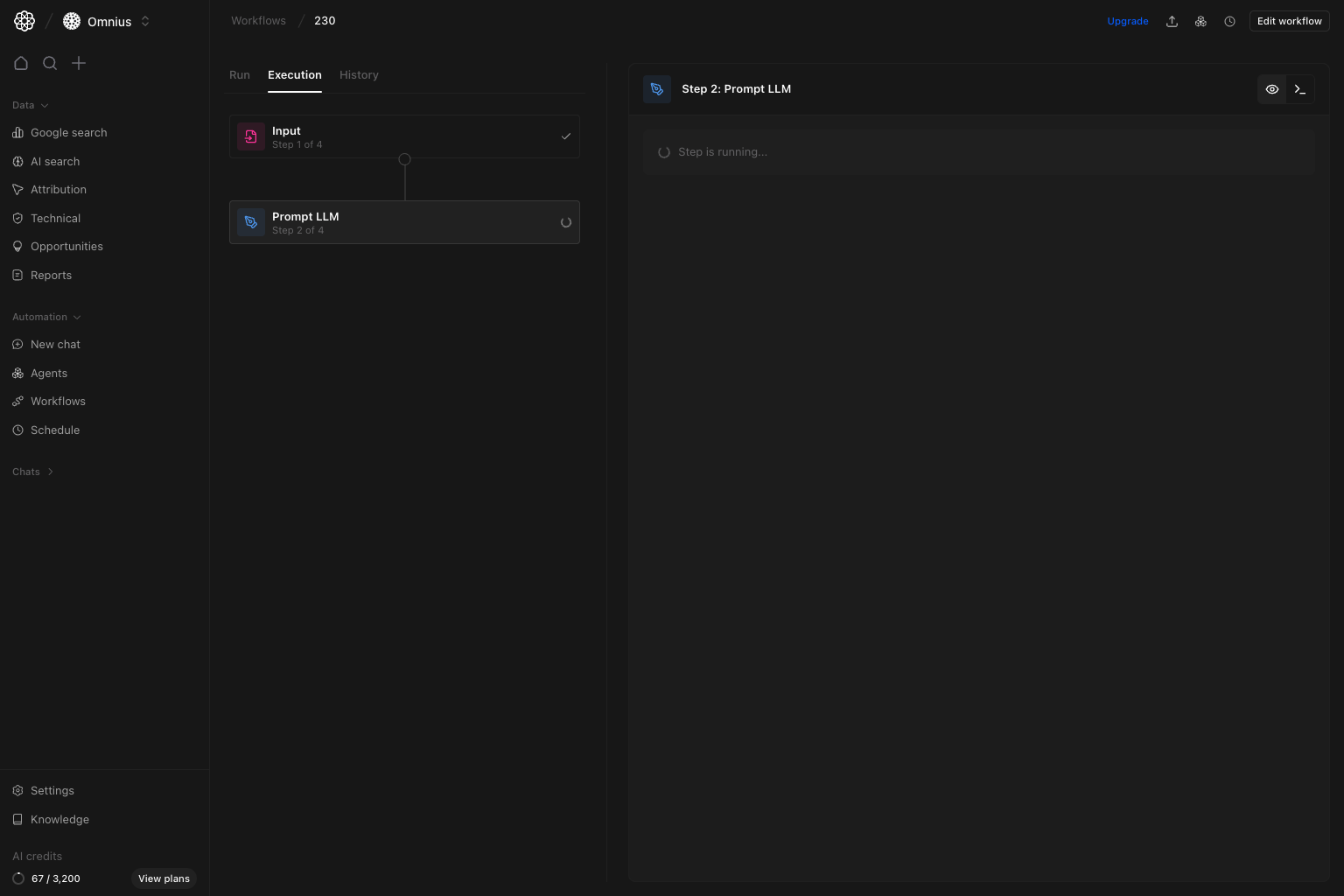 Execution helps you debug in real time:
* Left side shows each step and status.
* Right side shows details for the selected step.
* Running steps reveal where time is spent.
* Click `Cancel run` to stop the selected active run without canceling the workflow itself.
Use this tab to find bottlenecks, stalled steps, or weak step prompts.
## Run progress state
Execution helps you debug in real time:
* Left side shows each step and status.
* Right side shows details for the selected step.
* Running steps reveal where time is spent.
* Click `Cancel run` to stop the selected active run without canceling the workflow itself.
Use this tab to find bottlenecks, stalled steps, or weak step prompts.
## Run progress state
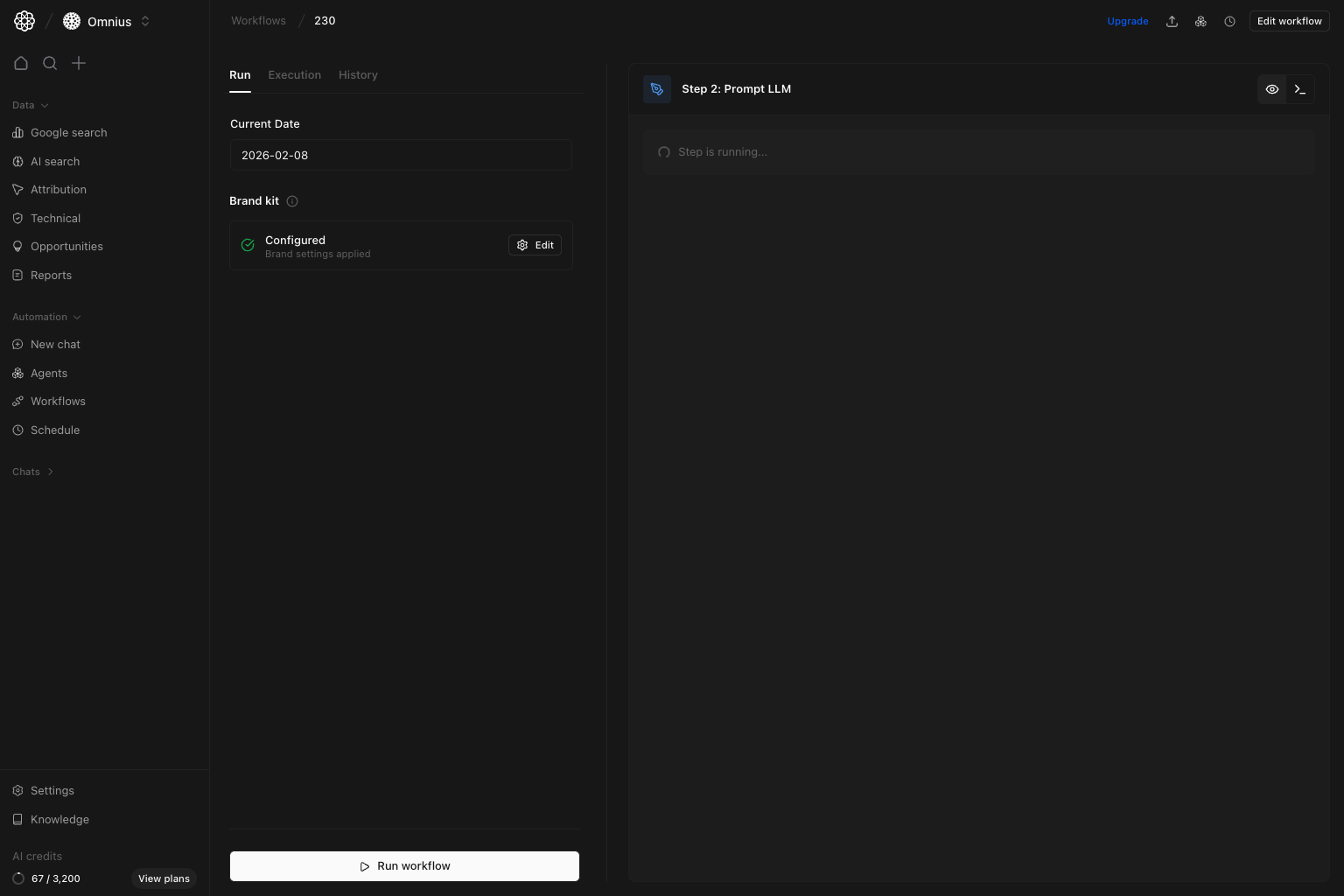 During a live run, watch for:
* Step stuck in running too long.
* Empty or partial step output.
* Unexpected transitions between steps.
If one step repeatedly slows or fails, simplify that step before scaling schedule.
## Workflow history tab (single workflow)
During a live run, watch for:
* Step stuck in running too long.
* Empty or partial step output.
* Unexpected transitions between steps.
If one step repeatedly slows or fails, simplify that step before scaling schedule.
## Workflow history tab (single workflow)
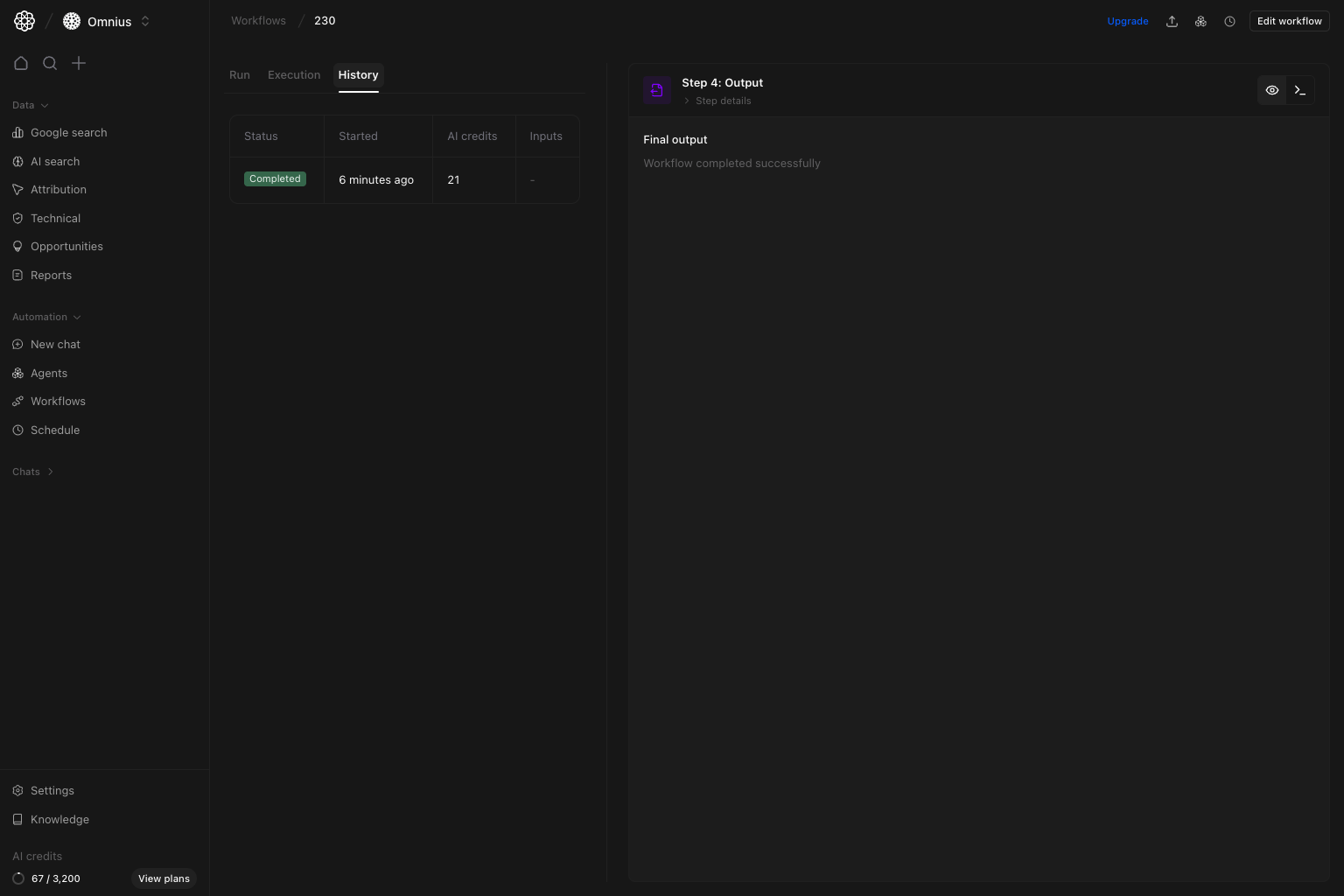 Use this tab to review reliability over time for one workflow:
* Compare run outcomes.
* Confirm stopped runs show `canceled`.
* Track AI credit trend.
* Validate cadence against business needs.
* Re-open older runs for QA checks.
This is the best view for per-workflow quality review.
## Schedule a workflow (command action)
Use this tab to review reliability over time for one workflow:
* Compare run outcomes.
* Confirm stopped runs show `canceled`.
* Track AI credit trend.
* Validate cadence against business needs.
* Re-open older runs for QA checks.
This is the best view for per-workflow quality review.
## Schedule a workflow (command action)
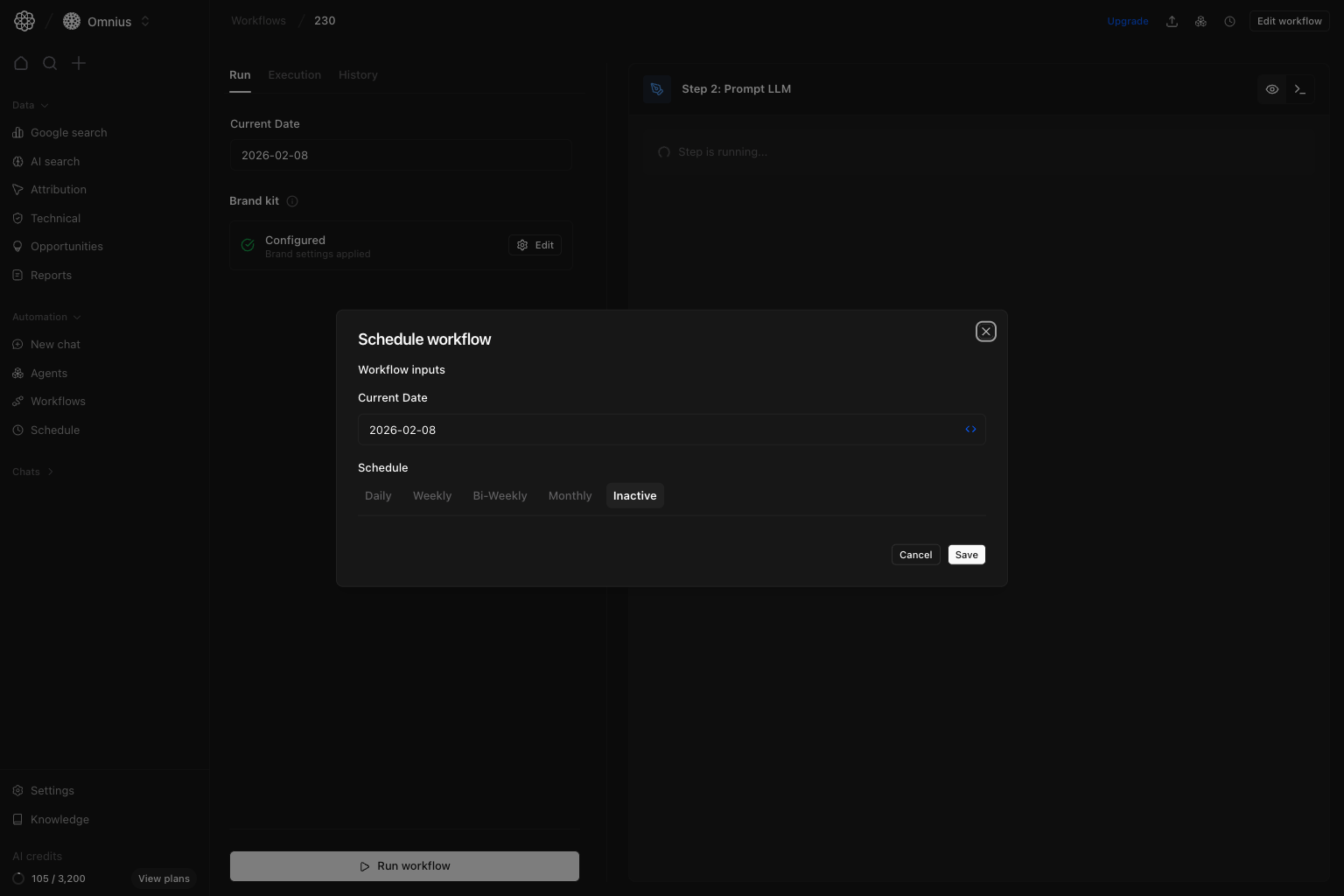 From workflow detail actions, open `Schedule workflow` and define cadence:
* Daily
* Weekly
* Bi-weekly
* Monthly
* Inactive
Set schedule only after the workflow is stable in manual runs.
## What to automate first
Start with tasks that are frequent and rules-based:
* Daily or weekly priorities for SEO and content.
* Content refresh candidate detection.
* Alerting for major movement or failures.
* Structured summaries for stakeholders.
Keep one-off strategy prompts in New chat.
## What to fix first
If runs are unstable, fix in this order:
1. Inputs (wrong or missing context)
2. Step prompt clarity
3. Step order and dependencies
4. Schedule frequency
Most failures come from bad inputs or vague step instructions.
From workflow detail actions, open `Schedule workflow` and define cadence:
* Daily
* Weekly
* Bi-weekly
* Monthly
* Inactive
Set schedule only after the workflow is stable in manual runs.
## What to automate first
Start with tasks that are frequent and rules-based:
* Daily or weekly priorities for SEO and content.
* Content refresh candidate detection.
* Alerting for major movement or failures.
* Structured summaries for stakeholders.
Keep one-off strategy prompts in New chat.
## What to fix first
If runs are unstable, fix in this order:
1. Inputs (wrong or missing context)
2. Step prompt clarity
3. Step order and dependencies
4. Schedule frequency
Most failures come from bad inputs or vague step instructions.
Important: Completed status does not guarantee a useful output. Always review output quality before scheduling at scale.