> ## Documentation Index
> Fetch the complete documentation index at: https://docs.atomicagi.com/llms.txt
> Use this file to discover all available pages before exploring further.
# Members
> Invite members, configure role/scope, and manage feature-based access control.
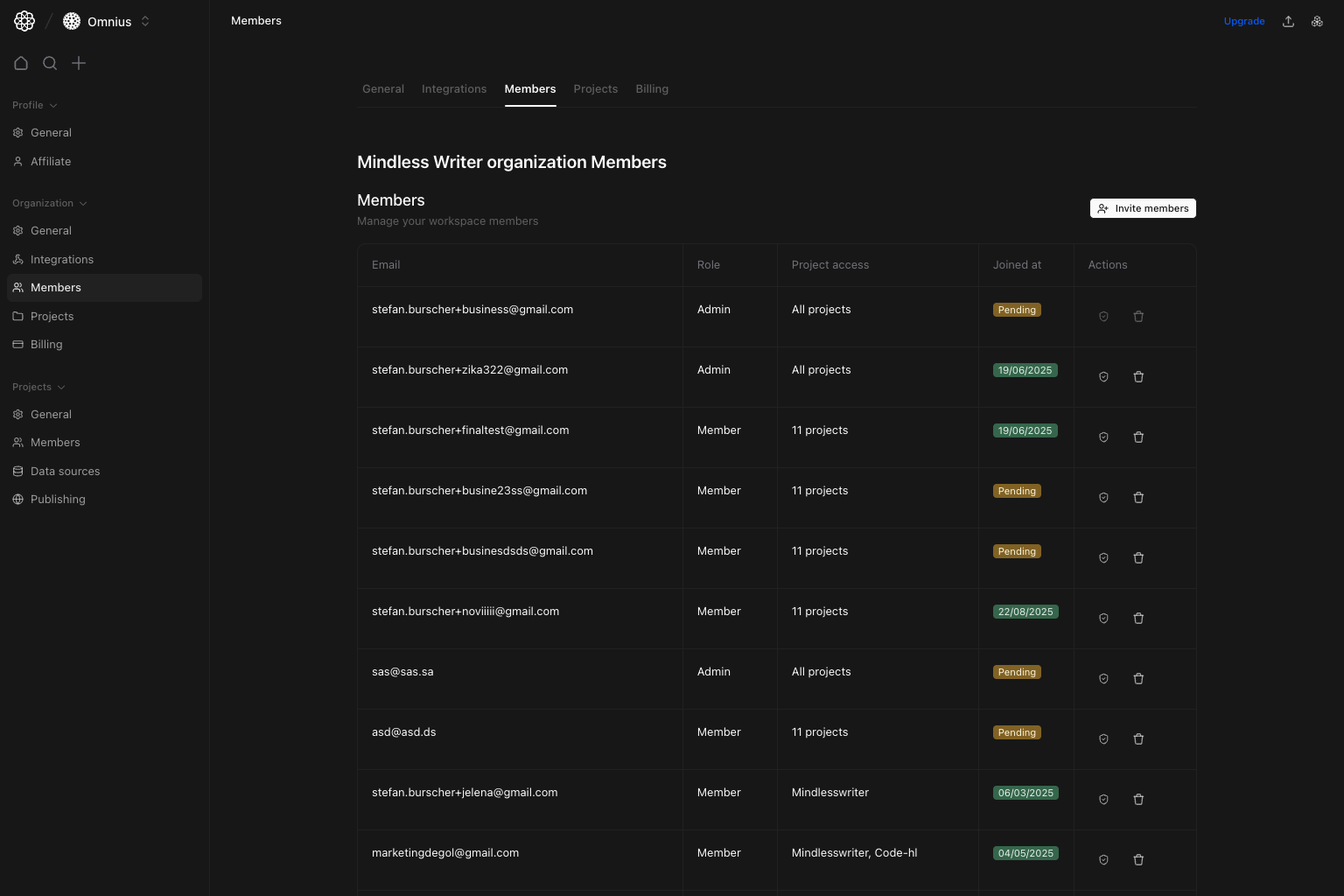 Use this page to manage organization access with role-based and feature-based permission control.
## Questions this page should answer
1. Who currently has access to this organization?
2. How do I invite a new member with the right scope?
3. How do `None`, `View only`, and `Full` actually affect access?
## Before you use this page
* In the app, open Organization settings and select `Members`.
* Confirm you have members write access.
* Check seat availability before bulk invites.
## What this page controls
* Member directory (`Email`, `Role`, `Project access`, `Joined at`, `Actions`).
* Invite flow with role + workspace permissions + project permissions.
* Edit permissions flow for existing members.
* Member removal.
## Invite members flow
Use this page to manage organization access with role-based and feature-based permission control.
## Questions this page should answer
1. Who currently has access to this organization?
2. How do I invite a new member with the right scope?
3. How do `None`, `View only`, and `Full` actually affect access?
## Before you use this page
* In the app, open Organization settings and select `Members`.
* Confirm you have members write access.
* Check seat availability before bulk invites.
## What this page controls
* Member directory (`Email`, `Role`, `Project access`, `Joined at`, `Actions`).
* Invite flow with role + workspace permissions + project permissions.
* Edit permissions flow for existing members.
* Member removal.
## Invite members flow
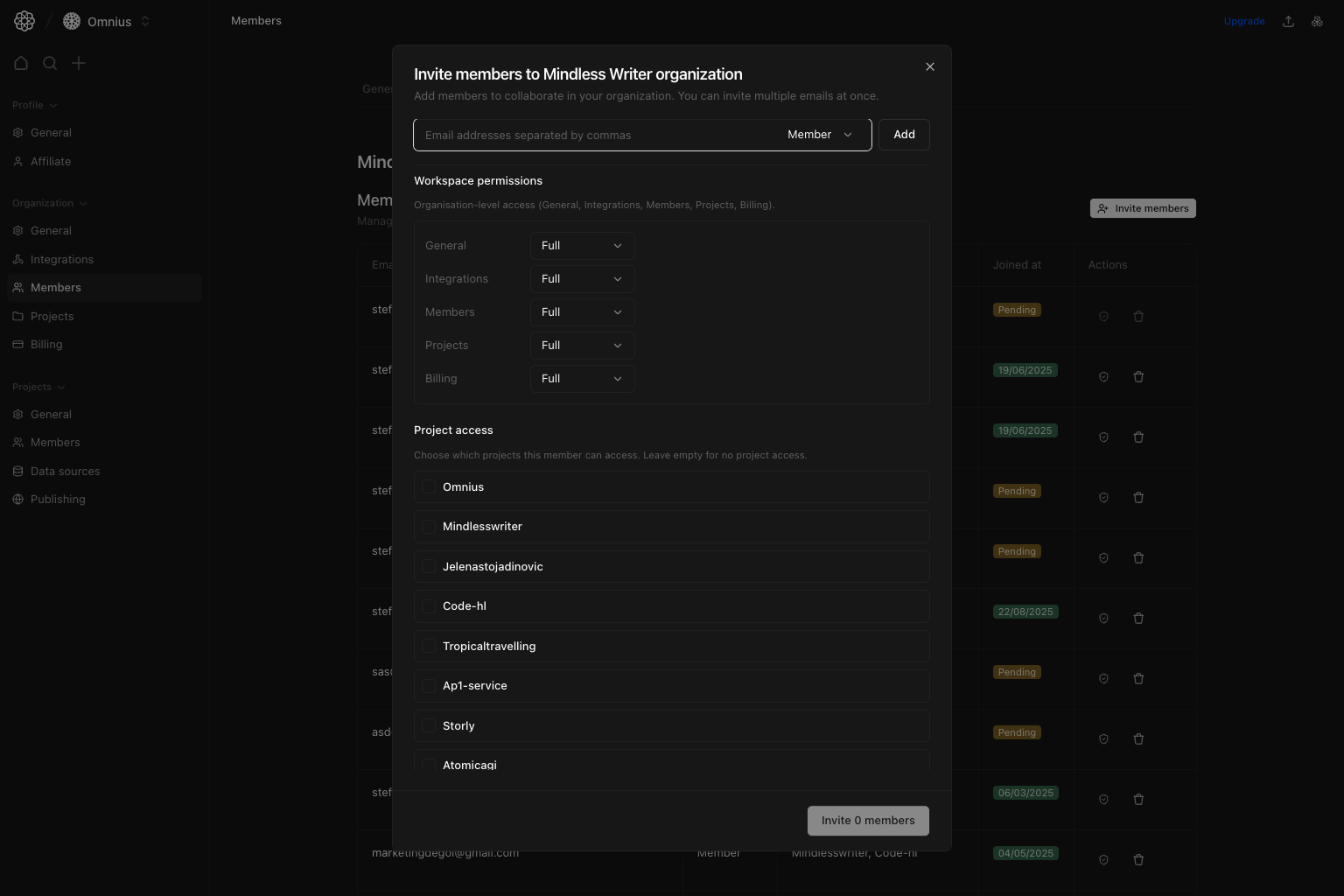 `Invite members` opens a dialog where you define access before sending invites.
### How to invite correctly
1. Add one or multiple emails.
2. Select role:
`Admin`: full access across workspace and projects.
`Member`: granular permissions are applied.
3. Set `Workspace permissions` (`General`, `Integrations`, `Members`, `Projects`, `Billing`).
4. Select project access.
5. For each selected project, set feature/settings permissions.
## Edit permissions flow
`Invite members` opens a dialog where you define access before sending invites.
### How to invite correctly
1. Add one or multiple emails.
2. Select role:
`Admin`: full access across workspace and projects.
`Member`: granular permissions are applied.
3. Set `Workspace permissions` (`General`, `Integrations`, `Members`, `Projects`, `Billing`).
4. Select project access.
5. For each selected project, set feature/settings permissions.
## Edit permissions flow
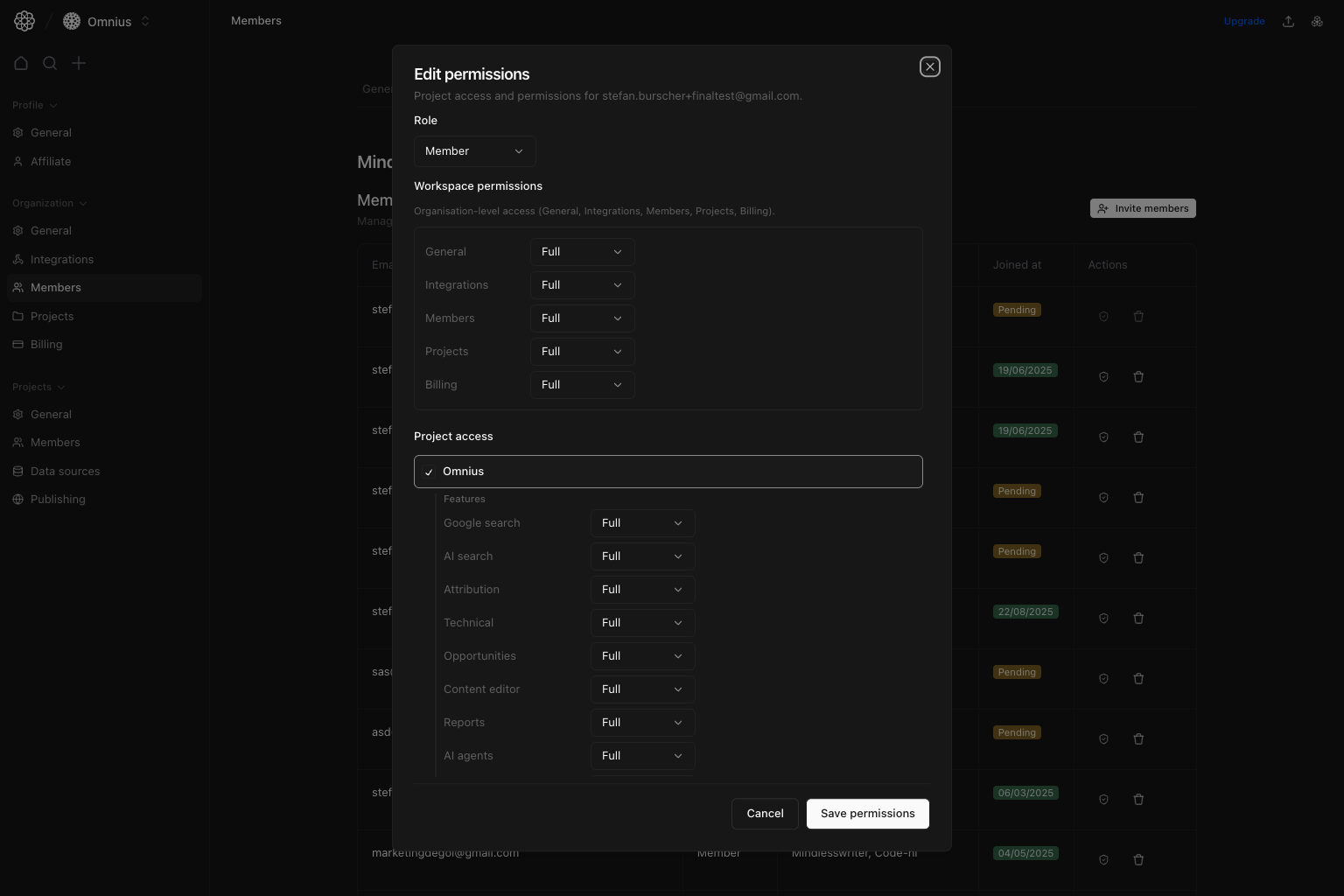 Use the shield icon in the members table to open `Edit permissions` for an existing member.
### What you can edit
* Role (`Admin` or `Member`).
* Workspace permission scopes.
* Project access selection.
* Per-project feature + settings permission scopes.
## Permission scopes explained
The same 3 states are used across workspace and project permission rows:
| Scope | What it means | Typical use case |
| ----------- | ----------------------------------------------------------------------------- | -------------------------------------------- |
| `None` | Feature is hidden/inaccessible for that member in that scope | Restrict access entirely |
| `View only` | Member can see/read but cannot perform write actions (create/edit/delete/run) | Analyst/reviewer access without write rights |
| `Full` | Member can view and perform write actions | Owner/operator who executes work |
## Workspace-level permissions
These control access to organization settings sections:
* `General`: `/settings/organization/general`
* `Integrations`: project-level integration settings
* `Members`: `/settings/organization/members`
* `Projects`: `/settings/organization/projects`
* `Billing`: `/settings/organization/billing`
## Project feature permissions
These control feature access inside selected projects.
| Permission key | UI label | Docs link |
| ------------------ | -------------- | -------------------------------------------------------------------- |
| `GOOGLE_SEARCH` | Google search | [/data/google-search/overview](/data/google-search/overview) |
| `AI_SEARCH` | AI search | [/data/ai-search/overview](/data/ai-search/overview) |
| `ATTRIBUTION` | Attribution | [/data/attribution/overview](/data/attribution/overview) |
| `TECHNICAL` | Technical | [/data/technical/overview](/data/technical/overview) |
| `CONTENT_ANALYSIS` | Opportunities | [/data/opportunities/overview](/data/opportunities/overview) |
| `CONTENT_EDITOR` | Content editor | [/settings/project/brand-kit](/settings/project/brand-kit) |
| `CUSTOM_REPORTS` | Reports | [/data/reports/overview](/data/reports/overview) |
| `AI_AGENTS` | AI agents | [/automation/agents/overview](/automation/agents/overview) |
| `WORKFLOWS` | Workflows | [/automation/workflows/overview](/automation/workflows/overview) |
| `AUTOMATIONS` | Automations | [/automation/automations/overview](/automation/automations/overview) |
| `BRAND_KIT` | Knowledge | [/settings/project/brand-kit](/settings/project/brand-kit) |
## Project settings permissions
These control access to project settings tabs:
| Permission key | UI label | Docs link |
| ----------------------- | ------------ | ---------------------------------------------------------------- |
| `SETTINGS_GENERAL` | General | [/settings/project/general](/settings/project/general) |
| `SETTINGS_MEMBERS` | Members | [/settings/project/members](/settings/project/members) |
| `SETTINGS_DATA_SOURCES` | Data sources | [/settings/project/data-sources](/settings/project/data-sources) |
| `SETTINGS_PUBLISHING` | Integrations | [/settings/project/integrations](/settings/project/integrations) |
## Practical permission patterns
* Client reviewer: `View only` on reporting features, `None` on members/billing, limited project scope.
* SEO operator: `Full` on data/technical/workflows in assigned projects, `None` on billing.
* Organization admin: `Admin` role when they need global control.
## Quick weekly checklist
1. Resolve stale pending invites.
2. Audit members with broad `Full` scopes.
3. Remove access for users no longer on account.
4. Re-check project assignment breadth for each member.
## Keep in mind
* Organization members can have different scopes per project.
* Role and permission scopes interact: `Admin` bypasses granular restrictions.
* Seat limits can block new invites until capacity is increased.
## Where to go next
* [Organization Billing](/settings/organization/billing)
* [Organization Projects](/settings/organization/projects)
* [Project Members](/settings/project/members)
Use the shield icon in the members table to open `Edit permissions` for an existing member.
### What you can edit
* Role (`Admin` or `Member`).
* Workspace permission scopes.
* Project access selection.
* Per-project feature + settings permission scopes.
## Permission scopes explained
The same 3 states are used across workspace and project permission rows:
| Scope | What it means | Typical use case |
| ----------- | ----------------------------------------------------------------------------- | -------------------------------------------- |
| `None` | Feature is hidden/inaccessible for that member in that scope | Restrict access entirely |
| `View only` | Member can see/read but cannot perform write actions (create/edit/delete/run) | Analyst/reviewer access without write rights |
| `Full` | Member can view and perform write actions | Owner/operator who executes work |
## Workspace-level permissions
These control access to organization settings sections:
* `General`: `/settings/organization/general`
* `Integrations`: project-level integration settings
* `Members`: `/settings/organization/members`
* `Projects`: `/settings/organization/projects`
* `Billing`: `/settings/organization/billing`
## Project feature permissions
These control feature access inside selected projects.
| Permission key | UI label | Docs link |
| ------------------ | -------------- | -------------------------------------------------------------------- |
| `GOOGLE_SEARCH` | Google search | [/data/google-search/overview](/data/google-search/overview) |
| `AI_SEARCH` | AI search | [/data/ai-search/overview](/data/ai-search/overview) |
| `ATTRIBUTION` | Attribution | [/data/attribution/overview](/data/attribution/overview) |
| `TECHNICAL` | Technical | [/data/technical/overview](/data/technical/overview) |
| `CONTENT_ANALYSIS` | Opportunities | [/data/opportunities/overview](/data/opportunities/overview) |
| `CONTENT_EDITOR` | Content editor | [/settings/project/brand-kit](/settings/project/brand-kit) |
| `CUSTOM_REPORTS` | Reports | [/data/reports/overview](/data/reports/overview) |
| `AI_AGENTS` | AI agents | [/automation/agents/overview](/automation/agents/overview) |
| `WORKFLOWS` | Workflows | [/automation/workflows/overview](/automation/workflows/overview) |
| `AUTOMATIONS` | Automations | [/automation/automations/overview](/automation/automations/overview) |
| `BRAND_KIT` | Knowledge | [/settings/project/brand-kit](/settings/project/brand-kit) |
## Project settings permissions
These control access to project settings tabs:
| Permission key | UI label | Docs link |
| ----------------------- | ------------ | ---------------------------------------------------------------- |
| `SETTINGS_GENERAL` | General | [/settings/project/general](/settings/project/general) |
| `SETTINGS_MEMBERS` | Members | [/settings/project/members](/settings/project/members) |
| `SETTINGS_DATA_SOURCES` | Data sources | [/settings/project/data-sources](/settings/project/data-sources) |
| `SETTINGS_PUBLISHING` | Integrations | [/settings/project/integrations](/settings/project/integrations) |
## Practical permission patterns
* Client reviewer: `View only` on reporting features, `None` on members/billing, limited project scope.
* SEO operator: `Full` on data/technical/workflows in assigned projects, `None` on billing.
* Organization admin: `Admin` role when they need global control.
## Quick weekly checklist
1. Resolve stale pending invites.
2. Audit members with broad `Full` scopes.
3. Remove access for users no longer on account.
4. Re-check project assignment breadth for each member.
## Keep in mind
* Organization members can have different scopes per project.
* Role and permission scopes interact: `Admin` bypasses granular restrictions.
* Seat limits can block new invites until capacity is increased.
## Where to go next
* [Organization Billing](/settings/organization/billing)
* [Organization Projects](/settings/organization/projects)
* [Project Members](/settings/project/members)