> ## Documentation Index
> Fetch the complete documentation index at: https://docs.atomicagi.com/llms.txt
> Use this file to discover all available pages before exploring further.
# General
> Manage your profile details, email status, password access, and appearance mode.
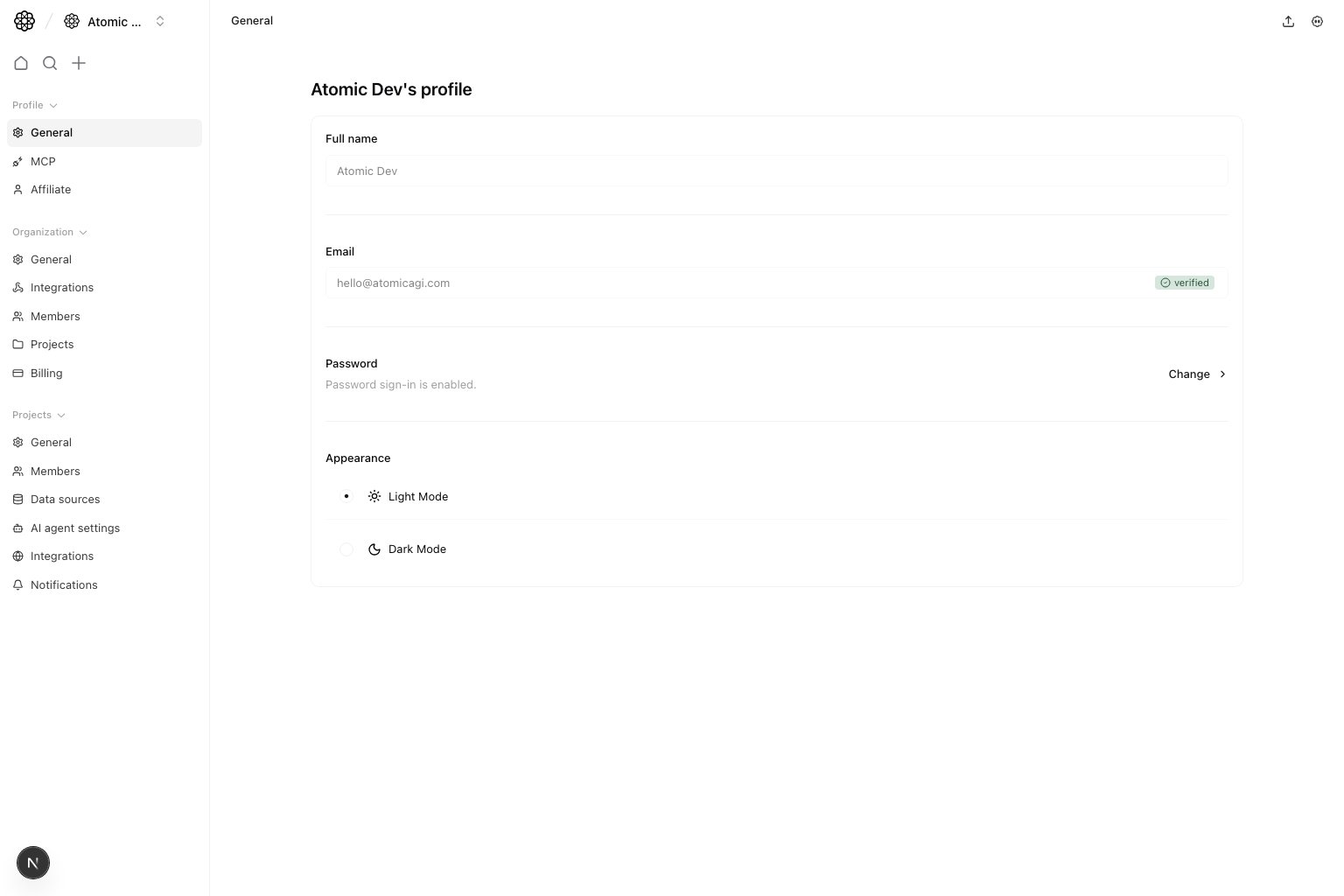 Use this page for your personal account preferences. It does not change organization or project settings.
## Questions this page should answer
1. Is my profile identity correct in the app?
2. Is my account email verified?
3. Can I sign in with a password?
4. Is my preferred appearance mode set correctly?
## Before you update
* In the app, open your profile settings and select `General`.
* If your email is not verified, complete verification before relying on email-based flows.
* If you signed up with Google only, set a password before using email and password sign-in.
* Choose the display mode you want to use across the app.
## What this page controls
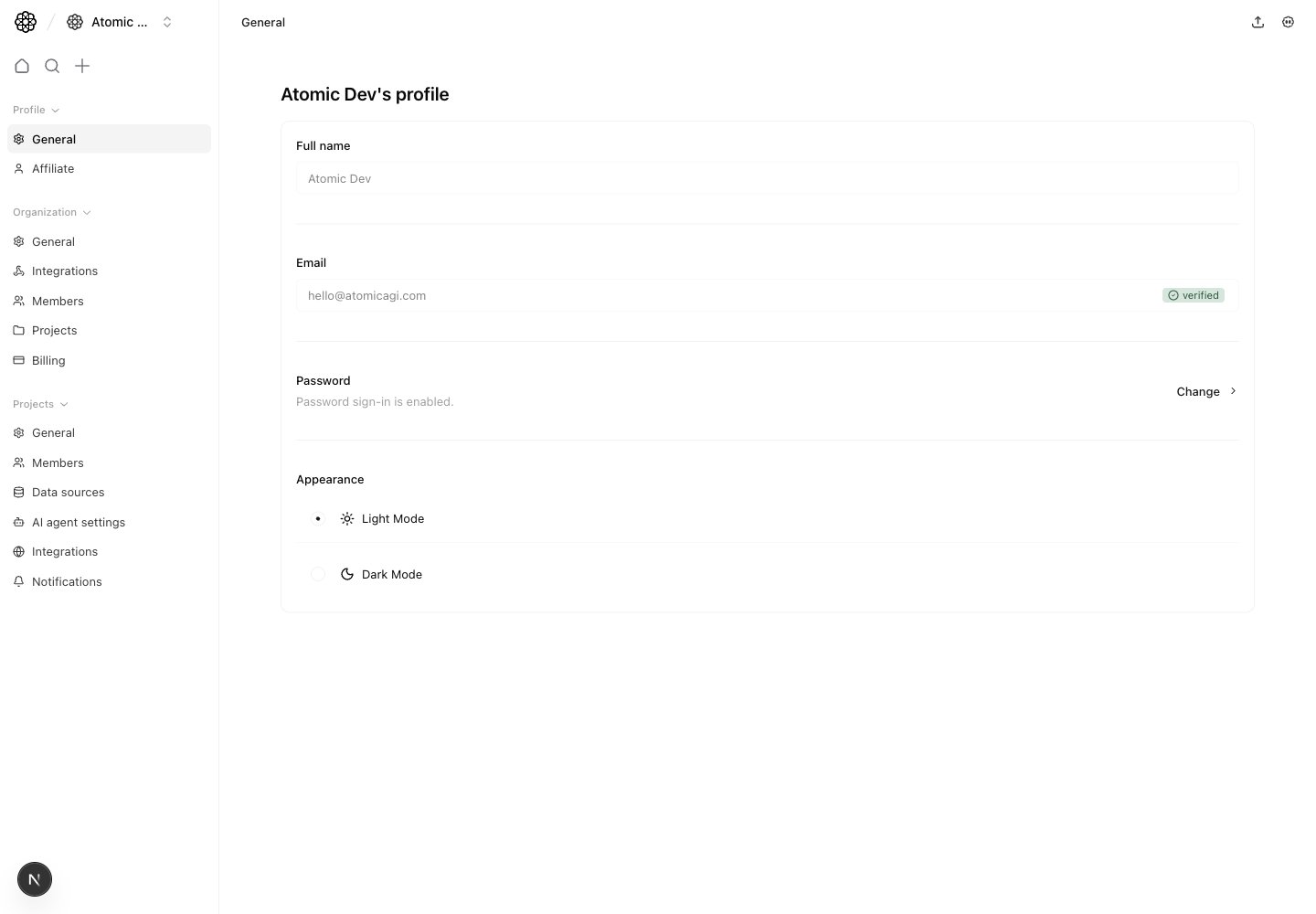
* `Full name` (read-only in this view).
* `Email` and verification badge (`Verified` or `Not verified`).
* `Password` access. Existing password users can open a dialog to change their password. Google-only users can open the same action to set their first password.
* `Appearance` mode (`Light` or `Dark`).
## How to use this page
### Check identity and email status first
This page is the fastest place to confirm the account identity currently active in the workspace and whether the email is verified.
### Manage password access
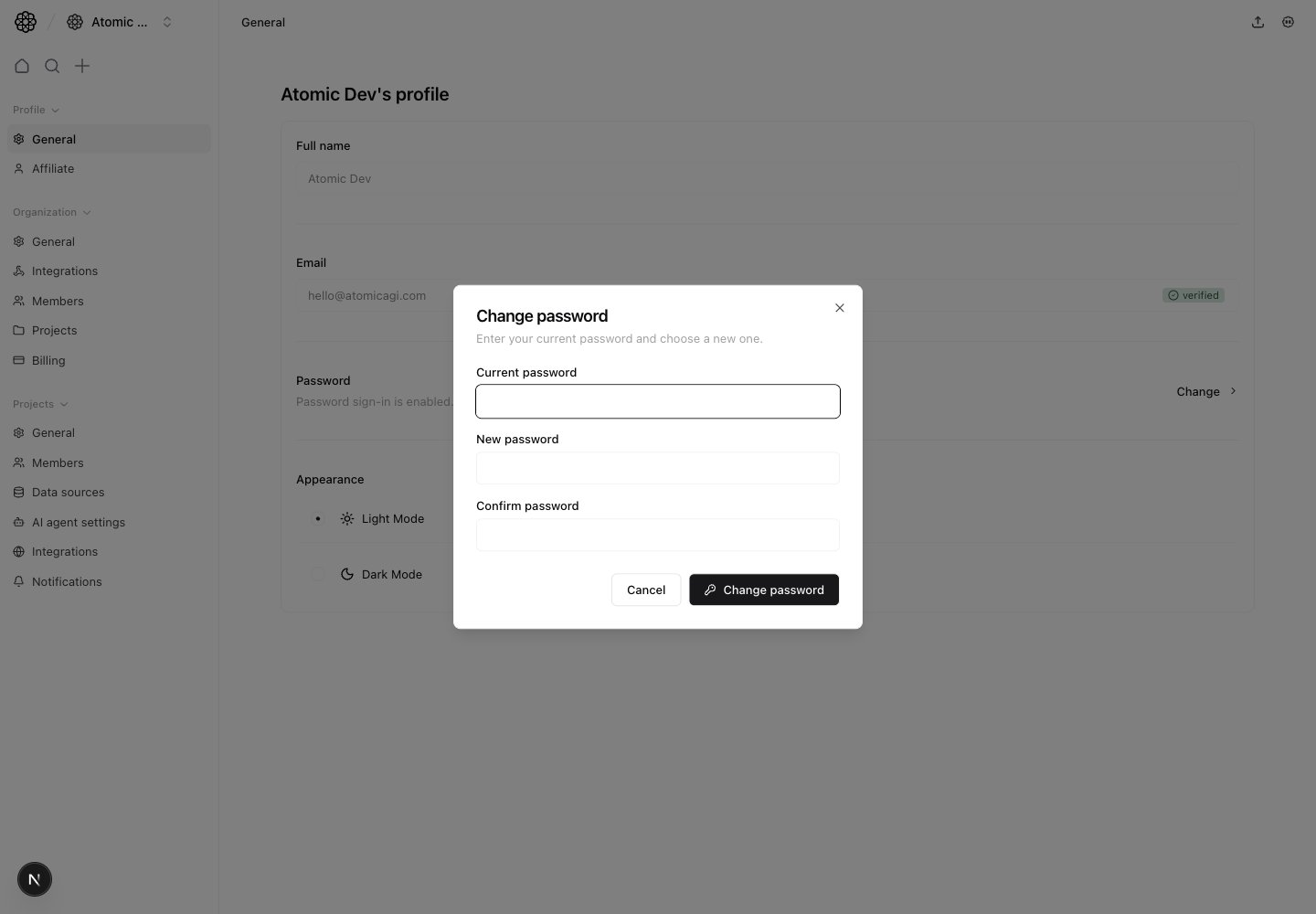
Use the action on the `Password` row to open the password dialog. If your account already has a password, enter your current password and a new password to change it. If your account was created with Google only, enter and confirm a new password to enable email and password sign-in.
Use this page for your personal account preferences. It does not change organization or project settings.
## Questions this page should answer
1. Is my profile identity correct in the app?
2. Is my account email verified?
3. Can I sign in with a password?
4. Is my preferred appearance mode set correctly?
## Before you update
* In the app, open your profile settings and select `General`.
* If your email is not verified, complete verification before relying on email-based flows.
* If you signed up with Google only, set a password before using email and password sign-in.
* Choose the display mode you want to use across the app.
## What this page controls
* `Full name` (read-only in this view).
* `Email` and verification badge (`Verified` or `Not verified`).
* `Password` access. Existing password users can open a dialog to change their password. Google-only users can open the same action to set their first password.
* `Appearance` mode (`Light` or `Dark`).
## How to use this page
### Check identity and email status first
This page is the fastest place to confirm the account identity currently active in the workspace and whether the email is verified.
### Manage password access
Use the action on the `Password` row to open the password dialog. If your account already has a password, enter your current password and a new password to change it. If your account was created with Google only, enter and confirm a new password to enable email and password sign-in.
 ### Set appearance mode for daily use
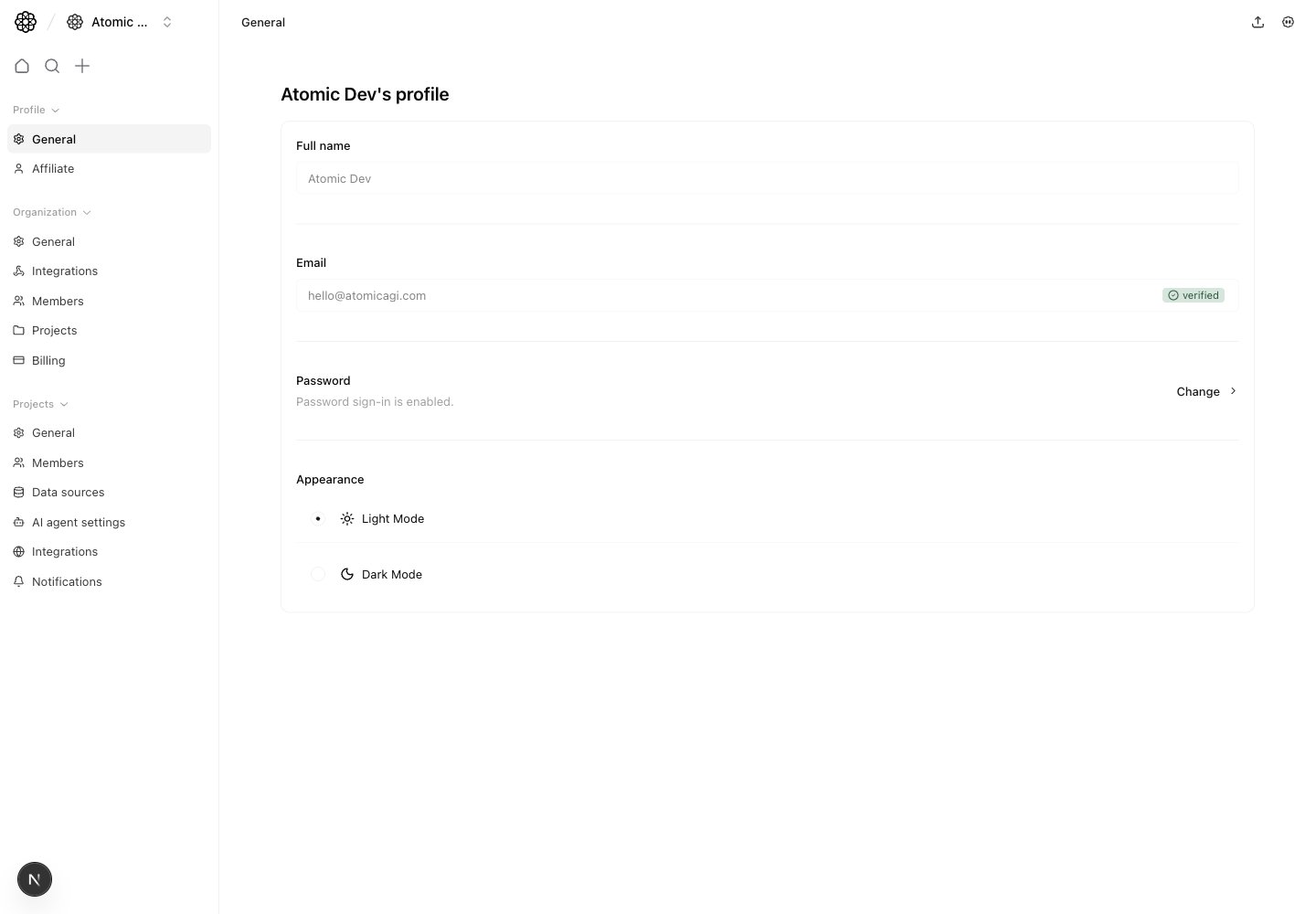
Switch between `Light mode` and `Dark mode` based on readability for your workflow.
### Treat this page as personal scope only
Nothing here changes team permissions, billing, or project-level configuration.
## Quick monthly checklist
1. Confirm full name and email match your active account.
2. Verify email status is green before invite and notification workflows.
3. Confirm you have password access if you need a non-Google sign-in option.
4. Re-check appearance mode if you changed devices or environments.
## Keep in mind
* Profile settings apply to your user account only.
* Organization and project settings are configured in their own groups.
## Where to go next
* [MCP setup](/settings/profile/mcp)
* [Profile Affiliate](/settings/profile/affiliate)
* [Organization Members](/settings/organization/members)
* [Project Members](/settings/project/members)
### Set appearance mode for daily use
Switch between `Light mode` and `Dark mode` based on readability for your workflow.
### Treat this page as personal scope only
Nothing here changes team permissions, billing, or project-level configuration.
## Quick monthly checklist
1. Confirm full name and email match your active account.
2. Verify email status is green before invite and notification workflows.
3. Confirm you have password access if you need a non-Google sign-in option.
4. Re-check appearance mode if you changed devices or environments.
## Keep in mind
* Profile settings apply to your user account only.
* Organization and project settings are configured in their own groups.
## Where to go next
* [MCP setup](/settings/profile/mcp)
* [Profile Affiliate](/settings/profile/affiliate)
* [Organization Members](/settings/organization/members)
* [Project Members](/settings/project/members)