> ## Documentation Index
> Fetch the complete documentation index at: https://docs.atomicagi.com/llms.txt
> Use this file to discover all available pages before exploring further.
# MCP setup
> Connect Cursor, Claude, and other AI clients to Atomic tools with a personal MCP token.
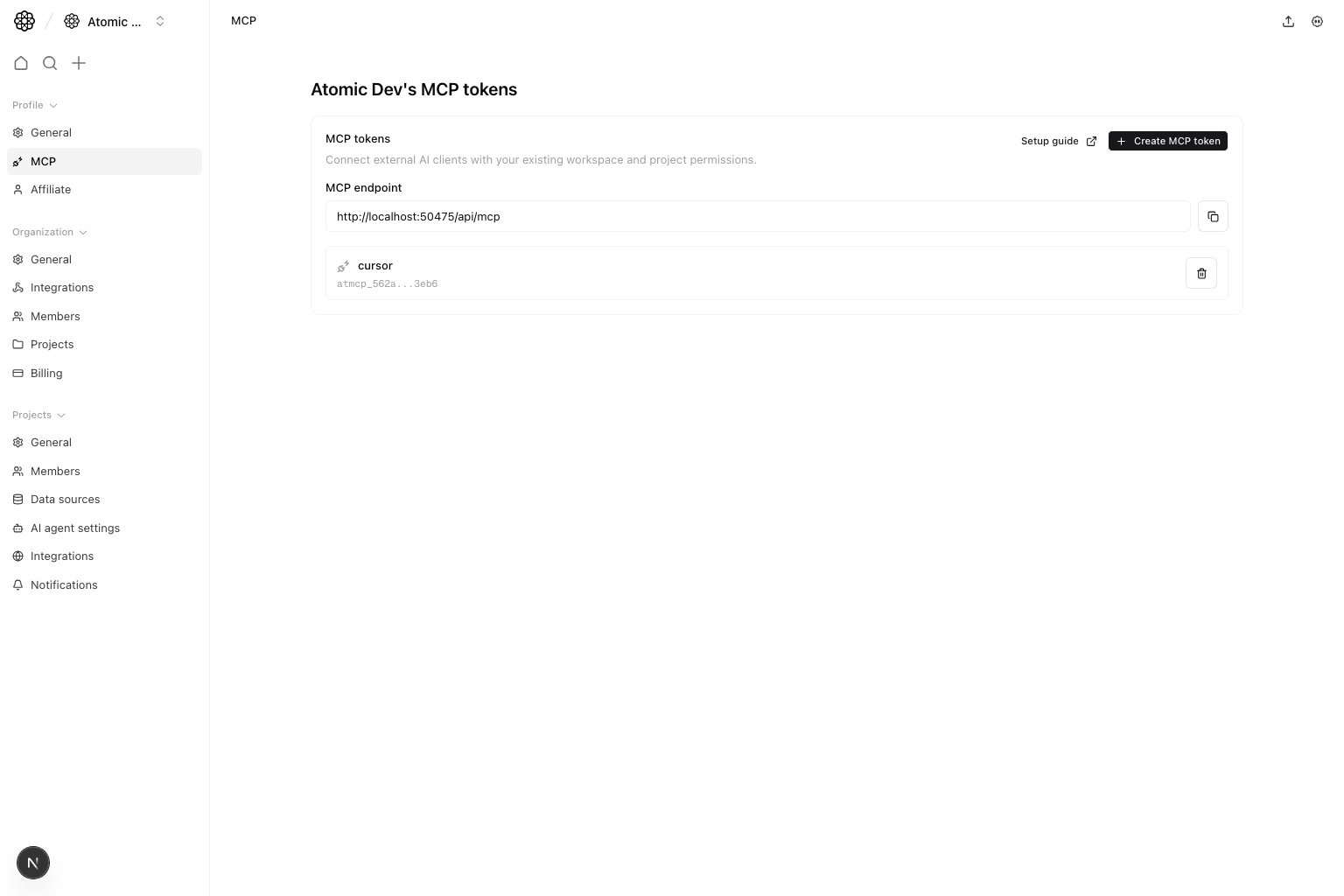 Use MCP tokens to let external AI clients call Atomic tools with your existing workspace and project permissions.
## Before you connect
* In Atomic, open `Profile settings` and select `MCP`.
* Create an MCP token and copy the raw `atmcp_...` value immediately. Atomic only shows it once.
* Use the MCP endpoint:
```txt theme={null}
https://app.atomicagi.com/api/mcp
```
## How project access works
MCP tokens inherit your user permissions. They cannot access projects you cannot already open in Atomic.
You do not need to put a project id in your client configuration. When a tool runs:
1. Atomic uses the only accessible project automatically when your account has access to one project.
2. If your account has access to multiple projects, Atomic returns a project chooser with each project id, name, domain, and workspace.
3. Ask the AI client to use the right project and rerun the tool with `projectId` in the tool arguments.
## Cursor
Cursor can connect directly to Atomic's HTTP MCP endpoint.
Open Cursor MCP settings and add this server to your `mcp.json`:
```json theme={null}
{
"mcpServers": {
"atomic-ai": {
"url": "https://app.atomicagi.com/api/mcp",
"headers": {
"Authorization": "Bearer atmcp_YOUR_TOKEN"
}
}
}
}
```
After saving, refresh the `atomic-ai` MCP server in Cursor. The tools list should load without any project-specific header.
## Claude Desktop
Claude Desktop expects local stdio MCP servers in `claude_desktop_config.json`. Use `mcp-remote` to bridge Claude Desktop to Atomic's HTTP MCP endpoint.
Add this server to `~/Library/Application Support/Claude/claude_desktop_config.json` on macOS:
```json theme={null}
{
"mcpServers": {
"atomic-ai": {
"command": "npx",
"args": [
"-y",
"mcp-remote@latest",
"https://app.atomicagi.com/api/mcp",
"--header",
"Authorization:${ATOMIC_MCP_AUTH_HEADER}"
],
"env": {
"ATOMIC_MCP_AUTH_HEADER": "Bearer atmcp_YOUR_TOKEN"
}
}
}
}
```
Fully quit and reopen Claude Desktop after editing the file.
## Claude Code
Claude Code can add Atomic as a remote HTTP MCP server from the terminal:
```bash theme={null}
claude mcp add --transport http atomic-ai https://app.atomicagi.com/api/mcp \
--header "Authorization: Bearer atmcp_YOUR_TOKEN"
```
Then run this inside Claude Code:
```txt theme={null}
/mcp
```
Confirm that `atomic-ai` is connected and that tools are available.
## Other MCP clients
Use Atomic as a remote HTTP MCP server when the client supports HTTP MCP:
```json theme={null}
{
"url": "https://app.atomicagi.com/api/mcp",
"headers": {
"Authorization": "Bearer atmcp_YOUR_TOKEN"
}
}
```
If the client only supports local stdio servers, use `mcp-remote` with the Claude Desktop pattern.
## Test the connection
You can test the token and endpoint with `curl`:
```bash theme={null}
curl -X POST https://app.atomicagi.com/api/mcp \
-H "Content-Type: application/json" \
-H "Authorization: Bearer atmcp_YOUR_TOKEN" \
-d '{"jsonrpc":"2.0","id":1,"method":"tools/list"}'
```
A healthy response includes a `tools` array.
## Troubleshooting
### The client shows no tools
Check that the MCP token is active, the endpoint ends with `/api/mcp`, and the authorization header starts with `Bearer `.
### Claude Desktop says the config is invalid
Use the `command` and `args` format with `mcp-remote`. Claude Desktop does not accept the direct `url` and `headers` format used by Cursor.
### The tool asks you to choose a project
Choose the project by name or domain. The AI client should call the tool again with the returned `projectId` in the tool arguments.
### A token was shared by mistake
Revoke it from `Profile settings` > `MCP` immediately and create a new token.
## Where to go next
* [Profile General](/settings/profile/general)
* [Project Members](/settings/project/members)
* [Organization Members](/settings/organization/members)
Use MCP tokens to let external AI clients call Atomic tools with your existing workspace and project permissions.
## Before you connect
* In Atomic, open `Profile settings` and select `MCP`.
* Create an MCP token and copy the raw `atmcp_...` value immediately. Atomic only shows it once.
* Use the MCP endpoint:
```txt theme={null}
https://app.atomicagi.com/api/mcp
```
## How project access works
MCP tokens inherit your user permissions. They cannot access projects you cannot already open in Atomic.
You do not need to put a project id in your client configuration. When a tool runs:
1. Atomic uses the only accessible project automatically when your account has access to one project.
2. If your account has access to multiple projects, Atomic returns a project chooser with each project id, name, domain, and workspace.
3. Ask the AI client to use the right project and rerun the tool with `projectId` in the tool arguments.
## Cursor
Cursor can connect directly to Atomic's HTTP MCP endpoint.
Open Cursor MCP settings and add this server to your `mcp.json`:
```json theme={null}
{
"mcpServers": {
"atomic-ai": {
"url": "https://app.atomicagi.com/api/mcp",
"headers": {
"Authorization": "Bearer atmcp_YOUR_TOKEN"
}
}
}
}
```
After saving, refresh the `atomic-ai` MCP server in Cursor. The tools list should load without any project-specific header.
## Claude Desktop
Claude Desktop expects local stdio MCP servers in `claude_desktop_config.json`. Use `mcp-remote` to bridge Claude Desktop to Atomic's HTTP MCP endpoint.
Add this server to `~/Library/Application Support/Claude/claude_desktop_config.json` on macOS:
```json theme={null}
{
"mcpServers": {
"atomic-ai": {
"command": "npx",
"args": [
"-y",
"mcp-remote@latest",
"https://app.atomicagi.com/api/mcp",
"--header",
"Authorization:${ATOMIC_MCP_AUTH_HEADER}"
],
"env": {
"ATOMIC_MCP_AUTH_HEADER": "Bearer atmcp_YOUR_TOKEN"
}
}
}
}
```
Fully quit and reopen Claude Desktop after editing the file.
## Claude Code
Claude Code can add Atomic as a remote HTTP MCP server from the terminal:
```bash theme={null}
claude mcp add --transport http atomic-ai https://app.atomicagi.com/api/mcp \
--header "Authorization: Bearer atmcp_YOUR_TOKEN"
```
Then run this inside Claude Code:
```txt theme={null}
/mcp
```
Confirm that `atomic-ai` is connected and that tools are available.
## Other MCP clients
Use Atomic as a remote HTTP MCP server when the client supports HTTP MCP:
```json theme={null}
{
"url": "https://app.atomicagi.com/api/mcp",
"headers": {
"Authorization": "Bearer atmcp_YOUR_TOKEN"
}
}
```
If the client only supports local stdio servers, use `mcp-remote` with the Claude Desktop pattern.
## Test the connection
You can test the token and endpoint with `curl`:
```bash theme={null}
curl -X POST https://app.atomicagi.com/api/mcp \
-H "Content-Type: application/json" \
-H "Authorization: Bearer atmcp_YOUR_TOKEN" \
-d '{"jsonrpc":"2.0","id":1,"method":"tools/list"}'
```
A healthy response includes a `tools` array.
## Troubleshooting
### The client shows no tools
Check that the MCP token is active, the endpoint ends with `/api/mcp`, and the authorization header starts with `Bearer `.
### Claude Desktop says the config is invalid
Use the `command` and `args` format with `mcp-remote`. Claude Desktop does not accept the direct `url` and `headers` format used by Cursor.
### The tool asks you to choose a project
Choose the project by name or domain. The AI client should call the tool again with the returned `projectId` in the tool arguments.
### A token was shared by mistake
Revoke it from `Profile settings` > `MCP` immediately and create a new token.
## Where to go next
* [Profile General](/settings/profile/general)
* [Project Members](/settings/project/members)
* [Organization Members](/settings/organization/members)