> ## Documentation Index
> Fetch the complete documentation index at: https://docs.atomicagi.com/llms.txt
> Use this file to discover all available pages before exploring further.
# Knowledge
> Manage OKF knowledge bases, folders, and markdown concepts for a project.
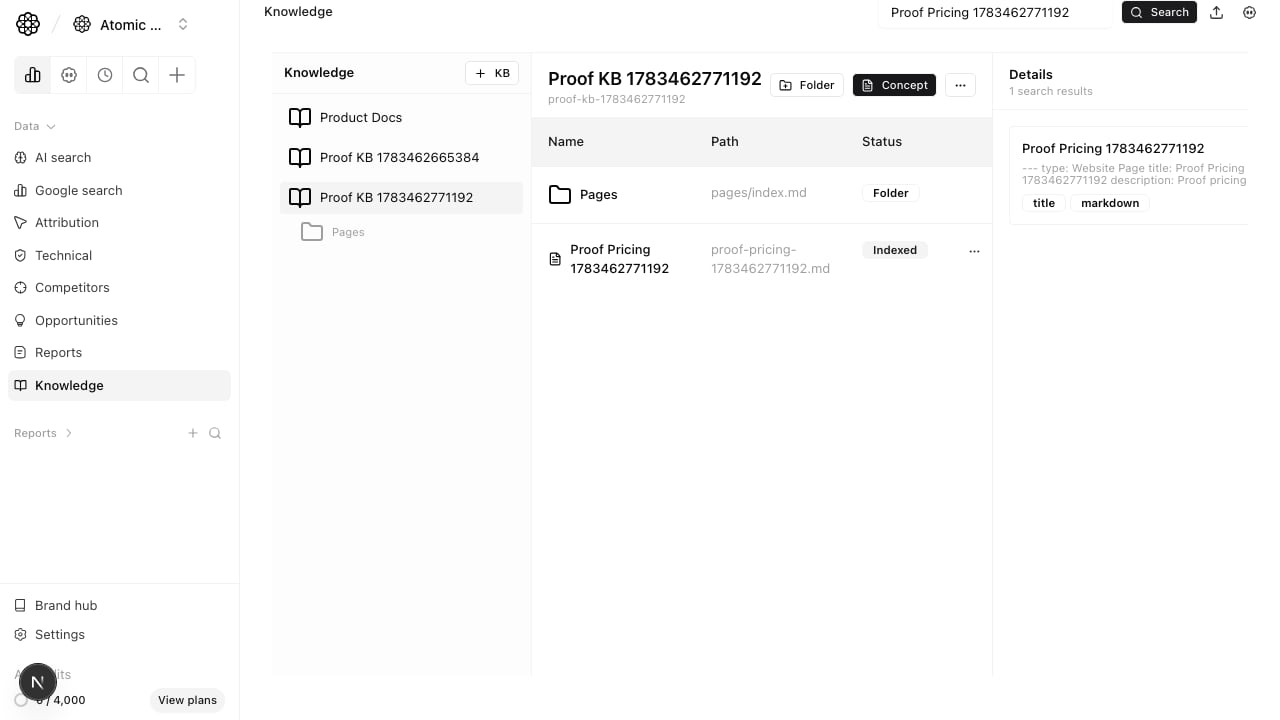 Use Knowledge to keep project context readable for people and agents. Each project can have one or more knowledge bases. Each knowledge base contains folders and markdown concepts.
## Questions this page should answer
1. Which knowledge bases exist for this project?
2. Which folders and markdown concepts are available?
3. Which concepts match a search and why did they match?
## Before you use this page
* Open the project and select `Knowledge`.
* Decide whether the content belongs in an existing knowledge base or a new one.
* Keep each concept focused on one page, document, story, note, or generated output.
## What this page gives you
* A left sidebar for knowledge bases and folder trees.
* A main table for the selected folder.
* A detail panel for markdown content and metadata.
* Search scoped to the selected knowledge base or folder.
## Knowledge bases
A knowledge base is the top-level bundle. Use separate knowledge bases when the content has different ownership or purpose, such as product docs, customer stories, pricing notes, or implementation references.
## Folders
Folders organize concepts inside a knowledge base. A folder can contain subfolders and concepts. Each folder has an `index.md` view generated from its children.
## Concepts
A concept is a markdown file with frontmatter. The markdown file is the source of truth. The app stores a database id for safe moves and renames, but the OKF path stays visible for import and export.
## Add pasted text
Open a knowledge base and select `Add Files`. The Paste Text editor opens directly.
Use Knowledge to keep project context readable for people and agents. Each project can have one or more knowledge bases. Each knowledge base contains folders and markdown concepts.
## Questions this page should answer
1. Which knowledge bases exist for this project?
2. Which folders and markdown concepts are available?
3. Which concepts match a search and why did they match?
## Before you use this page
* Open the project and select `Knowledge`.
* Decide whether the content belongs in an existing knowledge base or a new one.
* Keep each concept focused on one page, document, story, note, or generated output.
## What this page gives you
* A left sidebar for knowledge bases and folder trees.
* A main table for the selected folder.
* A detail panel for markdown content and metadata.
* Search scoped to the selected knowledge base or folder.
## Knowledge bases
A knowledge base is the top-level bundle. Use separate knowledge bases when the content has different ownership or purpose, such as product docs, customer stories, pricing notes, or implementation references.
## Folders
Folders organize concepts inside a knowledge base. A folder can contain subfolders and concepts. Each folder has an `index.md` view generated from its children.
## Concepts
A concept is a markdown file with frontmatter. The markdown file is the source of truth. The app stores a database id for safe moves and renames, but the OKF path stays visible for import and export.
## Add pasted text
Open a knowledge base and select `Add Files`. The Paste Text editor opens directly.
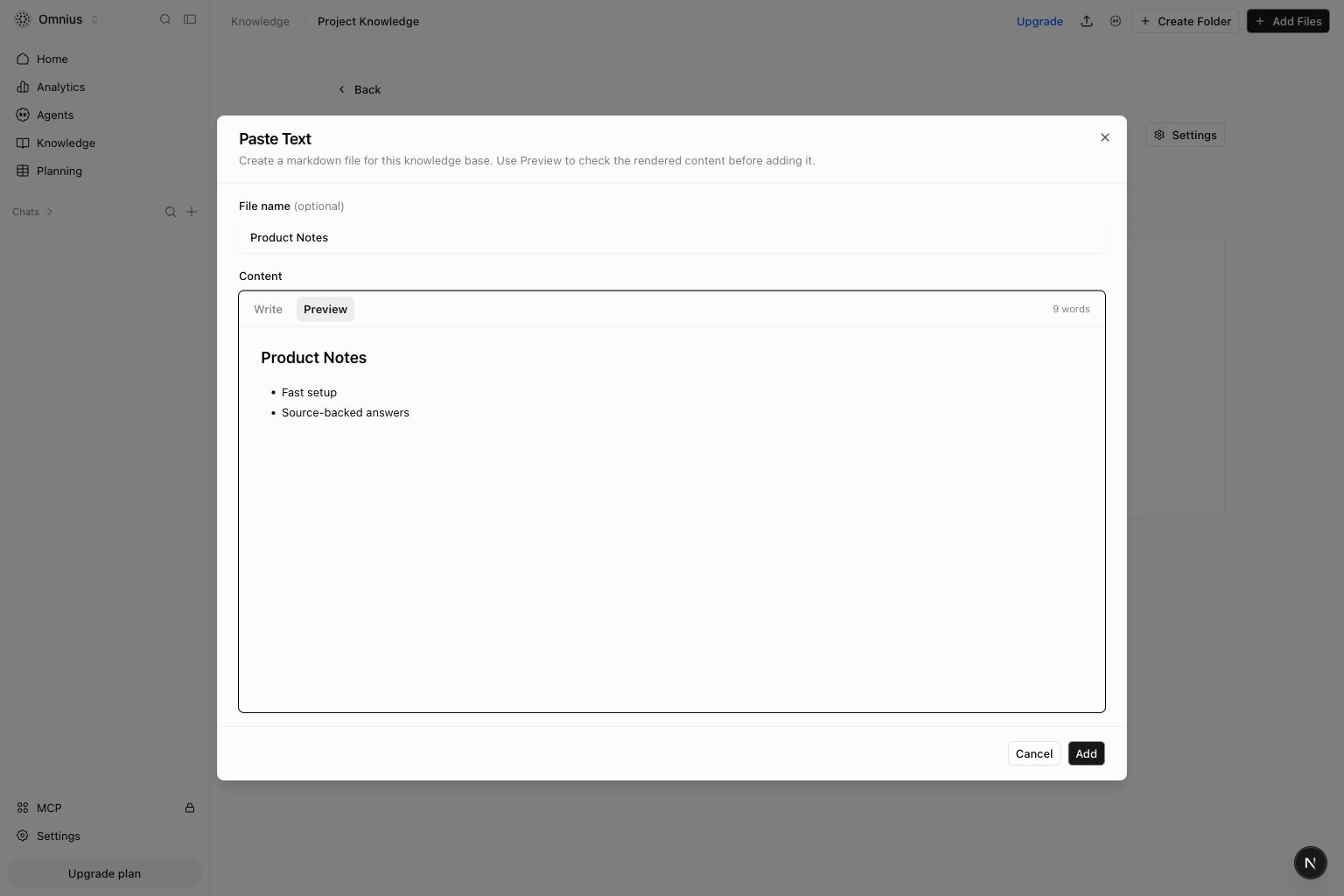 1. Add an optional file name. If you leave it empty, Atomic uses `Pasted Text`.
2. Write or paste markdown in the `Write` tab.
3. Select `Preview` to check headings, lists, links, and other formatting.
4. Select `Add` to save the note in the current knowledge base and folder.
The other file and connected-source imports are not available from this flow yet.
## Search
Search checks titles, descriptions, tags, resources, paths, headings, and markdown text. Results show the matching concept and the fields that matched.
## Check content against project knowledge
Use the `check_knowledge_base_alignment` MCP tool before publishing content that makes claims about your company, product, services, or policies. Pass the draft in `content`. You can also set `maxClaims` from 1 to 50; the default is 20.
The tool separates the draft into factual claims and checks each claim against matching excerpts from indexed website pages and uploaded documents. It returns one of these verdicts for every claim:
* `supported` means an indexed source directly supports the claim.
* `contradicted` means an indexed source directly conflicts with the claim.
* `not_found` means the available sources do not provide enough evidence. Missing evidence does not count as a contradiction.
Each supported or contradicted verdict includes the source title, URL when available, matching excerpt, and retrieval score. Review contradicted claims first. Then decide whether `not_found` claims need a draft correction or a new knowledge source.
## What to fix first
| Pattern in Knowledge | What it usually means | Recommended action |
| --------------------------- | ----------------------------------- | --------------------------------------------- |
| Important pages are missing | SEO audit or sync coverage is stale | Run SEO audit, then sync new pages |
| Documents are outdated | AI may cite old guidance | Delete stale docs and upload current versions |
| `Never` appears repeatedly | Sources may be pending or failed | Re-run sync or check file/source validity |
| Outputs ignore key context | Source coverage is incomplete | Add the missing page or document |
| Too many old sources exist | Retrieval quality may degrade | Remove obsolete files and pages |
## Quick weekly checklist
1. Add new pages, docs, and notes as focused concepts.
2. Keep folder names clear enough to scan.
3. Search for priority terms and confirm the expected concepts appear.
4. Remove stale concepts after moving or replacing them.
## Keep in mind
* Project permissions still control who can view or edit knowledge.
* The concept markdown is canonical. Avoid storing important context only in source metadata.
## Where to go next
* [Brand kit](/settings/project/brand-kit)
* [Interlinking](/data/technical/interlinking)
* [Agents](/automation/agents/overview)
1. Add an optional file name. If you leave it empty, Atomic uses `Pasted Text`.
2. Write or paste markdown in the `Write` tab.
3. Select `Preview` to check headings, lists, links, and other formatting.
4. Select `Add` to save the note in the current knowledge base and folder.
The other file and connected-source imports are not available from this flow yet.
## Search
Search checks titles, descriptions, tags, resources, paths, headings, and markdown text. Results show the matching concept and the fields that matched.
## Check content against project knowledge
Use the `check_knowledge_base_alignment` MCP tool before publishing content that makes claims about your company, product, services, or policies. Pass the draft in `content`. You can also set `maxClaims` from 1 to 50; the default is 20.
The tool separates the draft into factual claims and checks each claim against matching excerpts from indexed website pages and uploaded documents. It returns one of these verdicts for every claim:
* `supported` means an indexed source directly supports the claim.
* `contradicted` means an indexed source directly conflicts with the claim.
* `not_found` means the available sources do not provide enough evidence. Missing evidence does not count as a contradiction.
Each supported or contradicted verdict includes the source title, URL when available, matching excerpt, and retrieval score. Review contradicted claims first. Then decide whether `not_found` claims need a draft correction or a new knowledge source.
## What to fix first
| Pattern in Knowledge | What it usually means | Recommended action |
| --------------------------- | ----------------------------------- | --------------------------------------------- |
| Important pages are missing | SEO audit or sync coverage is stale | Run SEO audit, then sync new pages |
| Documents are outdated | AI may cite old guidance | Delete stale docs and upload current versions |
| `Never` appears repeatedly | Sources may be pending or failed | Re-run sync or check file/source validity |
| Outputs ignore key context | Source coverage is incomplete | Add the missing page or document |
| Too many old sources exist | Retrieval quality may degrade | Remove obsolete files and pages |
## Quick weekly checklist
1. Add new pages, docs, and notes as focused concepts.
2. Keep folder names clear enough to scan.
3. Search for priority terms and confirm the expected concepts appear.
4. Remove stale concepts after moving or replacing them.
## Keep in mind
* Project permissions still control who can view or edit knowledge.
* The concept markdown is canonical. Avoid storing important context only in source metadata.
## Where to go next
* [Brand kit](/settings/project/brand-kit)
* [Interlinking](/data/technical/interlinking)
* [Agents](/automation/agents/overview)