> ## Documentation Index
> Fetch the complete documentation index at: https://docs.atomicagi.com/llms.txt
> Use this file to discover all available pages before exploring further.
# Notifications
> Schedule recurring reports, digests, and SEO audit notifications so the right people get the right cadence
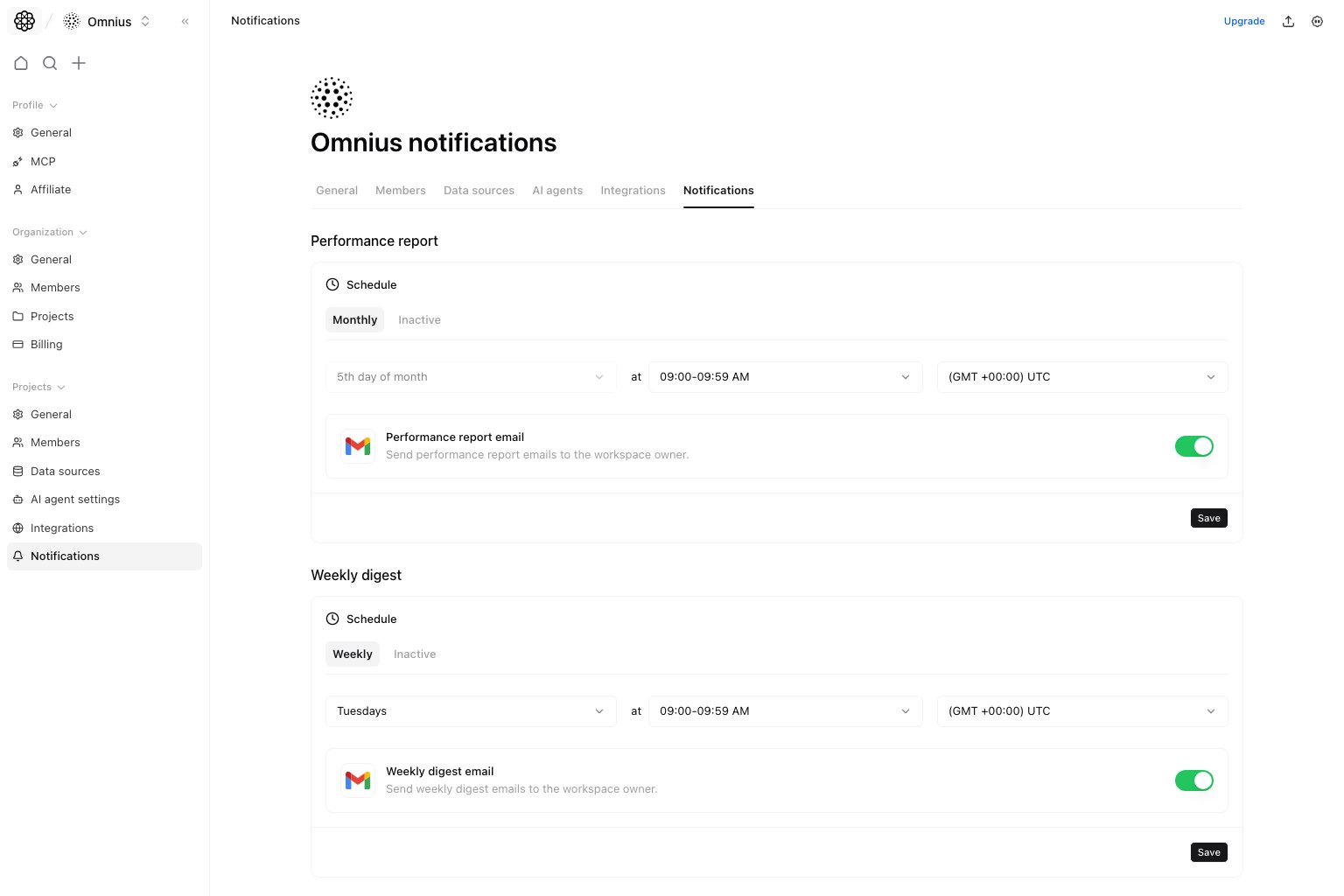 Use this page to manage recurring project notifications. This is where you schedule performance reports, weekly digests, and SEO audit notifications.
## Questions this page should answer
1. Which recurring notifications are active?
2. Are cadence, timezone, and next run correct?
3. Are email or Slack alerts enabled only where they add value?
## Before you schedule notifications
* Decide who will act on each notification.
* Confirm the project timezone and reporting cadence.
* Check [Project Integrations](/settings/project/integrations) if Slack notifications are expected.
* Avoid scheduling reports before data sources are connected and stable.
## What this page gives you
* Separate schedule controls for `Performance report`, `Weekly digest`, and `SEO audit`.
* Frequency, day, monthly option, time range, and timezone settings.
* Notification channel toggles where supported.
* Visibility into the next run and the current schedule state.
## How to read notification schedules
Review each schedule as a commitment to send attention somewhere.
* `Frequency`: how often the report or audit should run.
* `Day` and `time`: when the team expects to receive it.
* `Timezone`: which team/location the run is aligned to.
* `Channel toggles`: where completion or report notifications are delivered.
* `Next run`: the fastest way to verify the saved schedule.
Use this rule:
* Weekly is the default for most operating reports.
* Monthly is better for leadership rollups.
* Daily should be reserved for issues that someone actively reviews every day.
## How to use this page
### Match cadence to decision rhythm
Weekly or monthly schedules are enough for most reporting. Higher-frequency schedules should only exist when a team is actually reacting to them.
### Review timezone and next run together
Timezone drift is a common reason reports feel broken even when the schedule technically saved correctly.
### Limit notification noise
Enable notifications only for outputs that someone will read and act on. More alerts usually reduce attention instead of increasing it.
## How to know setup worked
* The schedule shows the intended next run.
* Timezone matches the receiving team.
* Notification channel toggles match the expected delivery path.
* Slack-related options are backed by a connected project Slack integration.
## Quick weekly checklist
1. Check active schedules for next-run accuracy.
2. Pause schedules with no clear reader or owner.
3. Confirm Slack/email delivery still matches team workflow.
4. Review SEO audit notification cadence after major site changes.
## What to fix first
| Pattern in Notifications | What it usually means | Recommended action |
| --------------------------- | ------------------------------------- | --------------------------------------------- |
| Reports arrive at odd times | Timezone or day is wrong | Update schedule timing and verify next run |
| Team ignores notifications | Cadence or channel is too noisy | Reduce frequency or route to a better channel |
| Slack alerts do not arrive | Project Slack integration may be weak | Check Project Integrations first |
| SEO audit runs too often | Monitoring cadence exceeds decisions | Move to weekly or monthly |
| Old schedules still run | Ownership changed | Pause or delete stale schedules |
## Team routine
1. Weekly: review schedules that triggered action.
2. Monthly: remove alerts that no one used.
3. After team changes: re-check timezone, channel, and owner.
## Keep in mind
* This page is for recurring reports and alerting, not for full agent-conversation automations.
* Slack notification behavior depends on the project Slack connection.
* A schedule should follow operating cadence, not tool availability.
## Where to go next
* [Project Integrations](/settings/project/integrations)
* [Automations](/automation/automations/overview)
* [Workflows](/automation/workflows/overview)
* [Technical overview](/data/technical/overview)
Use this page to manage recurring project notifications. This is where you schedule performance reports, weekly digests, and SEO audit notifications.
## Questions this page should answer
1. Which recurring notifications are active?
2. Are cadence, timezone, and next run correct?
3. Are email or Slack alerts enabled only where they add value?
## Before you schedule notifications
* Decide who will act on each notification.
* Confirm the project timezone and reporting cadence.
* Check [Project Integrations](/settings/project/integrations) if Slack notifications are expected.
* Avoid scheduling reports before data sources are connected and stable.
## What this page gives you
* Separate schedule controls for `Performance report`, `Weekly digest`, and `SEO audit`.
* Frequency, day, monthly option, time range, and timezone settings.
* Notification channel toggles where supported.
* Visibility into the next run and the current schedule state.
## How to read notification schedules
Review each schedule as a commitment to send attention somewhere.
* `Frequency`: how often the report or audit should run.
* `Day` and `time`: when the team expects to receive it.
* `Timezone`: which team/location the run is aligned to.
* `Channel toggles`: where completion or report notifications are delivered.
* `Next run`: the fastest way to verify the saved schedule.
Use this rule:
* Weekly is the default for most operating reports.
* Monthly is better for leadership rollups.
* Daily should be reserved for issues that someone actively reviews every day.
## How to use this page
### Match cadence to decision rhythm
Weekly or monthly schedules are enough for most reporting. Higher-frequency schedules should only exist when a team is actually reacting to them.
### Review timezone and next run together
Timezone drift is a common reason reports feel broken even when the schedule technically saved correctly.
### Limit notification noise
Enable notifications only for outputs that someone will read and act on. More alerts usually reduce attention instead of increasing it.
## How to know setup worked
* The schedule shows the intended next run.
* Timezone matches the receiving team.
* Notification channel toggles match the expected delivery path.
* Slack-related options are backed by a connected project Slack integration.
## Quick weekly checklist
1. Check active schedules for next-run accuracy.
2. Pause schedules with no clear reader or owner.
3. Confirm Slack/email delivery still matches team workflow.
4. Review SEO audit notification cadence after major site changes.
## What to fix first
| Pattern in Notifications | What it usually means | Recommended action |
| --------------------------- | ------------------------------------- | --------------------------------------------- |
| Reports arrive at odd times | Timezone or day is wrong | Update schedule timing and verify next run |
| Team ignores notifications | Cadence or channel is too noisy | Reduce frequency or route to a better channel |
| Slack alerts do not arrive | Project Slack integration may be weak | Check Project Integrations first |
| SEO audit runs too often | Monitoring cadence exceeds decisions | Move to weekly or monthly |
| Old schedules still run | Ownership changed | Pause or delete stale schedules |
## Team routine
1. Weekly: review schedules that triggered action.
2. Monthly: remove alerts that no one used.
3. After team changes: re-check timezone, channel, and owner.
## Keep in mind
* This page is for recurring reports and alerting, not for full agent-conversation automations.
* Slack notification behavior depends on the project Slack connection.
* A schedule should follow operating cadence, not tool availability.
## Where to go next
* [Project Integrations](/settings/project/integrations)
* [Automations](/automation/automations/overview)
* [Workflows](/automation/workflows/overview)
* [Technical overview](/data/technical/overview)