

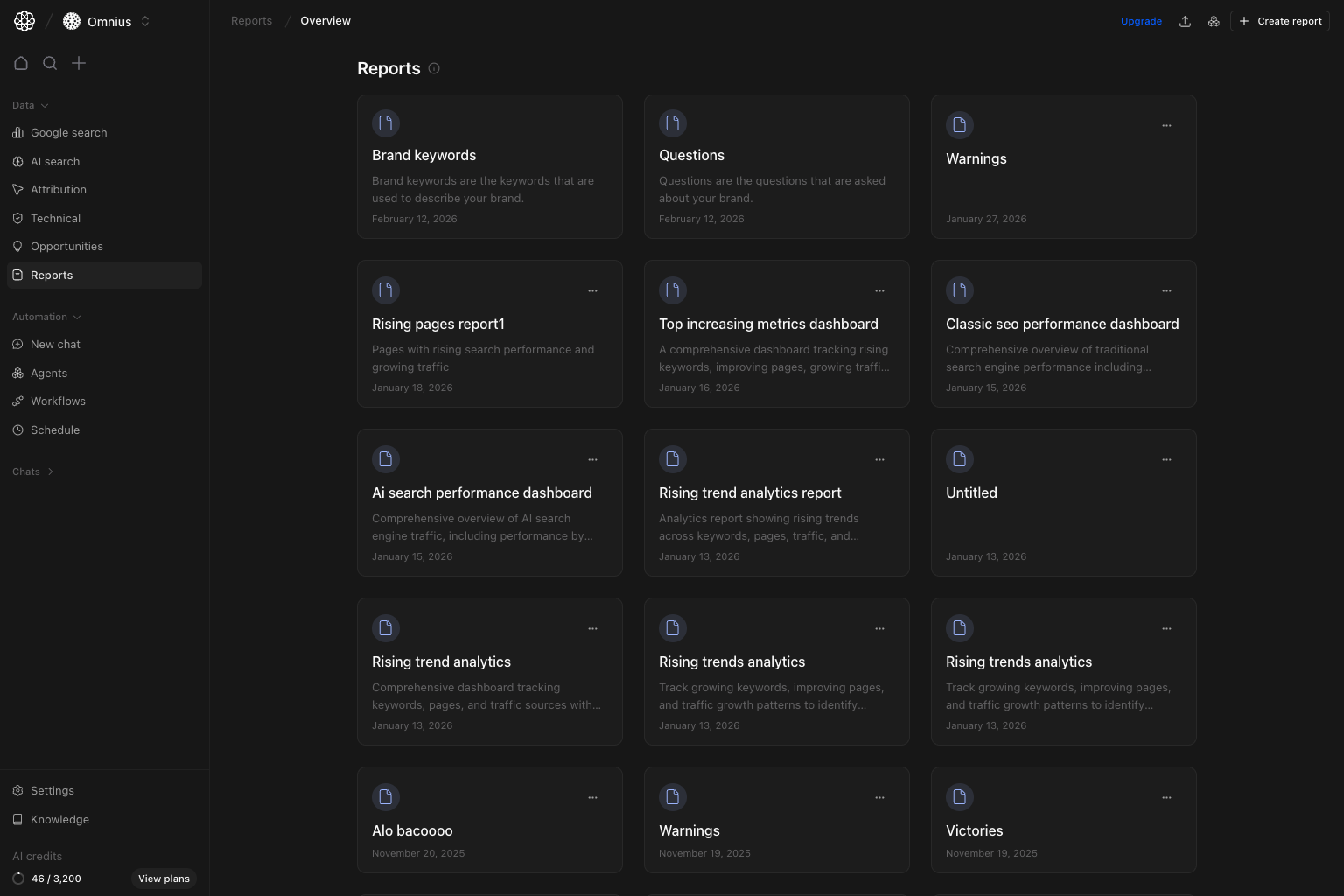
Important: Treat reports as a reusable system. Keep structure stable, update data and commentary each cycle.
Questions this page should answer
- Which reports already exist for this project?
- Should I start from scratch or use a template?
- How do I publish and share a report URL?
Before you build reports
- Confirm you are in the correct project.
- Check data-source setup first so report blocks can load real data.
- Use naming conventions your team can scan quickly.
What this page gives you
- A report library with two predefined cards (
Brand keywords,Questions). - Custom report cards created by your team.
Create reportaction to open the template chooser.- Card-level actions for editable reports (edit, duplicate, delete).
Create report flow
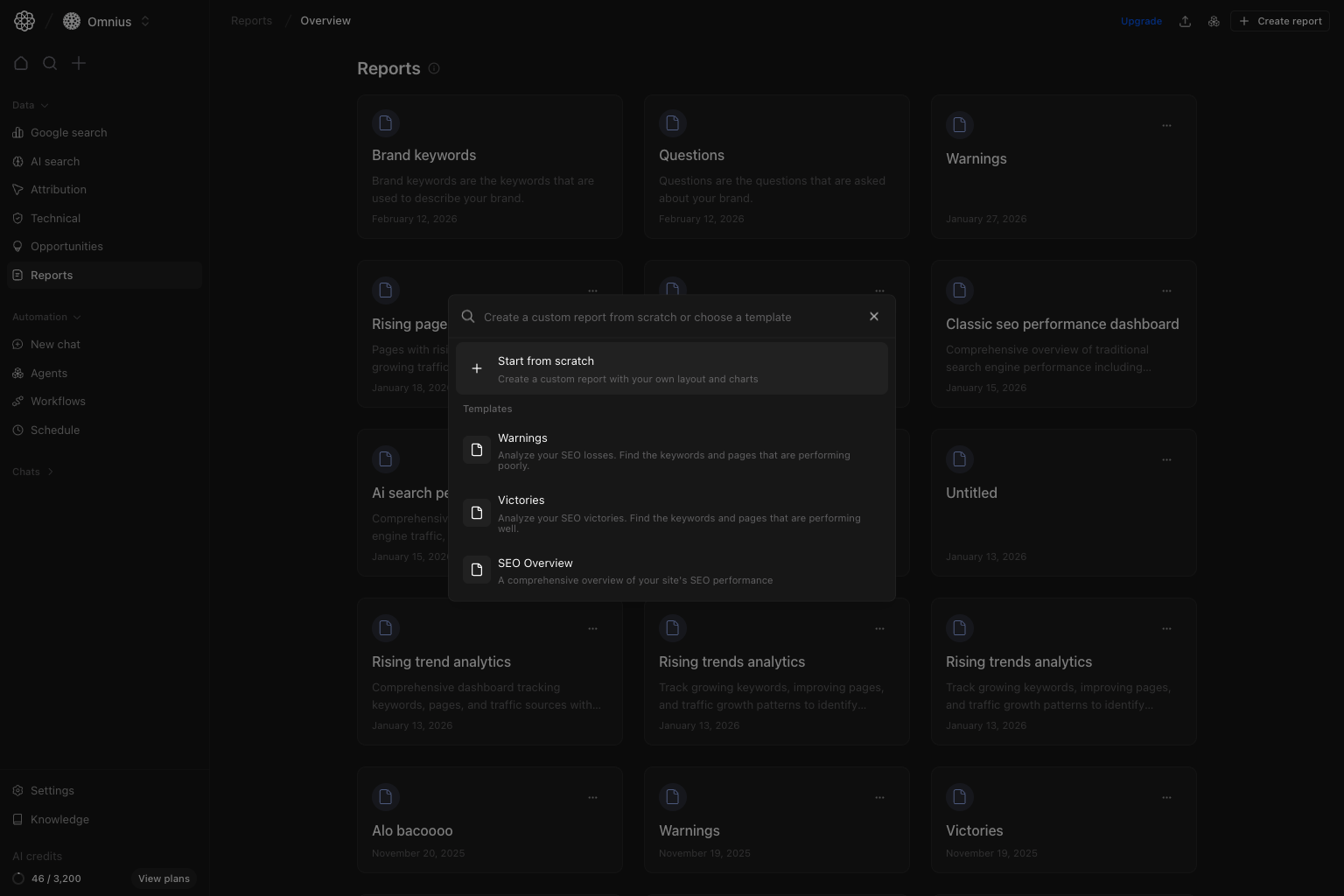
Create report, you can:
Start from scratch: empty layout, add blocks manually.- Choose a template: starts with predefined layout blocks.
Warnings, Victories, SEO Overview, Conversion tracking, Page performance, and Geographic analysis.
Open and read a report
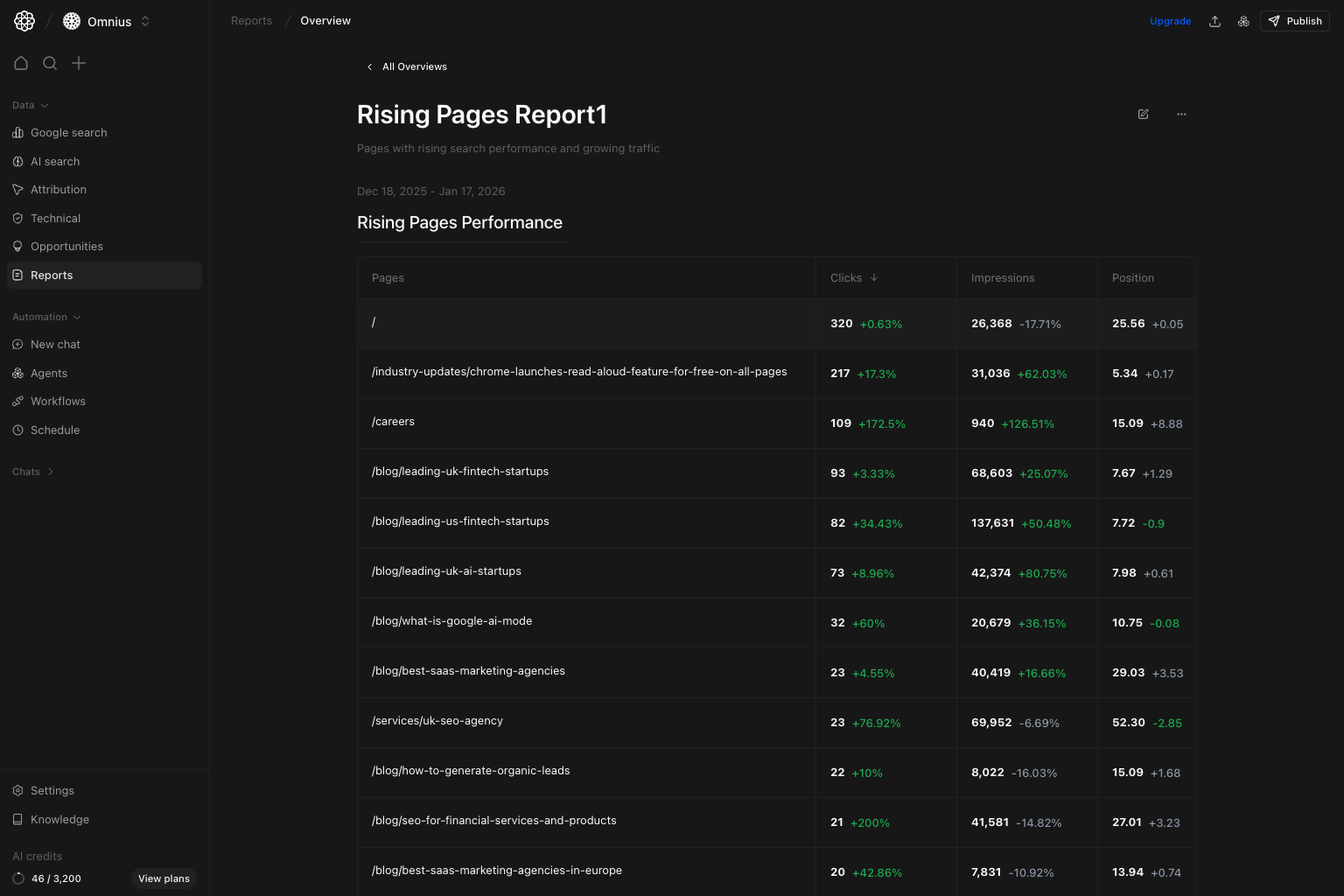
- Read report blocks that render live analytics components.
- Use top actions to edit, duplicate, delete, or publish (if you have write access).
- Keep report structure stable while data refreshes from connected sources.
Edit mode workflow
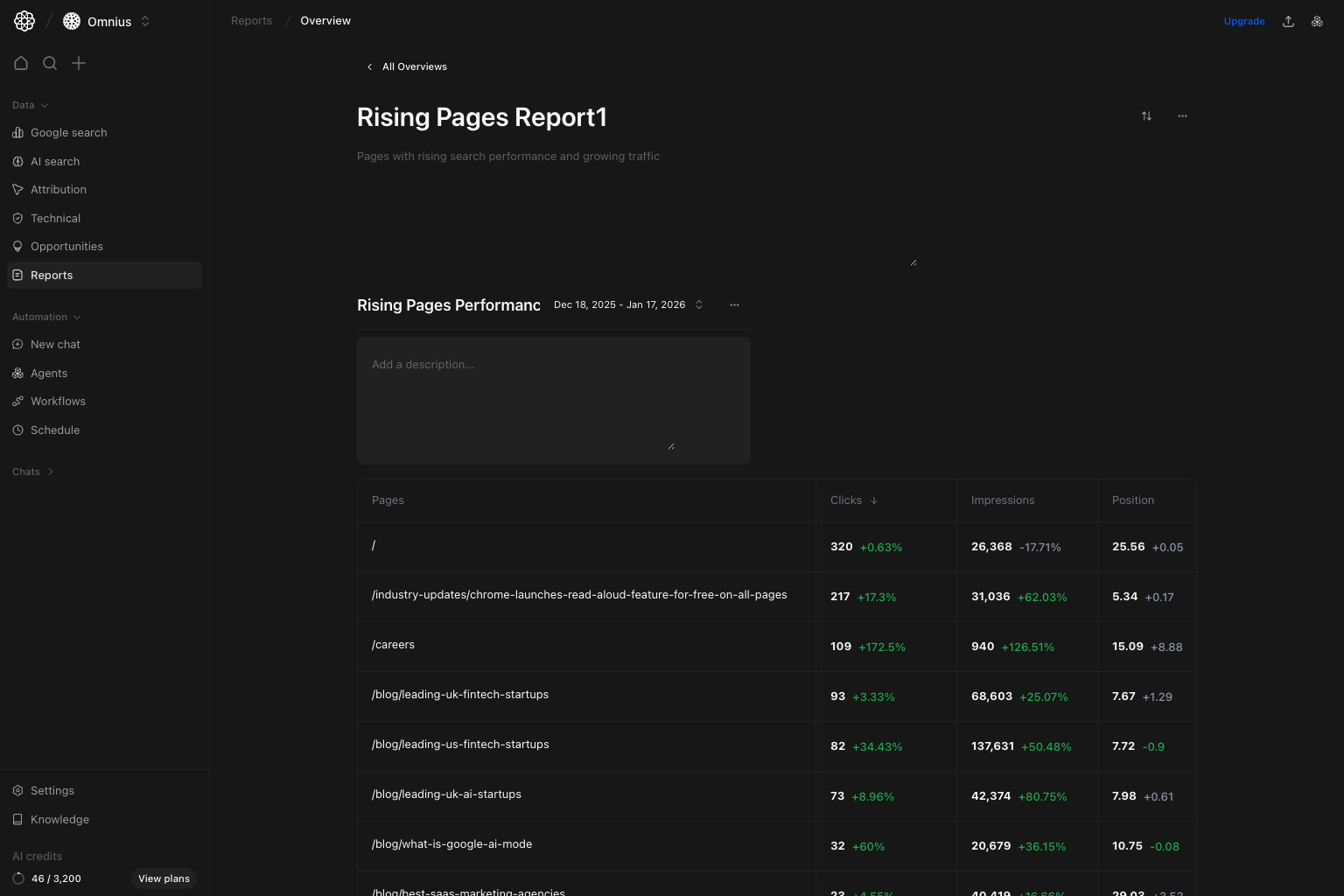
- Rename report title and description.
- Toggle block reorder mode.
- Add layout blocks by selecting: data source -> section -> view type -> filters -> date range.
- Remove or reorder blocks.
Publish and share
Publish exposes a shareable public URL for the report.
Your task: Publish only after final QA of filters, date range, and block titles.
Recommended workflow:
- Finalize report title, description, and blocks.
- Click
Publish. - Copy the generated public URL.
- Share with stakeholders.
Quick weekly checklist
- Remove stale drafts and duplicate cards.
- Reuse templates for recurring reporting cycles.
- Verify critical blocks still load expected data.
- Re-publish after major report structure changes.
Keep in mind
- Report quality depends on upstream data-source health.
- Predefined reports are fast shortcuts; custom reports give full layout control.
- Publish links are easiest to consume for non-product viewers.