

Before you add an image
- Confirm your team owns the image or is allowed to reuse it.
- Only upload assets approved for public use. Atomic stores each library image at a public, non-expiring URL so published content can display it.
- Choose a clear image that supports a specific product, feature, or use case.
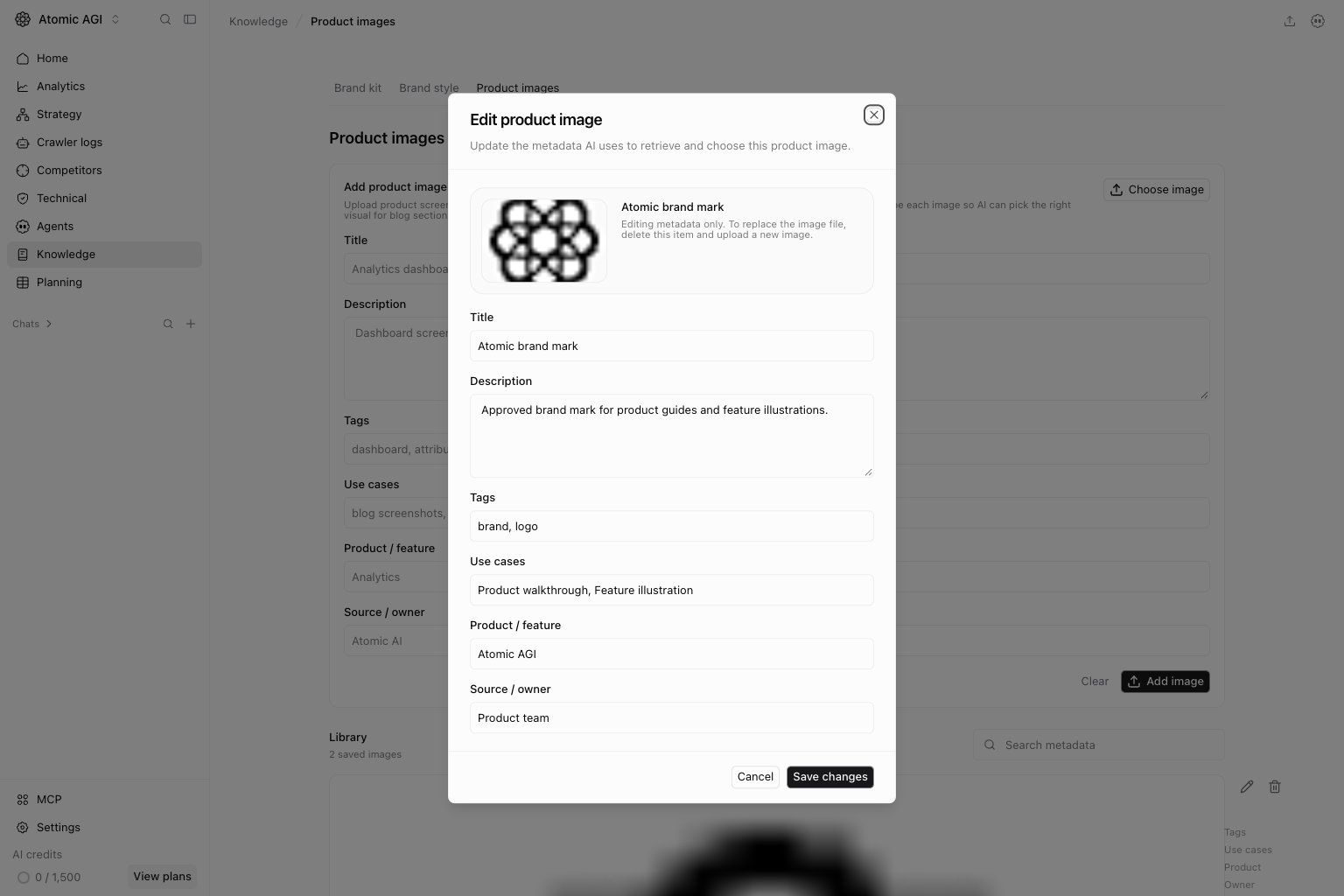
- Prepare a concrete title and description. These two fields are required.
Add an image
- Open
Knowledge, select a brand kit, then open theProduct imagestab. - Click
Choose imageand select an image file. - Add a title and description.
- Add optional tags, use cases, product or feature, and source or owner details.
- Click
Add image.
Attribution dashboard as the title, describe the metrics shown, add analytics, attribution as tags, and add blog screenshots as a use case.
Find and update images
UseSearch metadata to filter the library by title, description, tags, use cases, product or feature, and source or owner. Edit an item when its description or intended use changes.
To replace the image file, delete the current item and upload the replacement. Deleting an item permanently removes it from the project library and Atomic storage.
How workflows use the library
Enrich content images searches the active project’s Product Images before looking for external visuals. When a saved image is a strong match for a section, the workflow inserts its existing Atomic storage URL into a new active content version.
Product Images are first-party assets, so they are not imported again and do not need a public source-credit line. If no saved image is relevant, the workflow can still find an external image, import it into Atomic storage, and add a visible source credit.
Permissions
Product Images uses the project’s Brand kit permission. Members with read access can view and search the library. Members with write access can upload, edit, and delete images. These permissions control library management and retrieval inside Atomic. They do not restrict access to an uploaded image’s public URL. Anyone who has that URL can load the image, so do not upload confidential screenshots, private customer data, or assets that are not approved for public publishing.Keep in mind
- The library is project-scoped. Images from another project are not returned.
- Specific metadata makes retrieval more reliable than broad labels such as
screenshot. - The workflow skips weak matches instead of forcing a product image into an unrelated section.