

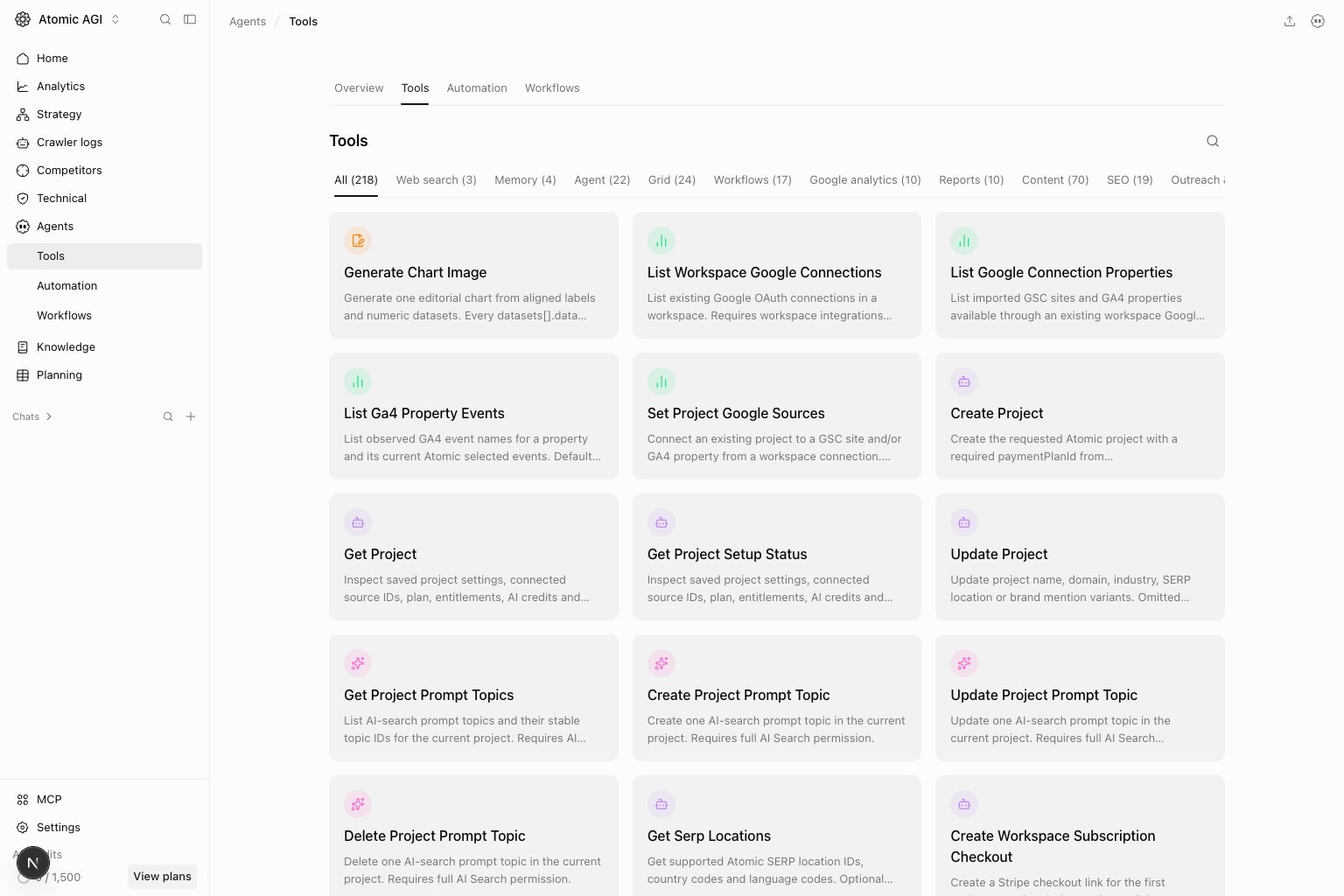
Questions this page should answer
- Which tools are available in this project?
- What inputs does a tool require?
- What result shape should I expect before I wire the tool into an agent or workflow?
Before you run tools directly
- Know the project and data source the tool should use.
- Confirm you have permission to run the tool.
- Start with the smallest valid input.
- Use direct runs for verification, not as a replacement for repeatable workflows.
What this page gives you
- A categorized tool library.
- Tool descriptions and input schemas.
- Direct execution with form-based arguments.
- Raw results you can inspect or copy.
How to read tool details
Read the tool panel before running anything:Description: what the tool is meant to do.Input schema: required fields, optional fields, and accepted value types.Category: where the tool fits in the project capability surface.Result: the raw shape an agent or workflow will receive.
- If the tool succeeds here but an agent fails, the issue is likely prompt/context.
- If the tool fails here, fix credentials, permissions, or input shape first.
- If the output shape is too raw for a user, wrap it in an agent or workflow.
How to use this page
Start with the category
Use the category grouping to narrow the surface before you inspect individual tools. This is faster than searching every tool name when you only need one domain such as SEO, reports, or AI search.Read the required fields carefully
The input schema tells you which arguments are mandatory and what type each argument expects. Validate that first before assuming a tool is broken.Use direct runs for verification
Run the tool here when you need to confirm output shape, test a narrow input, or debug why an agent is producing weak results.Quick debugging checklist
- Confirm the tool exists in the expected category.
- Check required input fields before running.
- Run with one narrow input.
- Inspect the raw result shape.
- Compare direct output with what the agent or workflow produced.
What to fix first
Team routine
- Use Tools to verify new capabilities before adding them to agents.
- Save known-good inputs for recurring workflows.
- Re-test tools after integration or permission changes.
Keep in mind
- This page is for verification and targeted runs, not for broad workflow orchestration.
- Tool availability depends on project capabilities and permissions.
- If a tool run is noisy, fix the input shape before changing the agent.