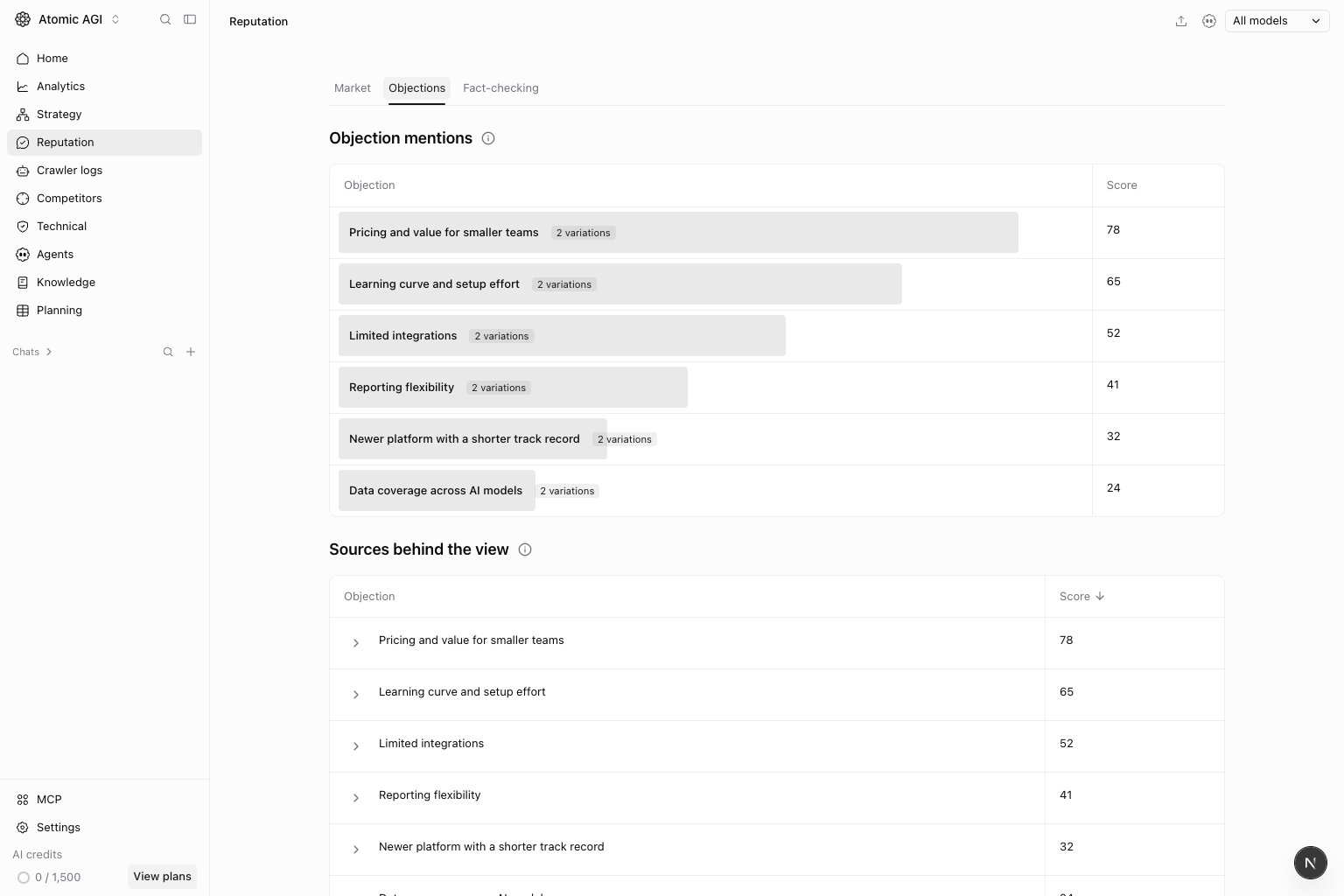

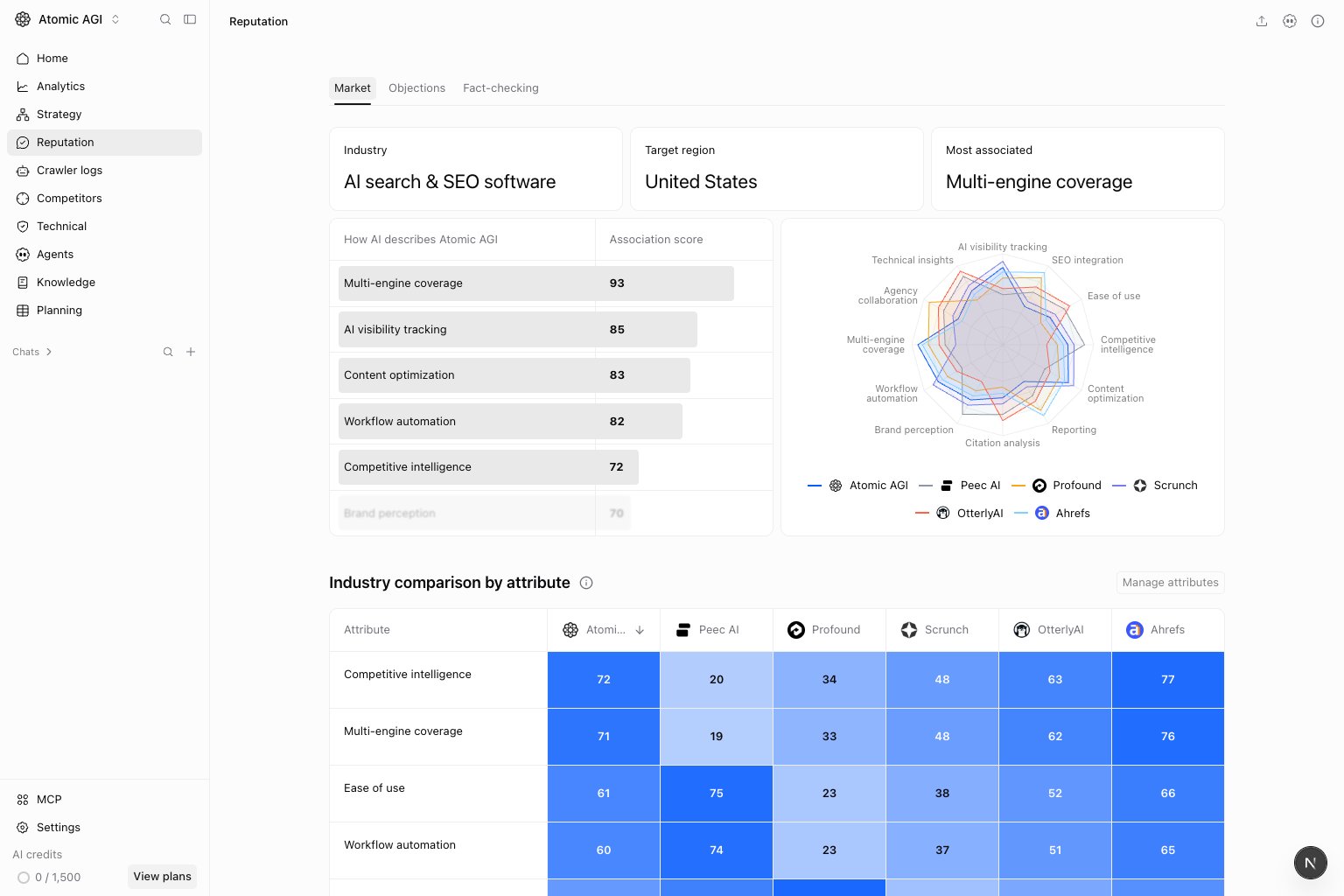
Reputation Market tab with brand attributes and an industry comparison
Open Reputation from the project sidebar to investigate the story AI tells about your brand. Use Market for positioning, Objections for purchase barriers, and Fact-checking for claims that need review. Access depends on your subscription and project permissions. Screenshots show illustrative local data.

Read the evidence before making changes

Reputation uses captured answers and the sources available to each analysis. It does not measure every answer an assistant might give. Check the model, prompt, market, and capture date before comparing results. A cited page helps explain an answer; it does not prove that the page caused the wording. Scores describe different things across the tabs. An association score, a prominence score, and a fact verdict should not be compared as one overall reputation score. Missing evidence is different from a measured zero.

Market tab

Use Market to see which attributes AI associates with your brand and how competitors appear when buyers ask for those qualities. Start with Industry, Target region, and Most associated. Then review Brand association to find the qualities most strongly linked to your brand. Open an attribute to read the captured answer and highlighted evidence. The industry comparison answers a different question: which brands appear when AI is asked about an attribute? Its prominence score gives first position 100, second position 50, third about 33, and absence 0, with engines weighted equally. Strong association with your brand does not necessarily mean AI recommends it prominently in industry answers. Select a comparison cell to inspect its answer, model, scores, and citations. Review the sources behind attributes before deciding whether to improve a product explanation, publish supporting evidence, or address an outdated third-party description. Use the filters, when available, to select an Engine, Market, Research prompt, or capture dates in UTC. Keep those selections consistent when comparing results. Open Analysis details for coverage and research status. If the view is labeled as simulated, treat it as an example rather than a measurement of your project. Use Research settings in the initial view, or Manage attributes in a populated comparison, to review the industry, language, target region, and tracked attributes. Approve relevant attribute suggestions or add your own. Market research uses ChatGPT and follows your plan’s prompt tracking frequency. Saving settings does not collect answers immediately; approved attributes are tracked on the next run. New projects may need that run before attributes and scores appear.

Objections tab

Reputation Objections tab showing objection mentions, sources, and terms
Use Objections to identify the reasons AI gives a buyer to hesitate. Start with Objection mentions, then review Sources behind the view and Terms. The 0–100 score measures prominence in dedicated buyer-objection answers. First position earns 100, second 90, and tenth 10; later or absent objections earn 0. Grouped variations count once per answer at their highest position. This is not the percentage of customers who share the concern. Select an objection to read full AI responses with the relevant passages highlighted. Expand its sources to inspect the pages behind the view. Tracked sources open their prompts and chats; external links open the original page. Terms shows the exact wording AI uses, grouped by objection. Use search and the model selector to narrow the evidence. Prioritize recurring, well-supported concerns. For example, a repeated onboarding concern may call for clearer setup guidance, while a pricing objection may need an accurate plan comparison. Confirm the underlying issue before changing copy.

Fact-checking tab

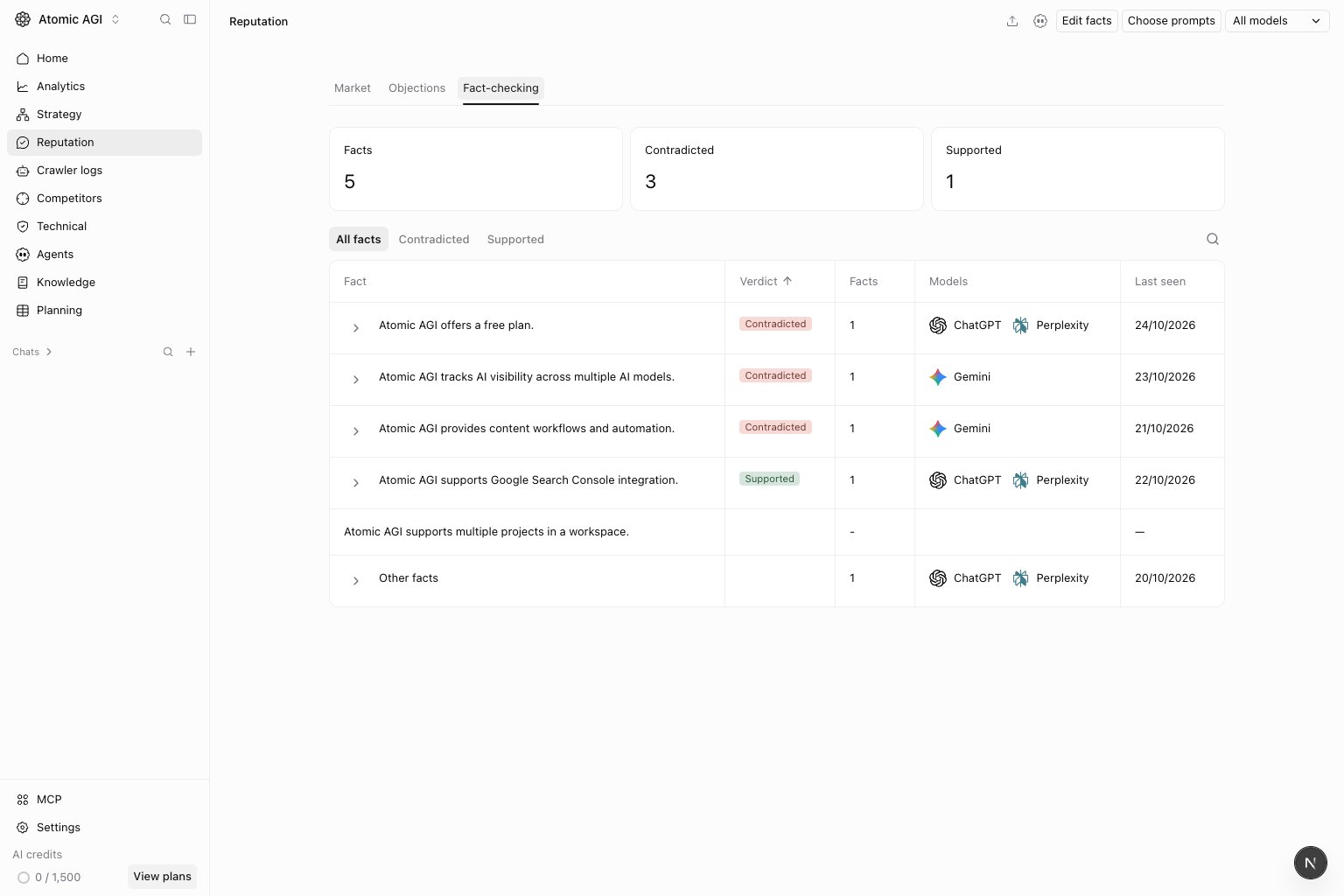
Reputation Fact-checking tab with fact totals and claims grouped by deciding fact
Use Fact-checking to compare claims in AI answers with the brand facts you maintain. The first visit can show preparation progress while evidence is collected. Review any waiting or error status before interpreting an empty view. Use Edit facts to review and maintain the reference facts. Check suggested facts before accepting them; they become the basis for comparisons. Use Choose prompts to control which tracked prompts contribute claims to the view. The headline cards show Facts, Contradicted, and Supported for the selected claims. A claim can have comparisons against several facts, so the verdict totals are not necessarily separate groups that add up to the total. Use All facts, Contradicted, or Supported, plus search and the model selector, to focus your review. Expand a reference fact to see its related claims, models, and last-seen dates. Other facts contains claims without a comparison to an active reference fact. Open a claim to inspect its answer, deciding facts, verdicts, prompts, and citations:
  • Supported: the comparison supports the claim against the deciding fact.
  • Contradicted: the claim conflicts with the deciding fact.
  • Not covered: the deciding fact does not establish the claim.
These verdicts depend on the reference facts and captured evidence. Confirm that the deciding fact is current before treating a contradiction as an AI error. You can change a verdict after review and restore the Atomic verdict later. Work with AI copies the task and fact context for you to paste into your AI workspace.

Turn findings into work

  1. Open the original answer and confirm the model, date, and source context.
  2. Choose a specific issue: a weak attribute association, a recurring objection, or an inaccurate claim.
  3. Assign a concrete change to the relevant page or product owner, with supporting evidence.
  4. Review later captured answers under comparable settings to see whether the issue persists.

Where to go next