

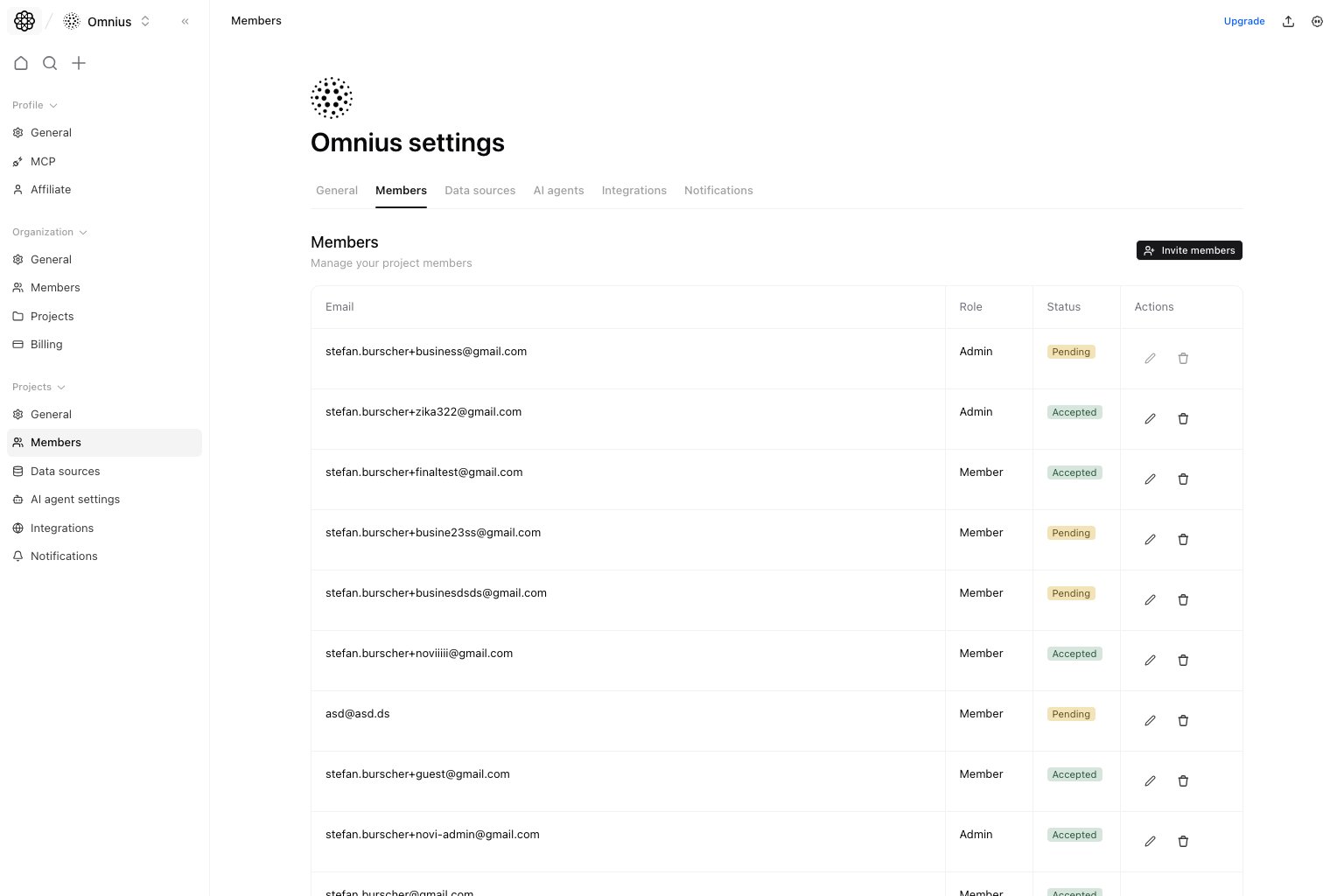
Important: Project access should match current work. Remove stale access before it becomes a security or ownership problem.
Questions this page should answer
- Who currently has access to this project?
- Which members are pending vs accepted?
- How should I scope permissions per person?
Before you use this page
- In the app, open Project settings and select
Members. - Check member seat capacity if invites are blocked.
- Confirm whether changes should be project-only or organization-wide.
What this page controls
- Project member list (
Email,Role,Status,Actions). - Invite flow for adding members to this project.
- Permission editing dialog for project-scoped feature/settings access.
- Remove member from project action.
How to use this page
Invite with scope in mind
Invite only users who need this project, then verify status changes fromPending to Accepted.
For the full invite and permission model, use the detailed guide in
Organization Members (role behavior, project assignment, and None / View only /
Full scope definitions for each permission).
Edit permissions at project scope
Use the edit permissions action to control this project’s feature/settings access without changing all organization access.Keep the list operationally clean
Remove members who no longer need project access to reduce risk and noise.Quick weekly checklist
- Clear stale pending invites.
- Review elevated project permissions.
- Remove contributors no longer active on this project.
What to fix first
Team routine
- Weekly: clear pending invites and remove stale contributors.
- Monthly: review elevated permissions.
- After role changes: confirm project-level scope still matches the user’s work.
Keep in mind
- Project membership is narrower than organization membership.
- Seat limits can still impact invite operations.