

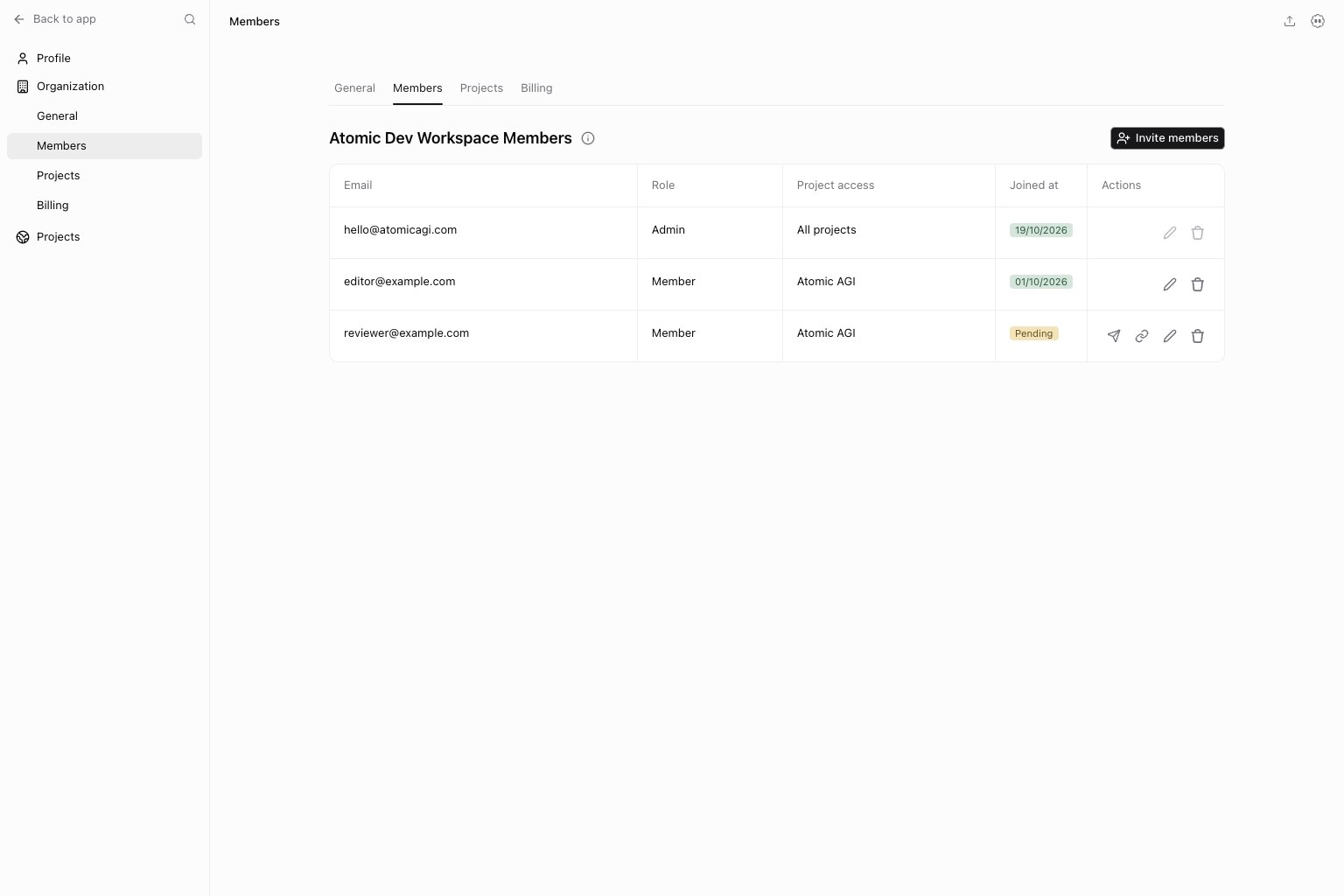
Questions this page should answer
- Who currently has access to this organization?
- How do I invite a new member with the right scope?
- How do
None,View only, andFullactually affect access?
Before you use this page
- In the app, open Organization settings and select
Members. - Confirm you have members write access.
- Check seat availability before bulk invites.
What this page controls
- Member directory (
Email,Role,Project access,Joined at,Actions). - Invite flow with role + workspace permissions + project permissions.
- Edit permissions flow for existing members.
- Member removal.
Invite members flow
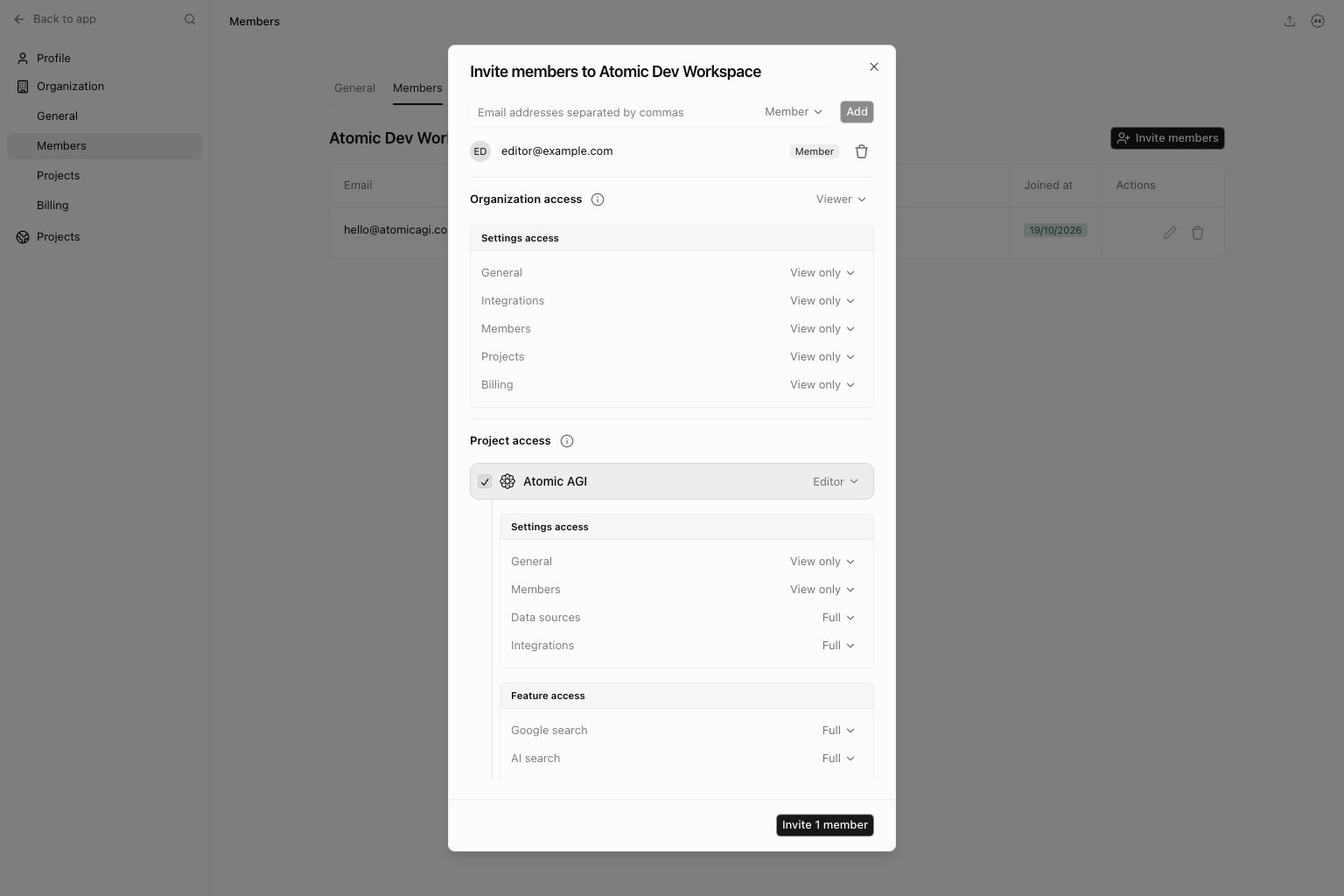
Invite members opens a dialog where you define access before sending invites.
How to invite correctly
- Add one or multiple emails.
- Select role:
Admin: full access across workspace and projects.Member: granular permissions are applied. - Set
Organization accessfor workspace settings (General,Integrations,Members,Projects,Billing). - Select project access.
- For each selected project, set feature/settings permissions.
Start with a permission preset
InOrganization access, choose No access, Viewer, Billing manager, or Full access. Use Custom for a tailored combination. These presets apply to organization settings; they do not assign project access.
For each selected project, choose Guest, Viewer, Editor, Content writer, Project admin, or No access, then adjust individual permissions if needed. Guest grants view access to Google search, AI search, and Attribution. Custom reflects a tailored combination. Applying a preset replaces that section’s permissions, so review the final scopes before sending the invitation.
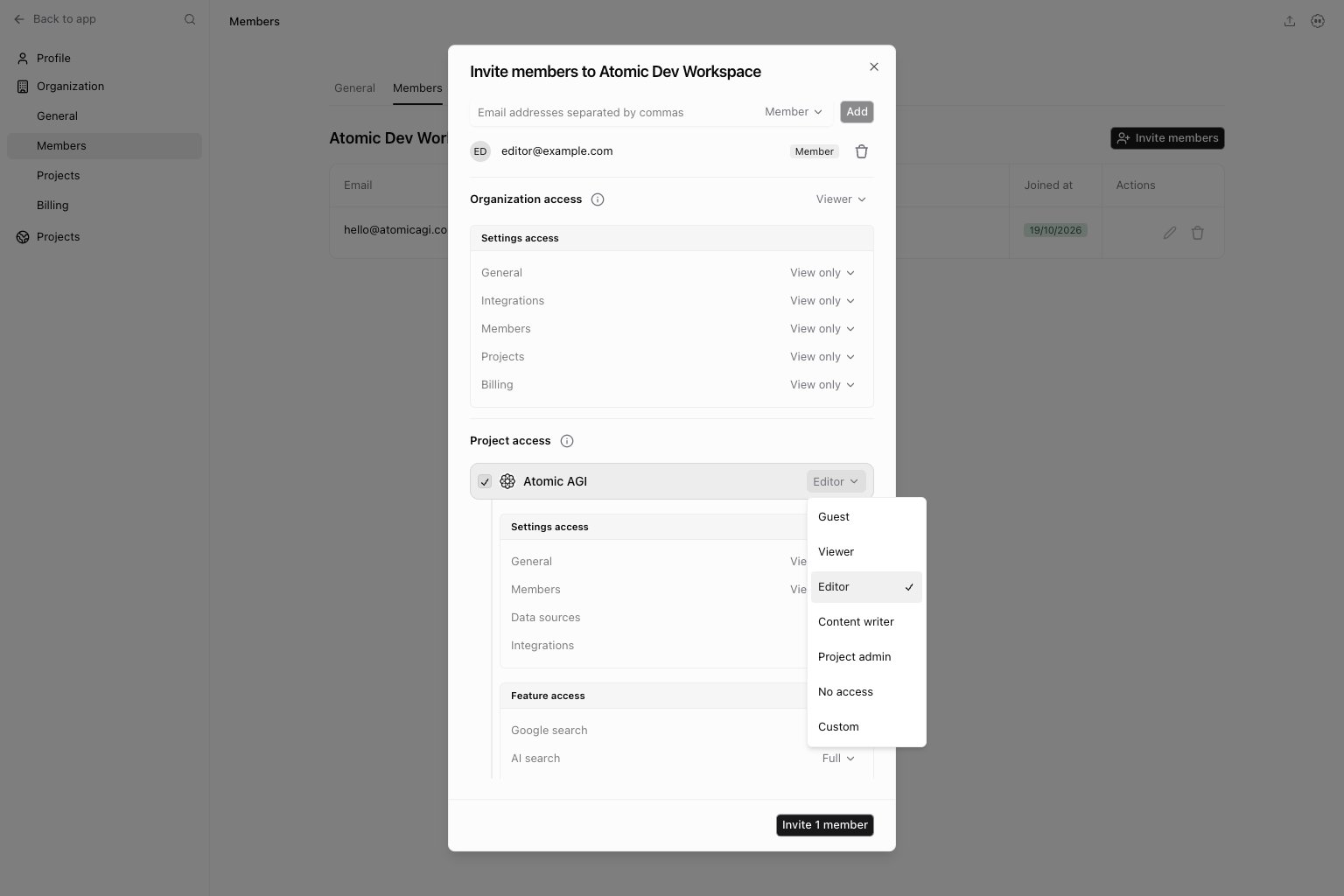
Admin role grants full workspace and project access; presets do not restrict an administrator. Use Member when you need granular limits.
Accept or decline an invitation
Sign in with the invited email address and open the workspace. If the invitation is still pending, Atomic showsJoin followed by the workspace name. Project pages remain unavailable until you accept.
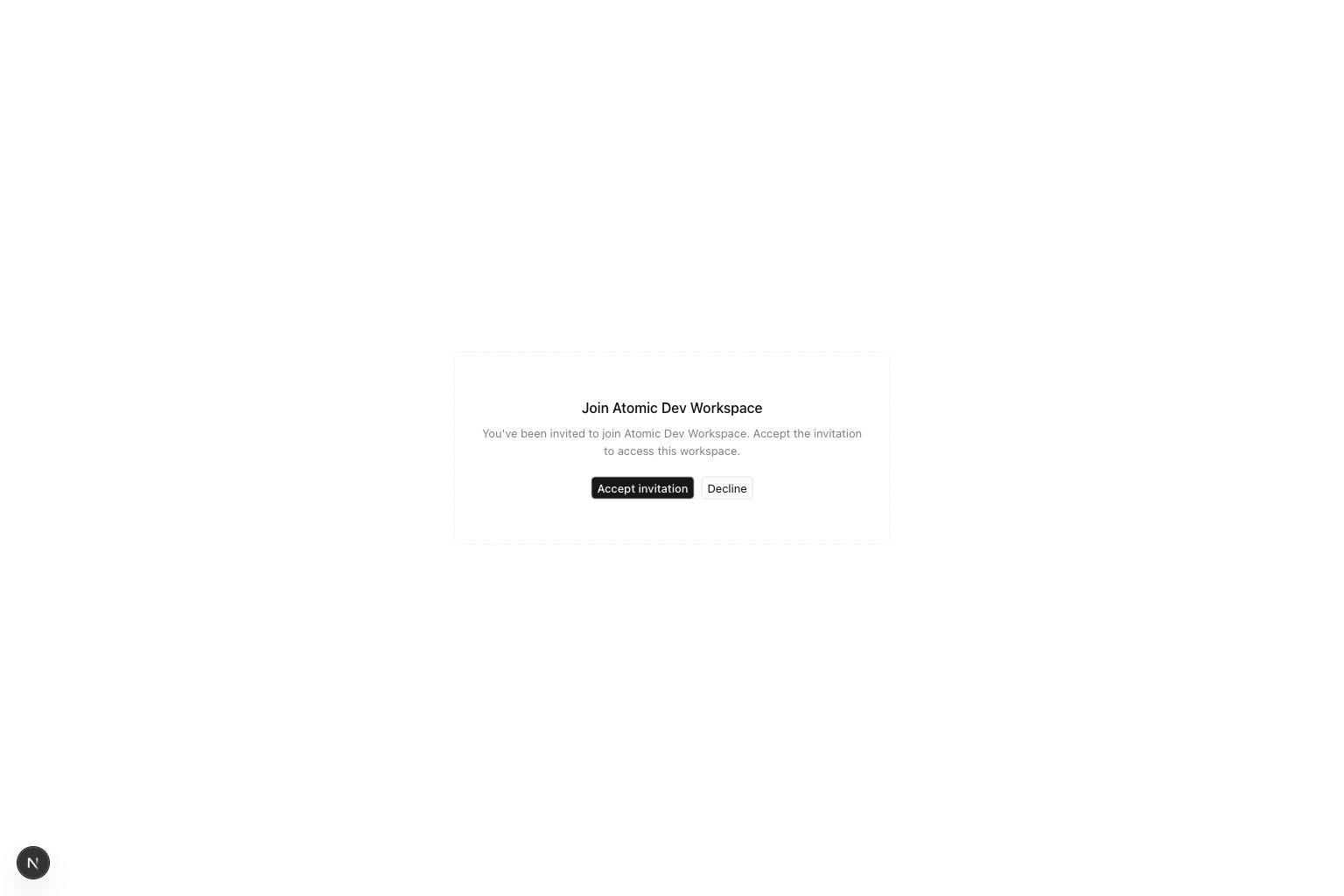
- Select
Accept invitationto join. Atomic returns you to Home, where you can open your assigned projects. - Select
Declineto reject the invitation. You return to Home; if you have no accessible workspace, the app opens the join flow. - If the response fails, the invitation stays on screen with an error. Try again when the connection is available.
Edit permissions flow
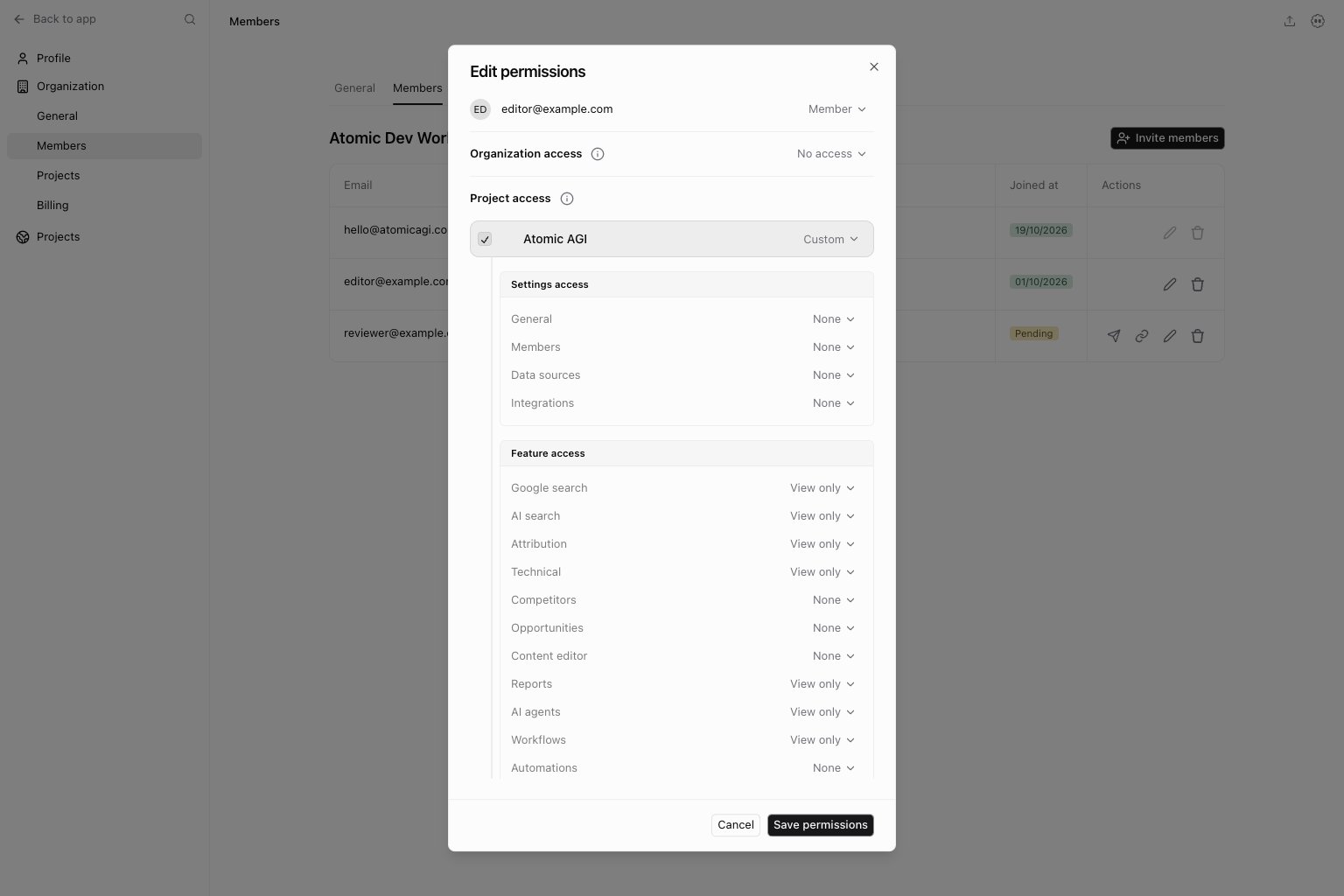
Edit permissions action in the members table to change an existing member. The action uses a pencil icon.
What you can edit
- Role (
AdminorMember). - Workspace permission scopes.
- Project access selection.
- Per-project feature + settings permission scopes.
Permission scopes explained
The same 3 states are used across workspace and project permission rows:Workspace-level permissions
These control access to organization settings sections:General:/settings/organization/generalIntegrations: project-level integration settingsMembers:/settings/organization/membersProjects:/settings/organization/projectsBilling:/settings/organization/billing
Project feature permissions
These control feature access inside selected projects.Allow a client to review social posts
For the intended project, give the reviewer View only access to Workflows and Full access to Social post approval. This lets them inspect saved posts and approve or request changes without granting draft-editing access. Draft authors need Full access to Workflows; that permission alone does not grant social-post approval. Admins bypass granular restrictions.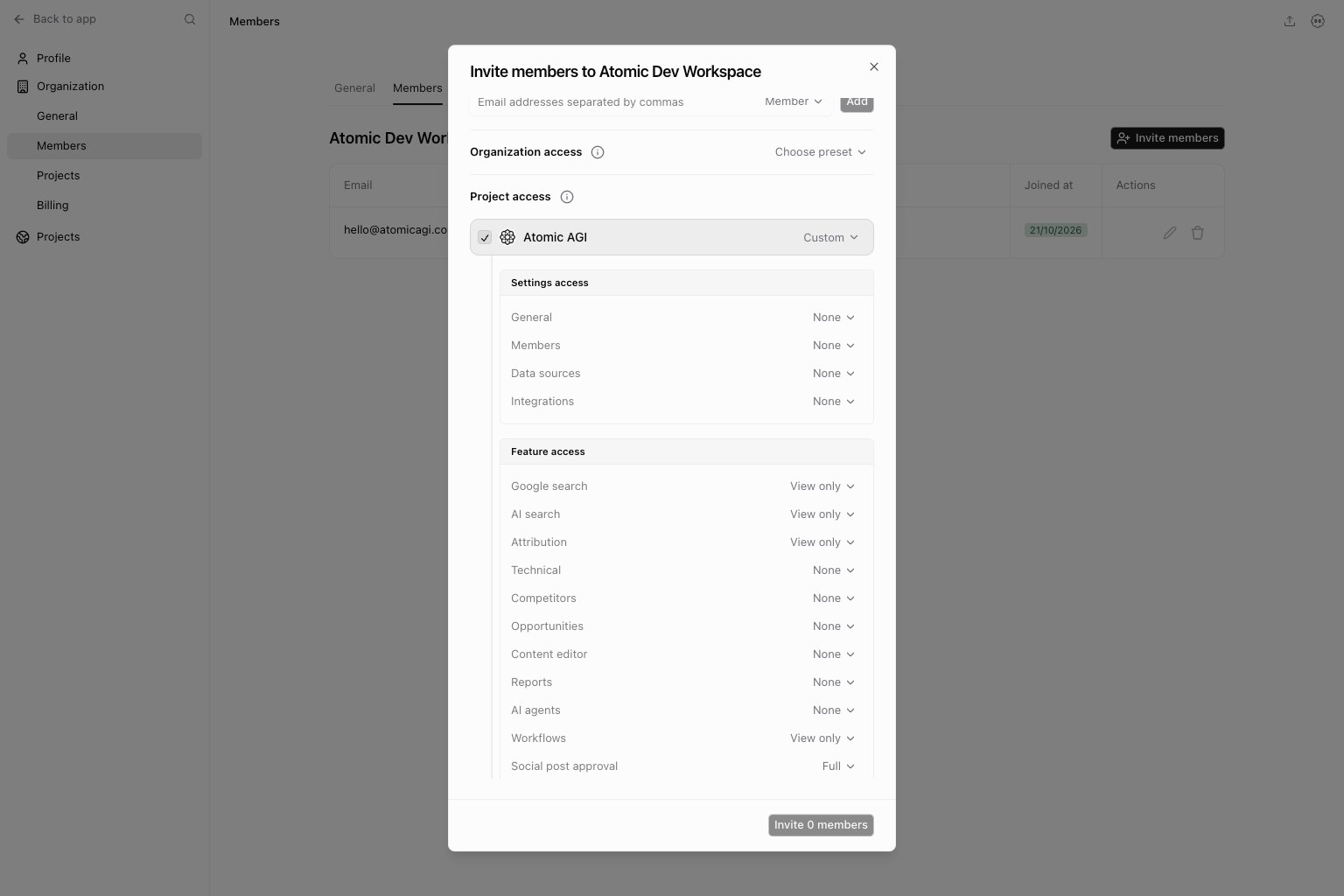
Project settings permissions
These control access to project settings tabs:Practical permission patterns
- Client reviewer:
View onlyon reporting features,Noneon members/billing, limited project scope. - SEO operator:
Fullon data/technical/workflows in assigned projects,Noneon billing. - Organization admin:
Adminrole when they need global control.
Quick weekly checklist
- Resolve stale pending invites.
- Audit members with broad
Fullscopes. - Remove access for users no longer on account.
- Re-check project assignment breadth for each member.
Keep in mind
- Organization members can have different scopes per project.
- Role and permission scopes interact:
Adminbypasses granular restrictions. - Seat limits can block new invites until capacity is increased.