

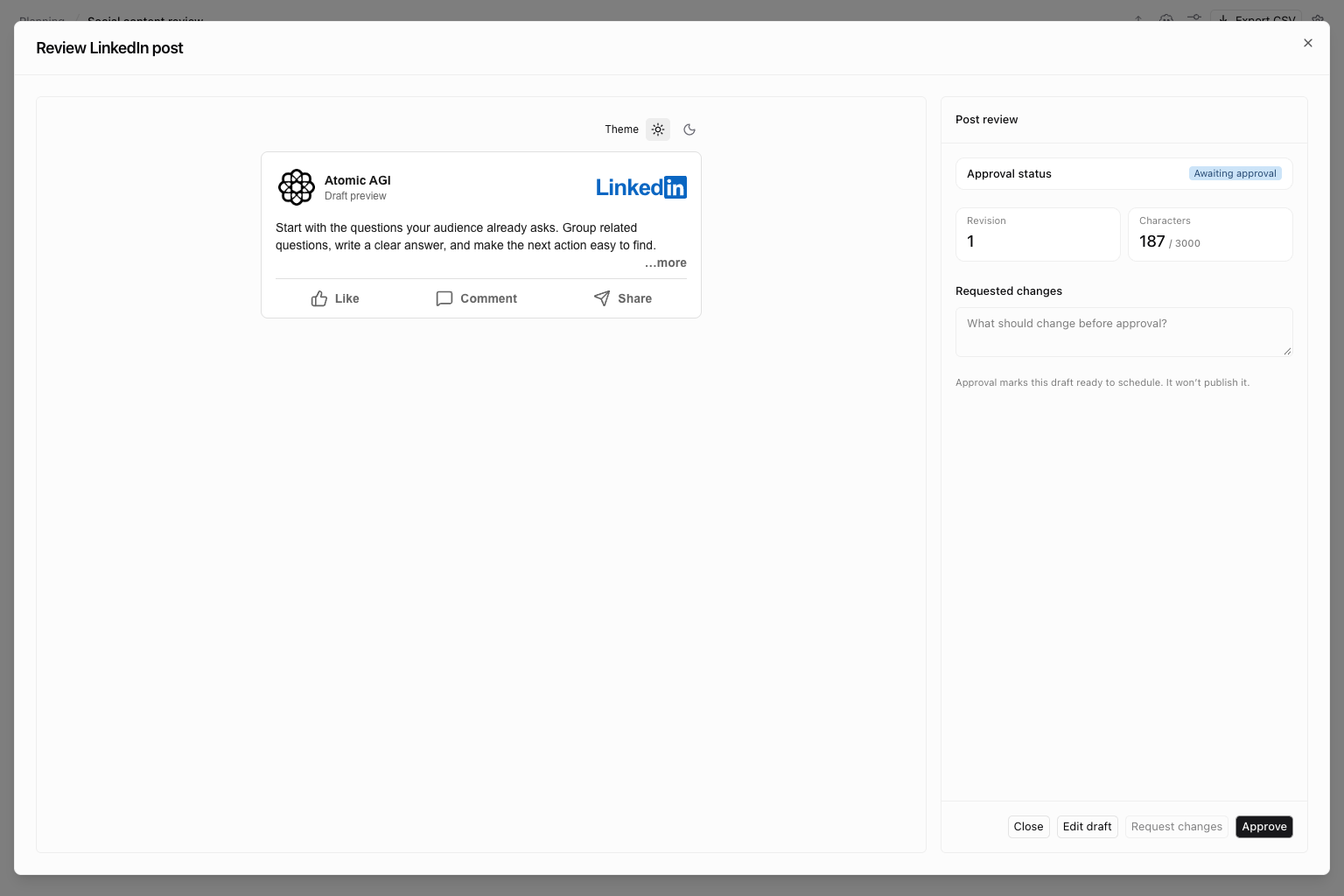
Create a social post
- Open Planning → Grid and choose a sheet.
- Select Add column → Social post and name the column.
- Select Create social post in an empty cell. Choose the platform and format, then enter the body and required media or destination fields.
- Review the preview and character count. Select Create for approval.
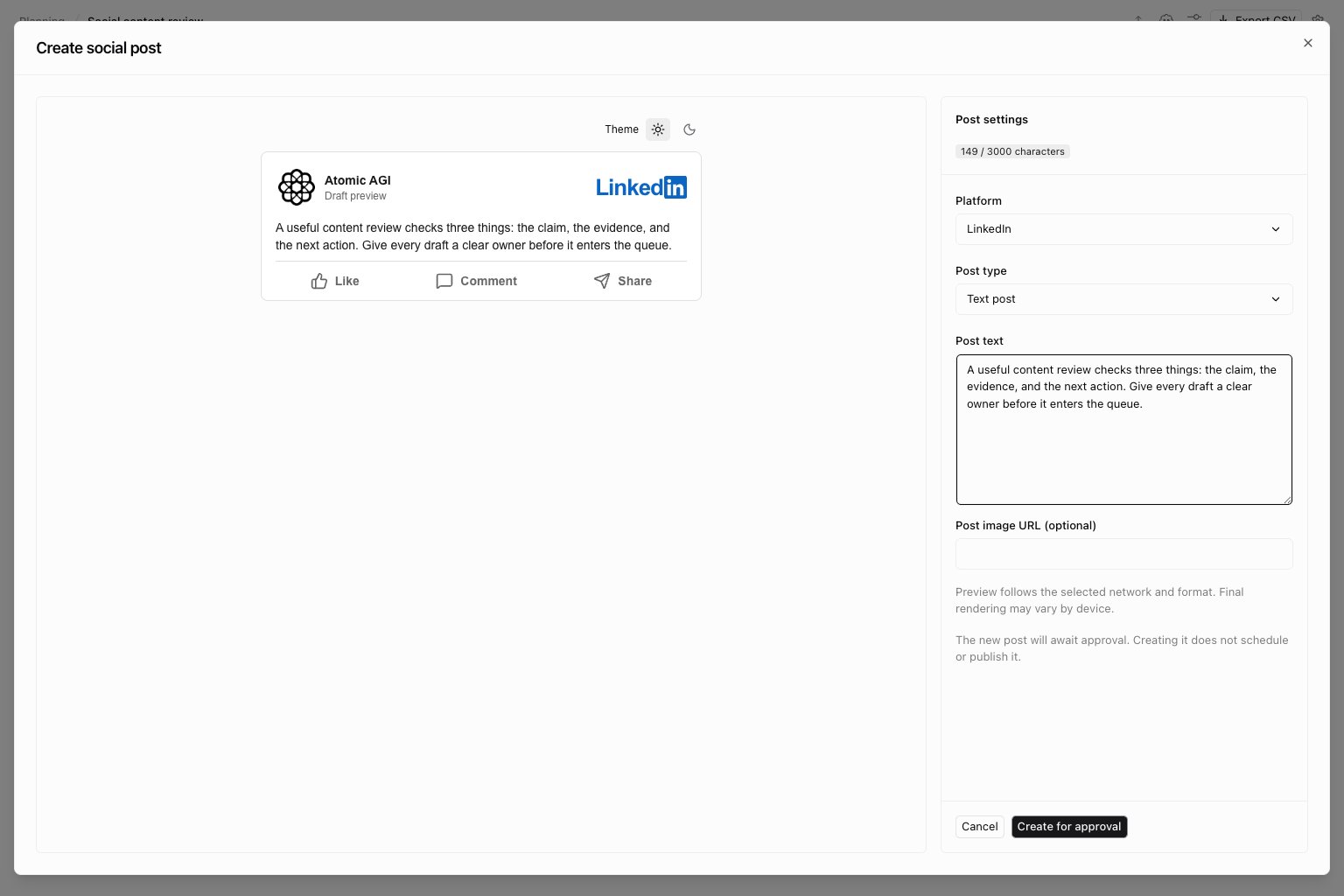
Choose a platform and format
Choose the platform first: it determines the formats and required fields. A draft format being available does not mean the connected publishing provider can deliver it.
For a Substack article, Send newsletter email and Paid article are explicit choices. Leave email off unless subscriber delivery is intended. See Substack publishing before scheduling. Substack Notes can be drafted here but are not supported by the current Narrareach article-publishing flow.
Preview every platform
Open a platform below to see its preview in the review dialog. Each example shows one supported format; choose another format in the editor to preview its text or media. Use the preview theme controls to check light and dark presentation. These are illustrative drafts, not published posts.LinkedIn — Text post
LinkedIn — Text post
Check the opening lines and expand longer copy before approving.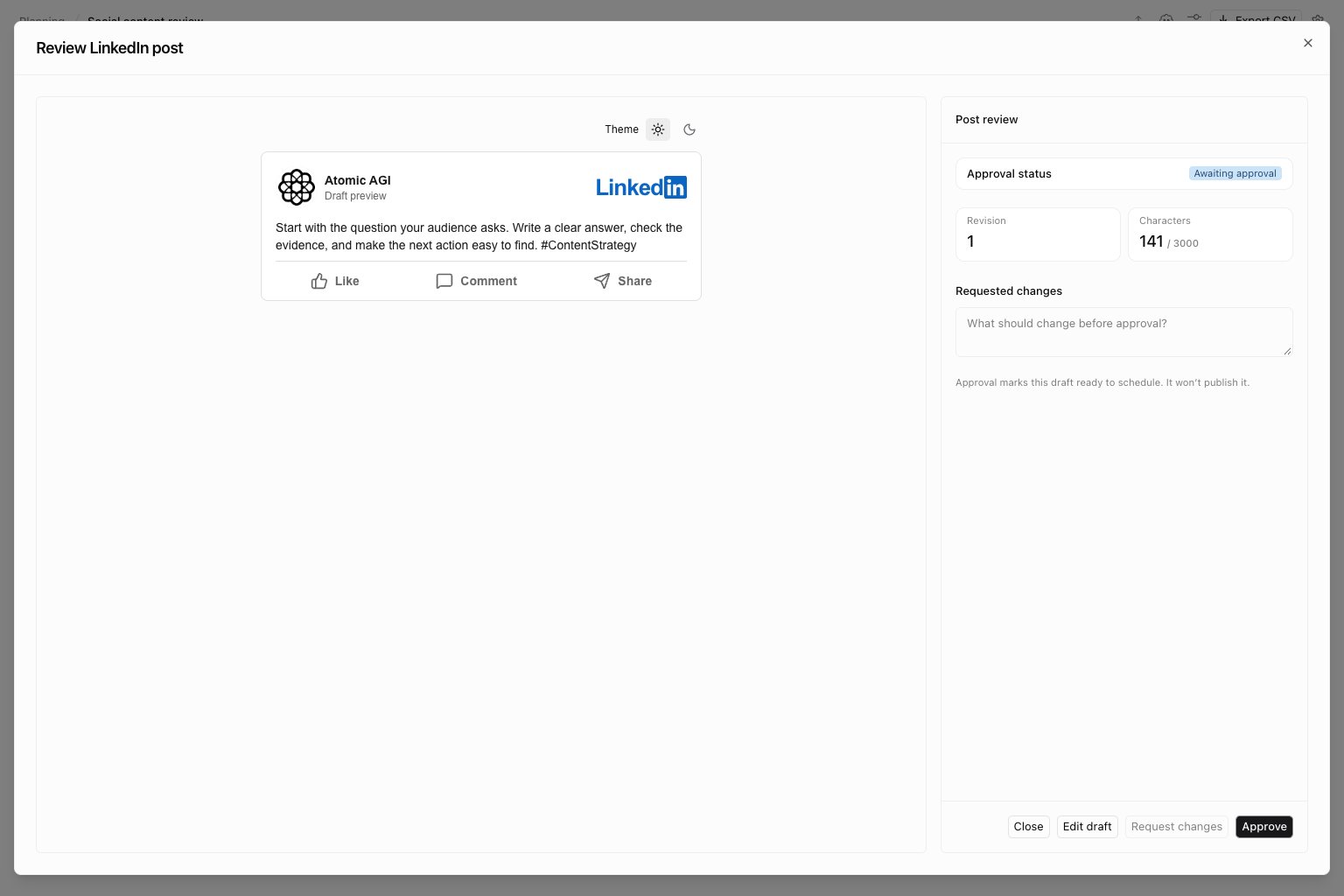
X — Text post
X — Text post
Check that the complete message fits the character limit.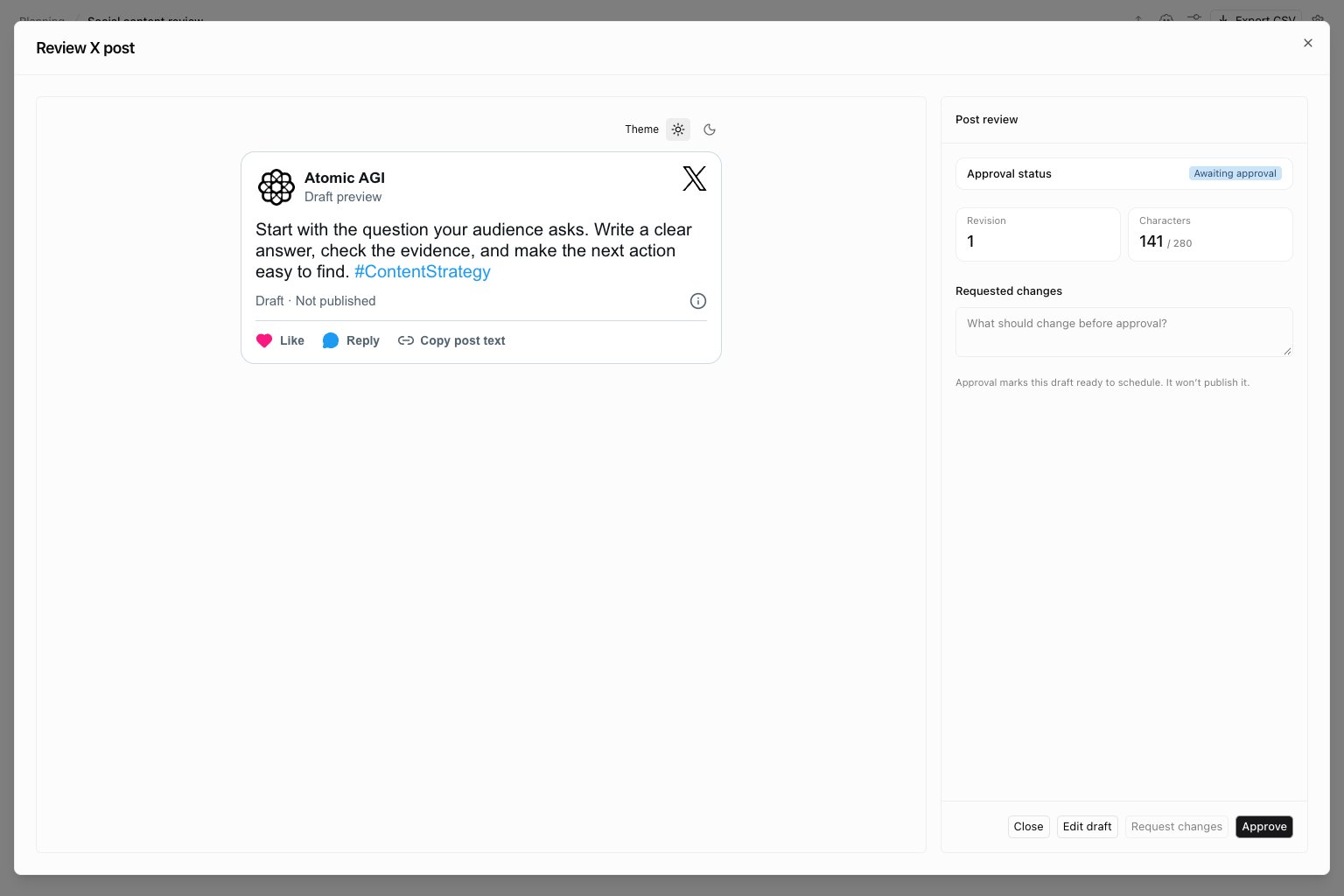
Substack — Article
Substack — Article
Review the publication, title, subtitle, and formatted body. The example keeps newsletter email off.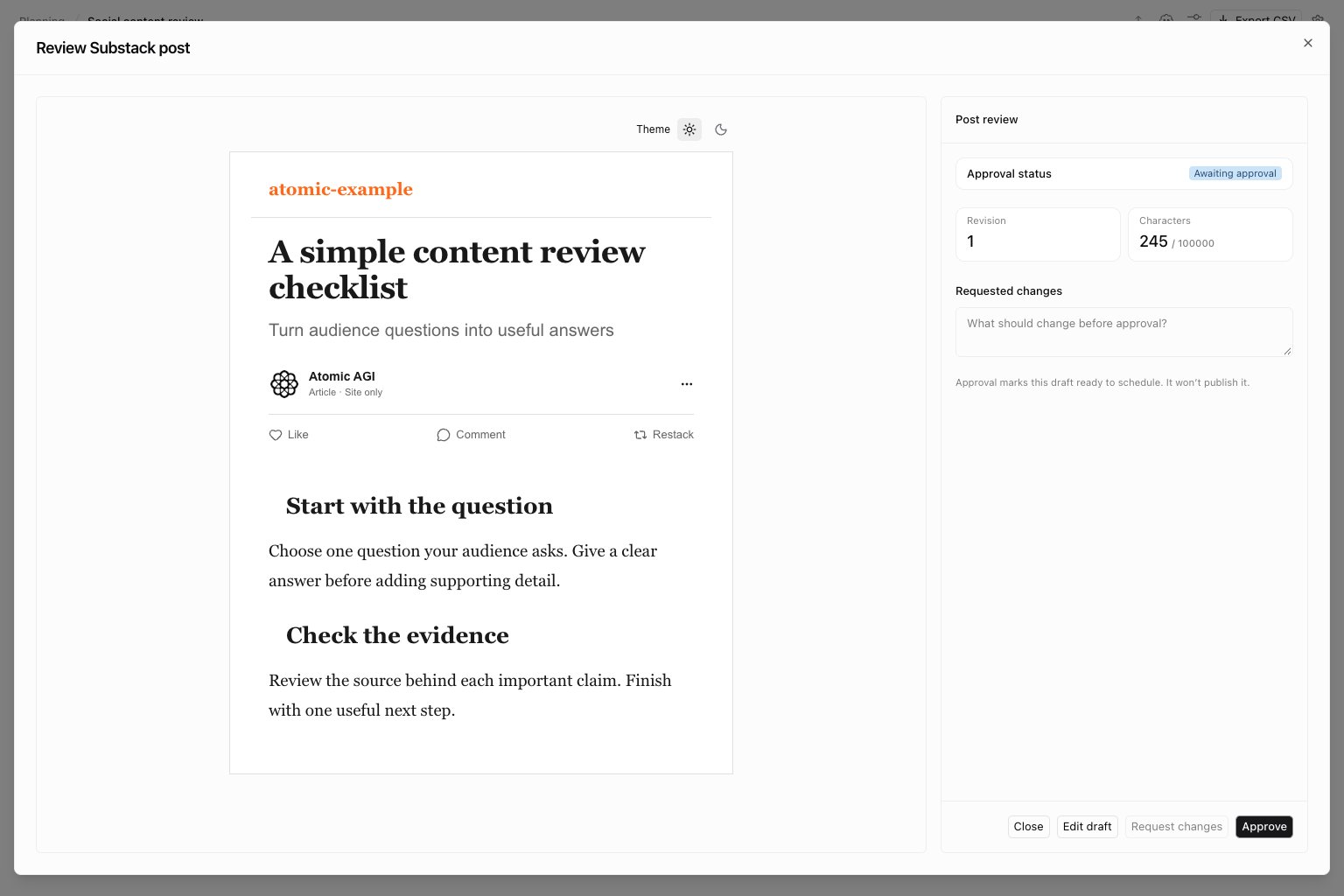
Medium — Article
Medium — Article
Check the title hierarchy and article formatting.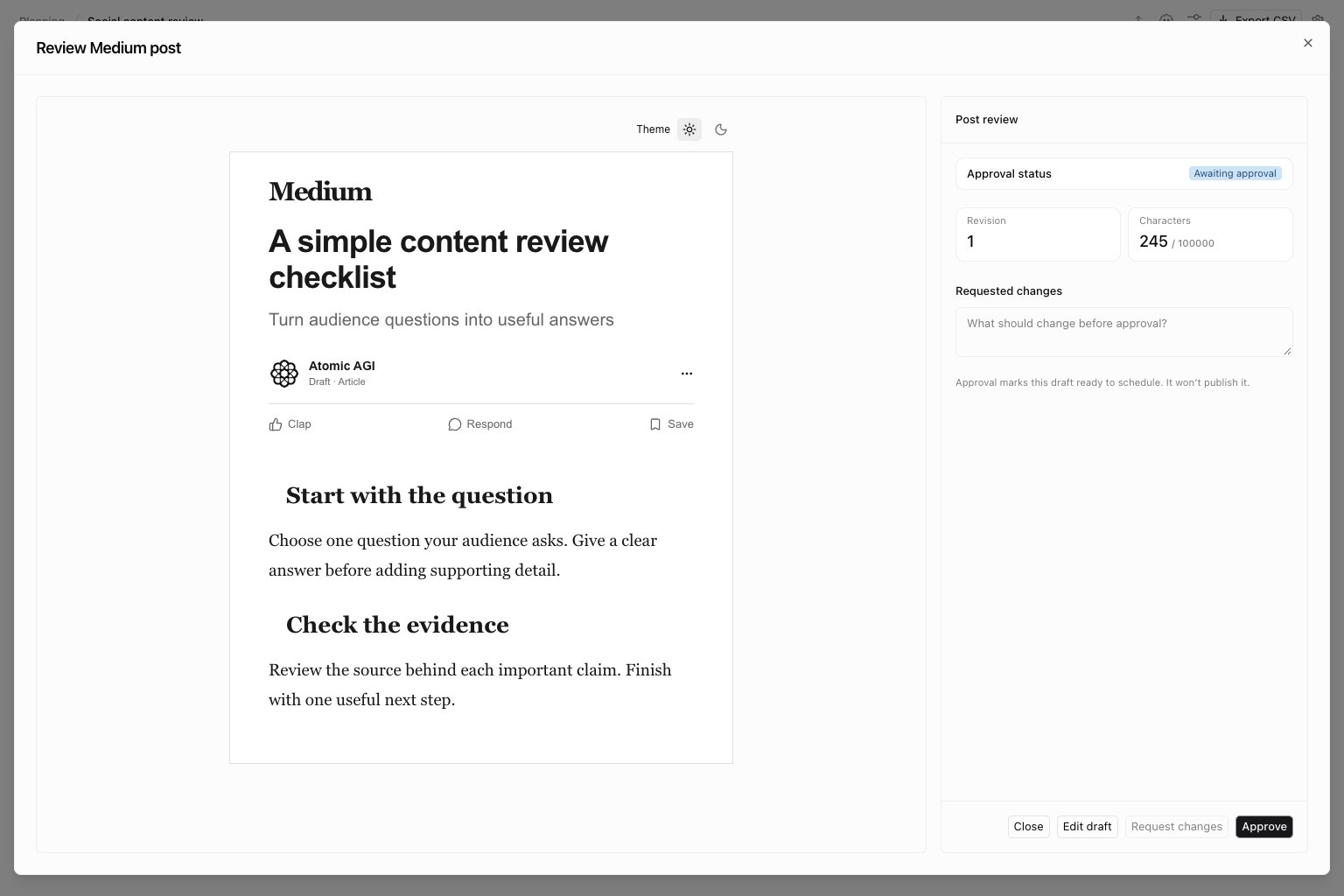
Reddit — Text post
Reddit — Text post
Review the community, title, and discussion prompt. A working preview does not mean provider publishing is available.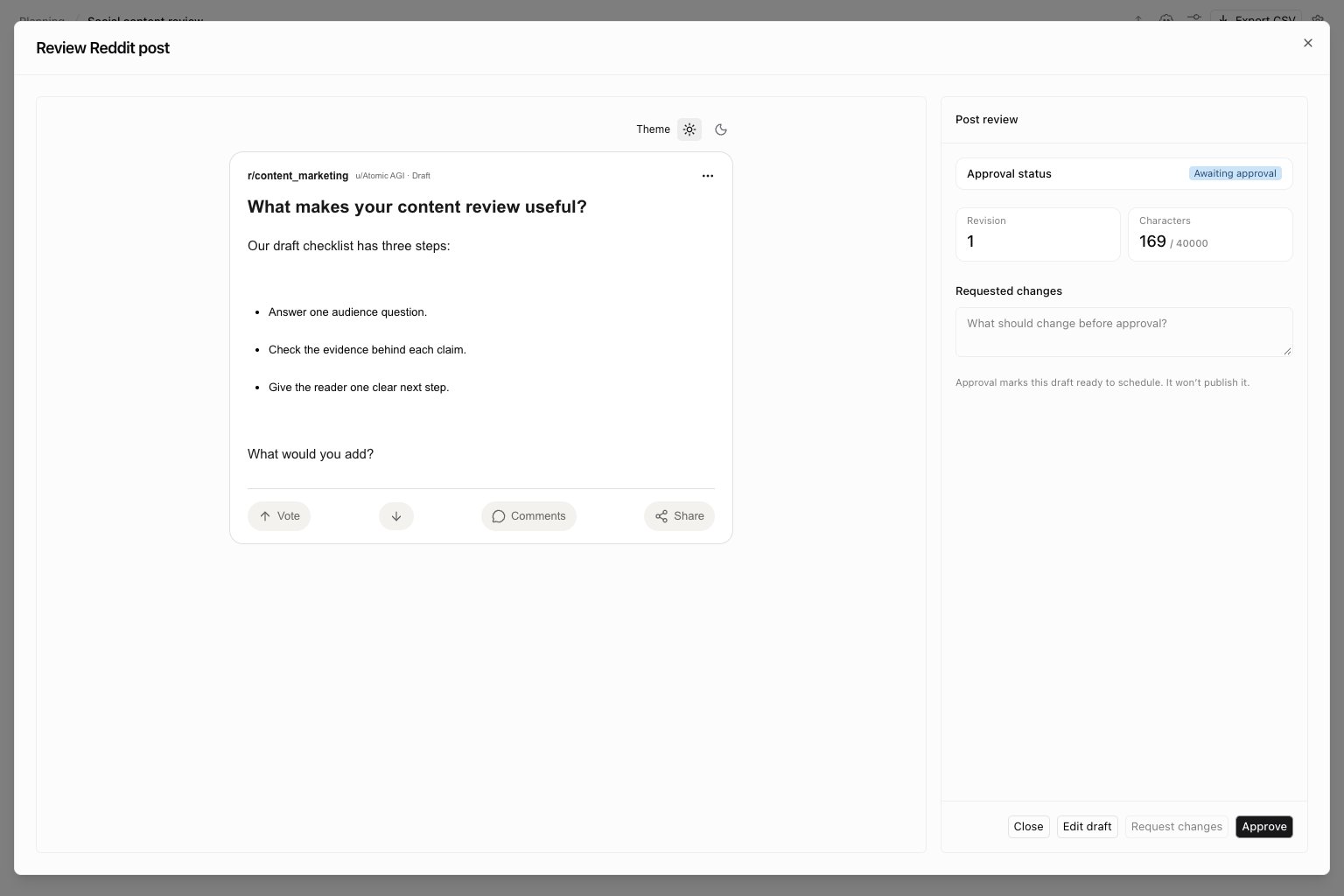
Facebook — Image post
Facebook — Image post
Check that the image supports the caption and that both make sense together.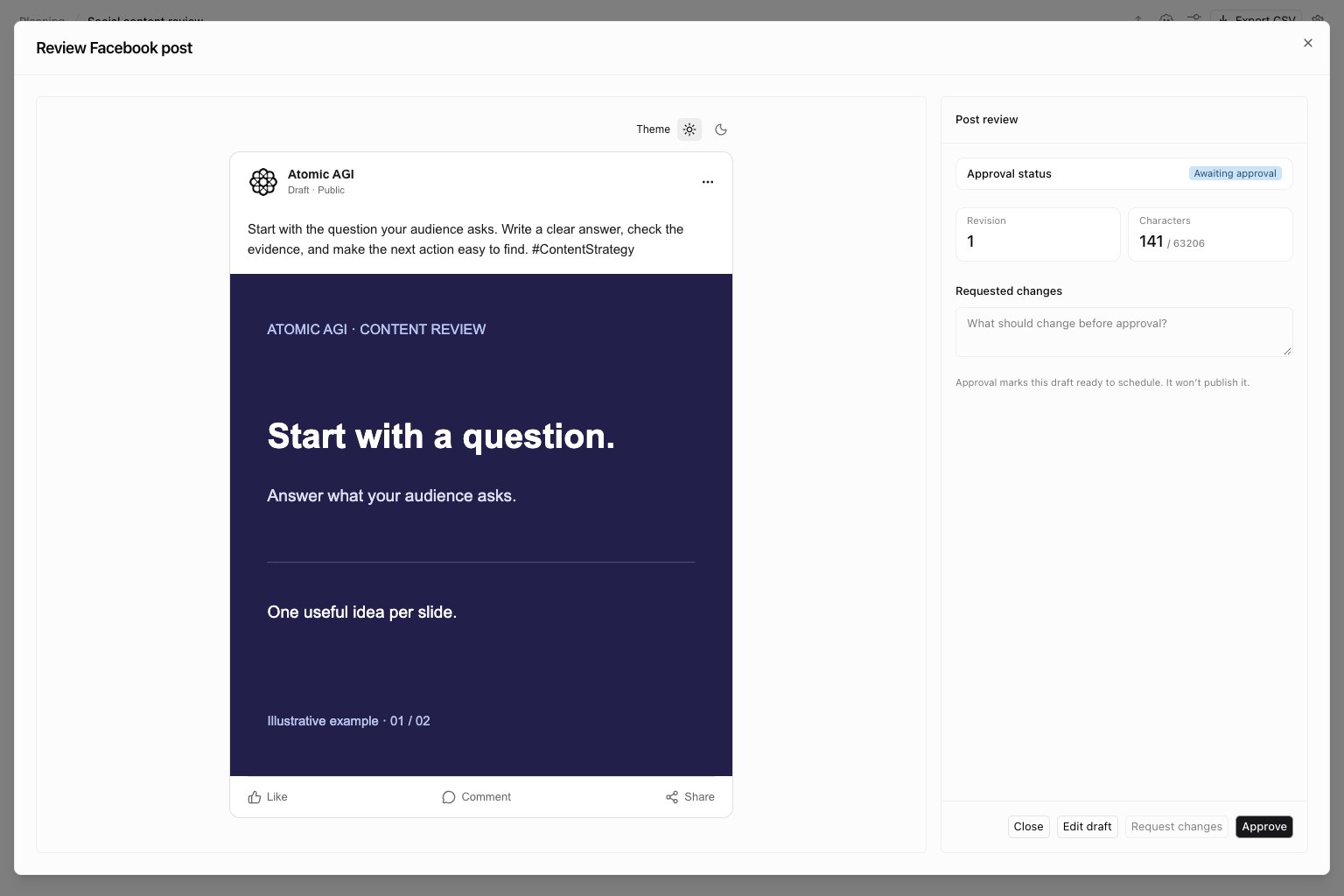
Instagram — Carousel
Instagram — Carousel
Review each slide in order and its individual alt text.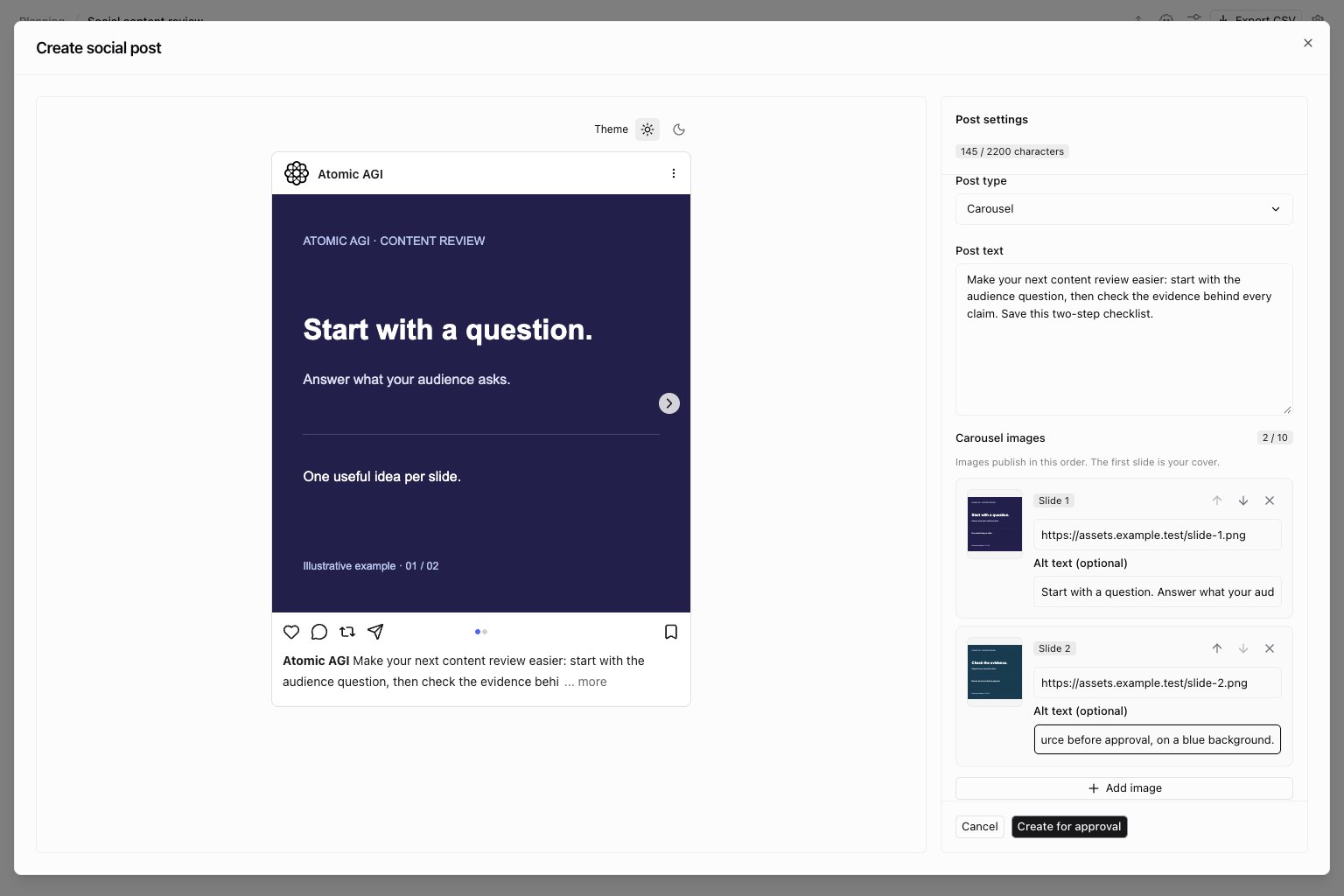
Threads — Text post
Threads — Text post
Check the opening sentence and the full message before approval.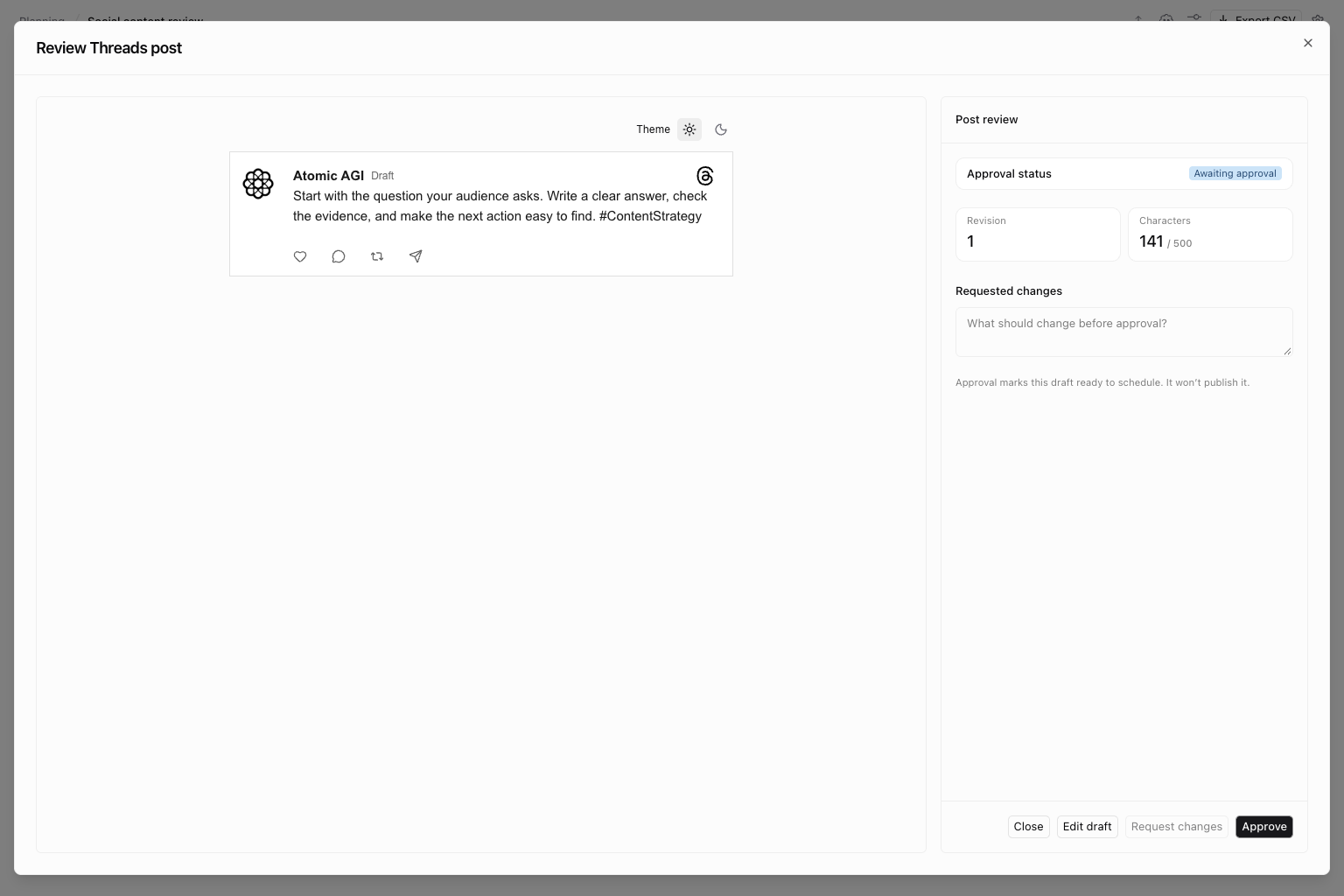
Bluesky — Text post
Bluesky — Text post
Keep the message within the character limit and review any mentions or links.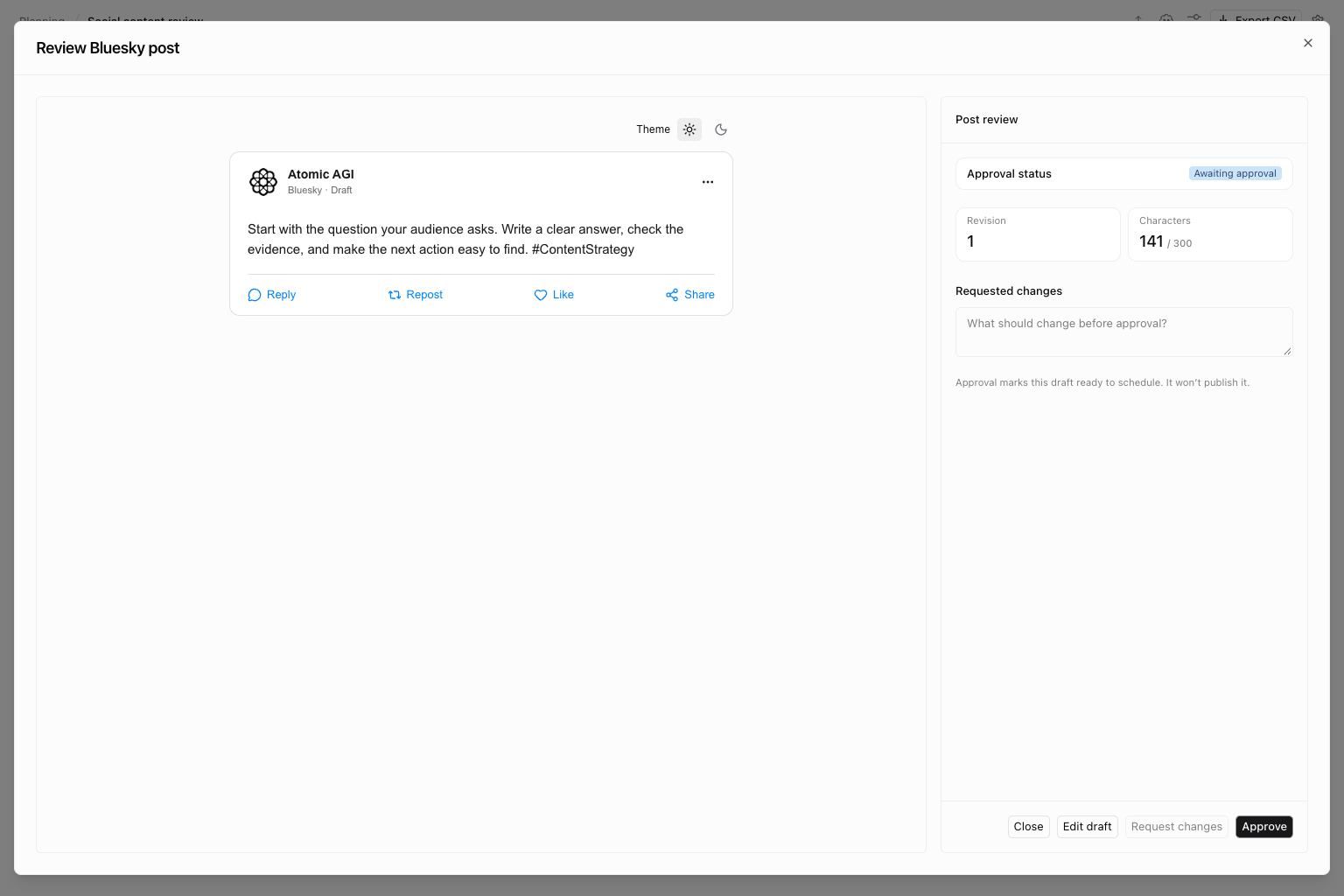
Mastodon — Text post
Mastodon — Text post
Review the text and intended account before publishing.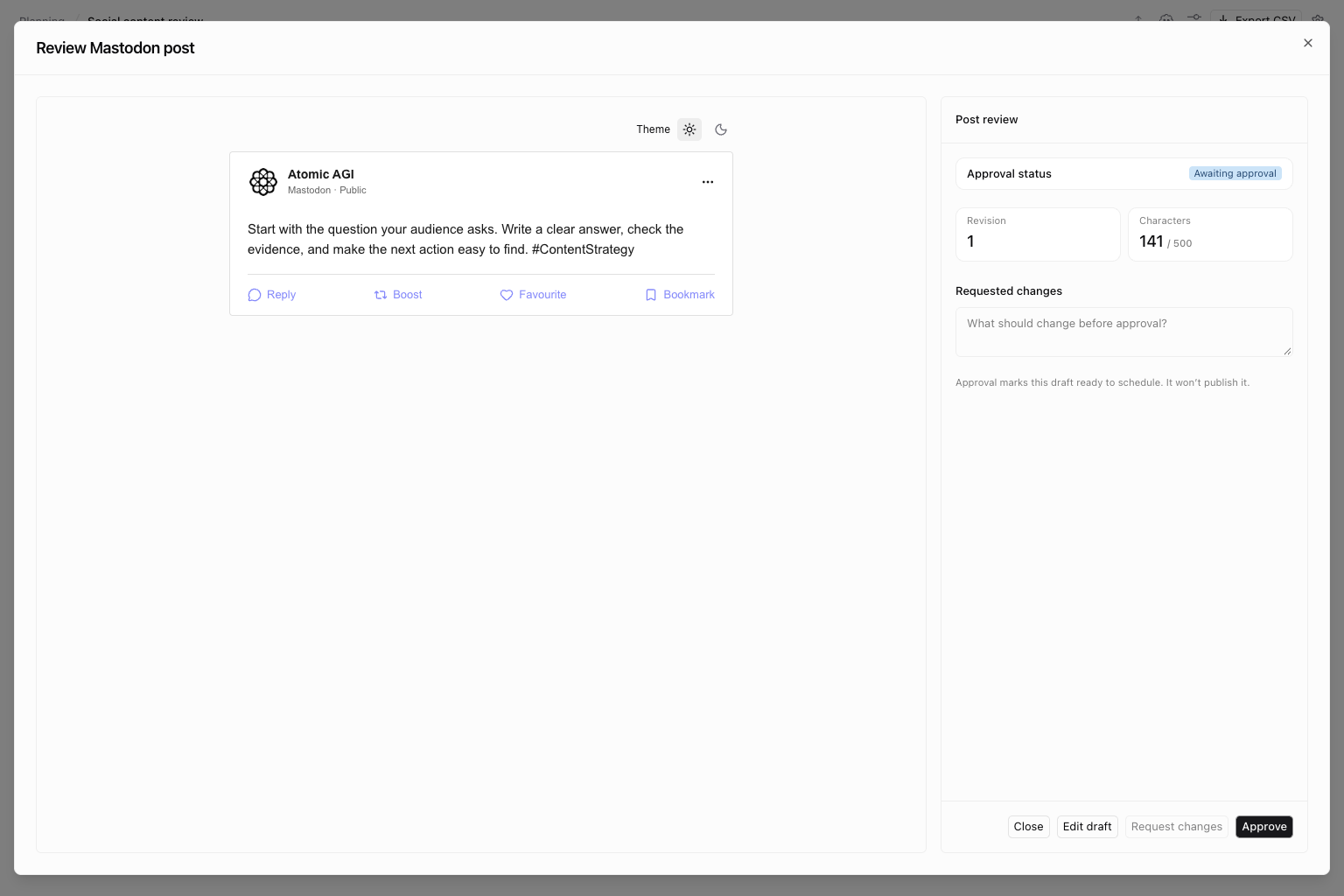
Pinterest — Pin
Pinterest — Pin
Check the image and title together; confirm the board and destination link in the post details.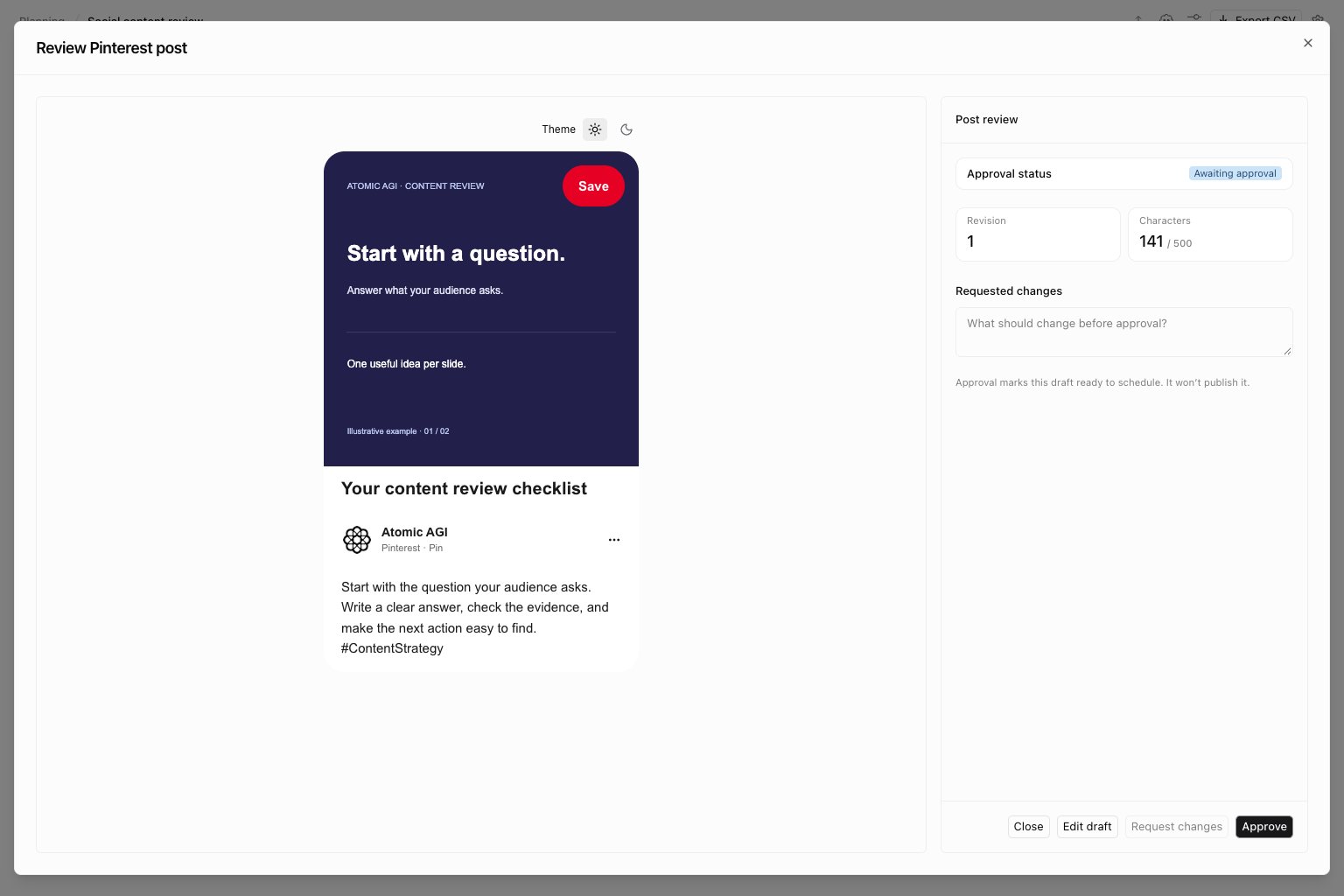
TikTok — Video
TikTok — Video
Check the video and caption. The sample uses an illustrative local video and cover.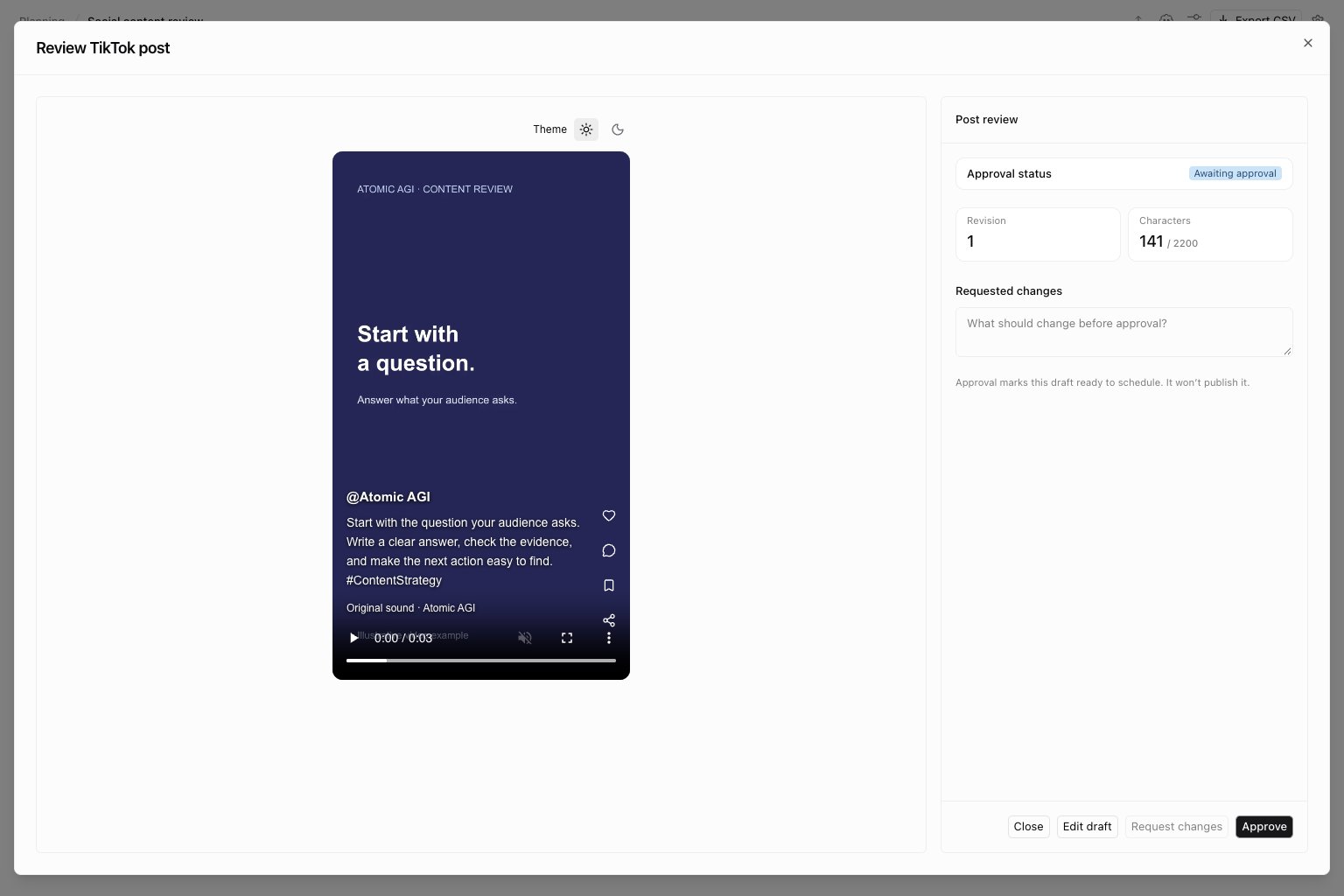
YouTube — Video
YouTube — Video
Review the video, title, and description together; confirm the category in the post details.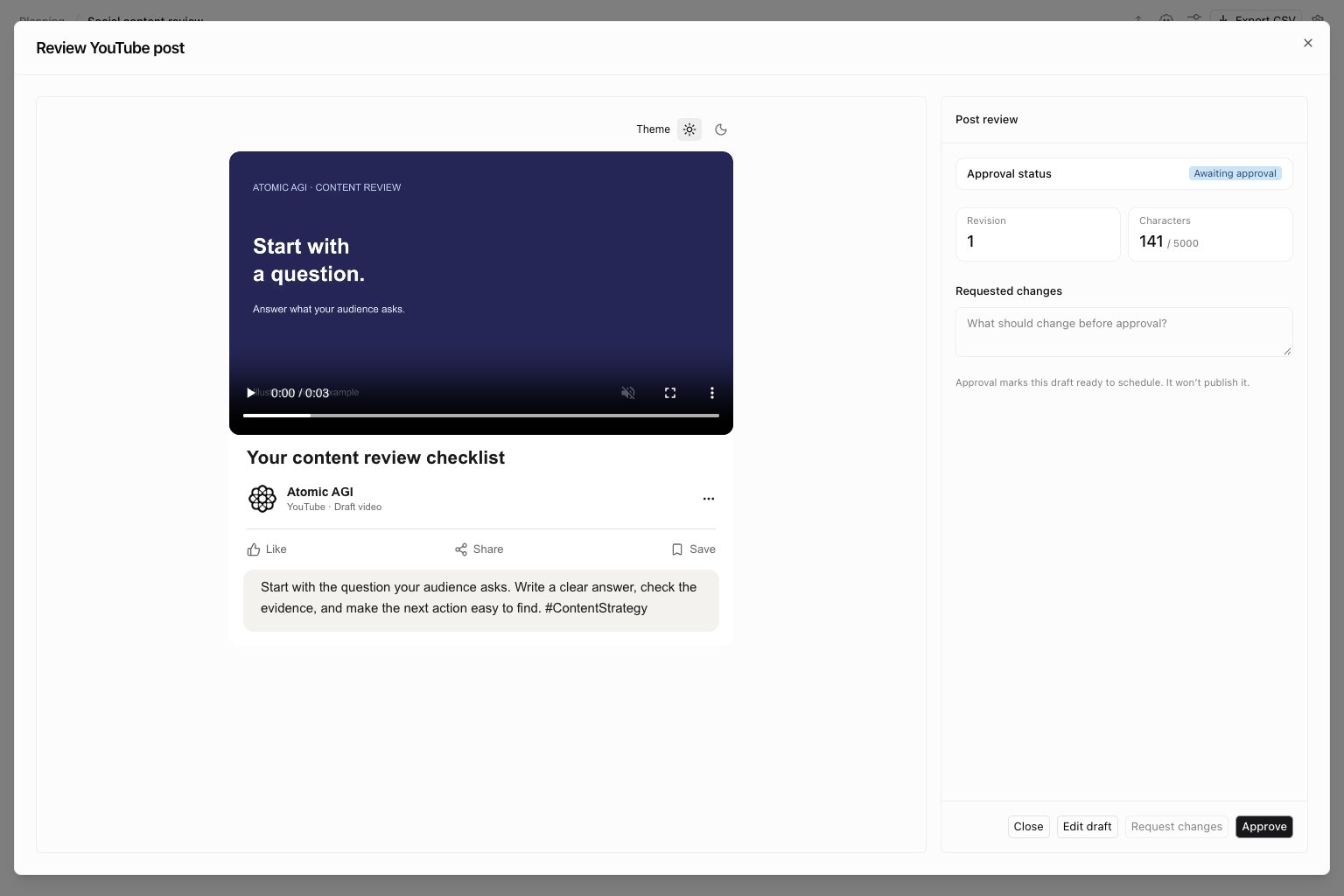
Google Business — Image post
Google Business — Image post
Check that the image and update give customers a clear, useful message.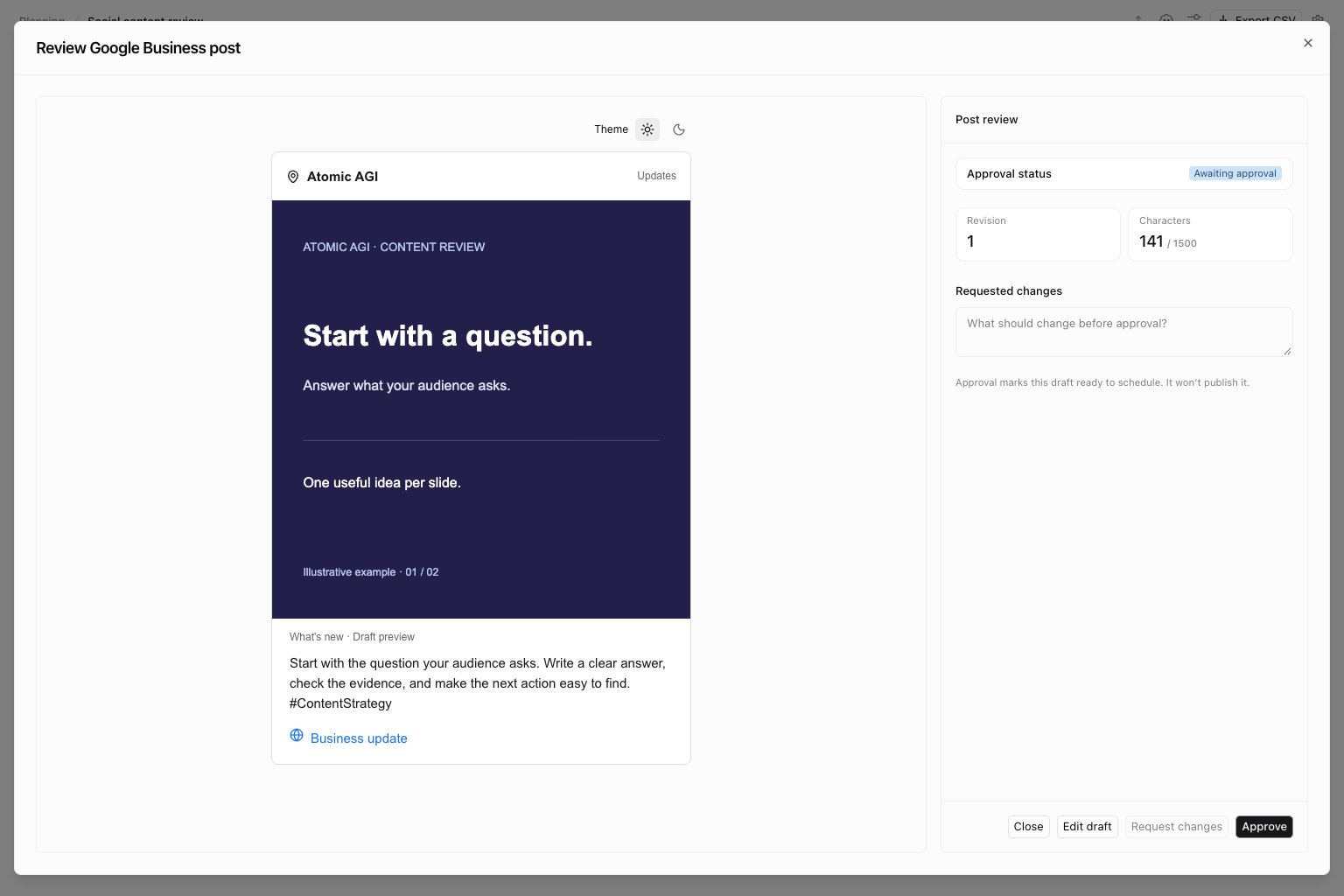
Build an Instagram carousel
Choose Instagram → Carousel. Add 2–10 publicly accessible HTTPS image URLs in reading order. Use Add image, the move-up/down controls, and remove controls to manage slides. Moving a slide keeps its alt text with it. Write meaningful alt text for every slide, even though the field is optional. Describe the visible message and visual context; include important text that is only present in the image. Each description can contain up to 1,000 characters. Check every slide in the preview and keep image URLs available through publication.Review the current revision
Open a saved post to see its preview, revision number, approval state, and review history.
Requesting changes requires feedback. Explain the needed correction so the editor can act on it. Revising a post creates a new revision and returns it to approval, including when the previous revision was approved. History preserves who reviewed each revision and their feedback.
Editing requires write access to Workflows. Approving or requesting changes requires the separate Social post approval write permission, as well as access to the project’s workflows. Ask a workspace administrator to check permissions when controls are missing. The client-reviewer permission setup explains the two scopes. If another person changed the post, reopen it and review the latest revision before trying again.
Publish an approved revision
In a publishing workflow that exposes Approved grid post cell ID (optional), supply the cell ID and Approved post revision together. The step reads the saved approved content instead of its manually entered content fields. A changed or unapproved revision cannot publish, and the destination must match the post’s platform. Connect the intended provider and select its actual account or publication. Review timing separately: Grid workflow scheduling controls when the workflow starts; the publishing step may specify a later delivery time. After execution, inspect the result and the provider queue or public link. Do not treat an approved badge or an accepted queue request as proof of delivery.Find posts needing attention
Use the Grid filter for the Social post column’s status. Select one or more states, such as Awaiting approval and Changes requested, to build a review queue. Clear the filter before assuming the rest of the sheet is empty.Where to go next
- Grids: filter rows and manage columns
- Workflows: configure publishing and delivery checks
- Integrations: connect the destination account