

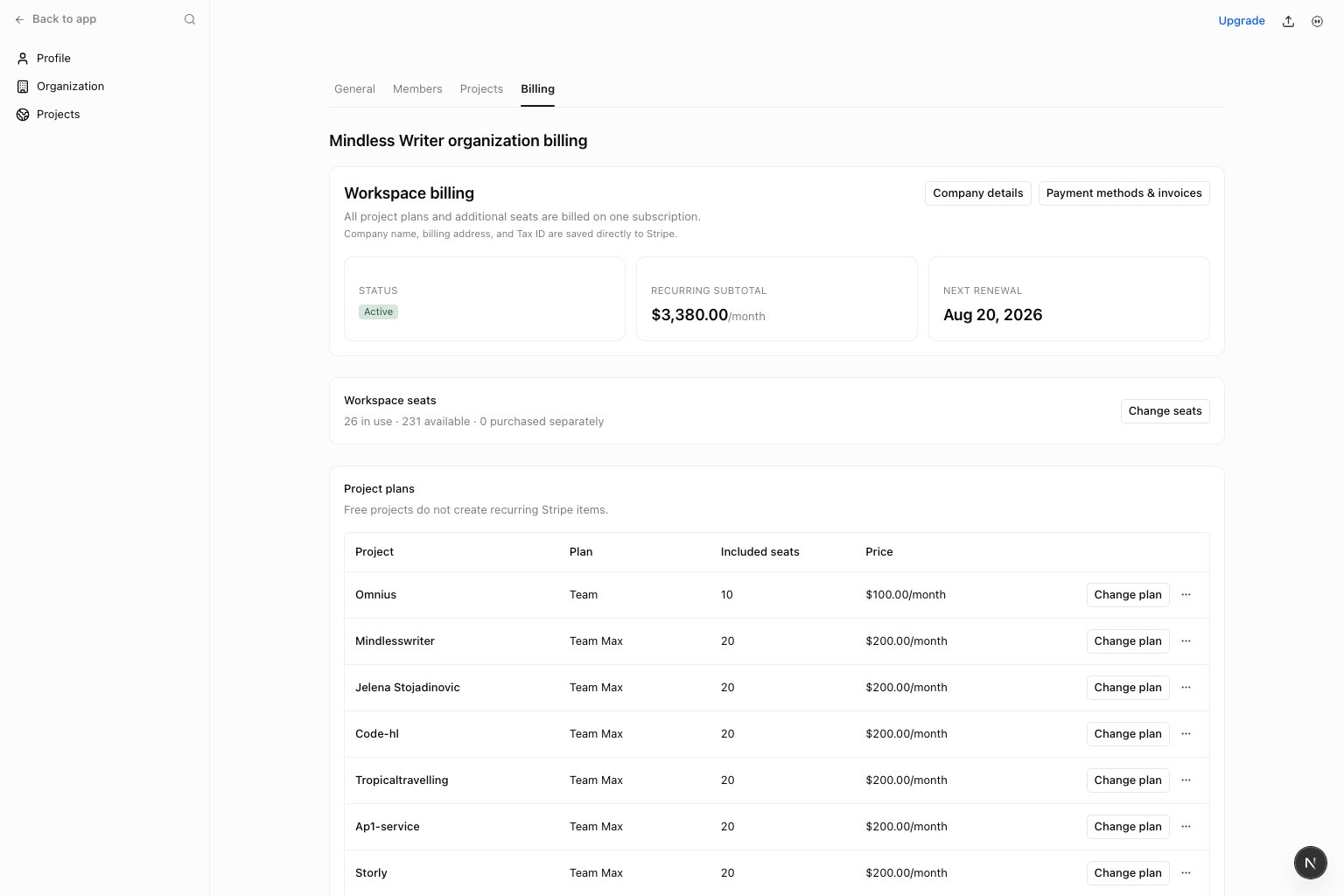
Questions this page should answer
- What is our recurring subtotal and next renewal date?
- Which plan is assigned to each project?
- Do we have enough seats for current members?
Before you use this page
- Open Organization settings and select
Billing. - Confirm you have billing write access before changing plans or seats.
- Resolve a past-due invoice before making a billing change.
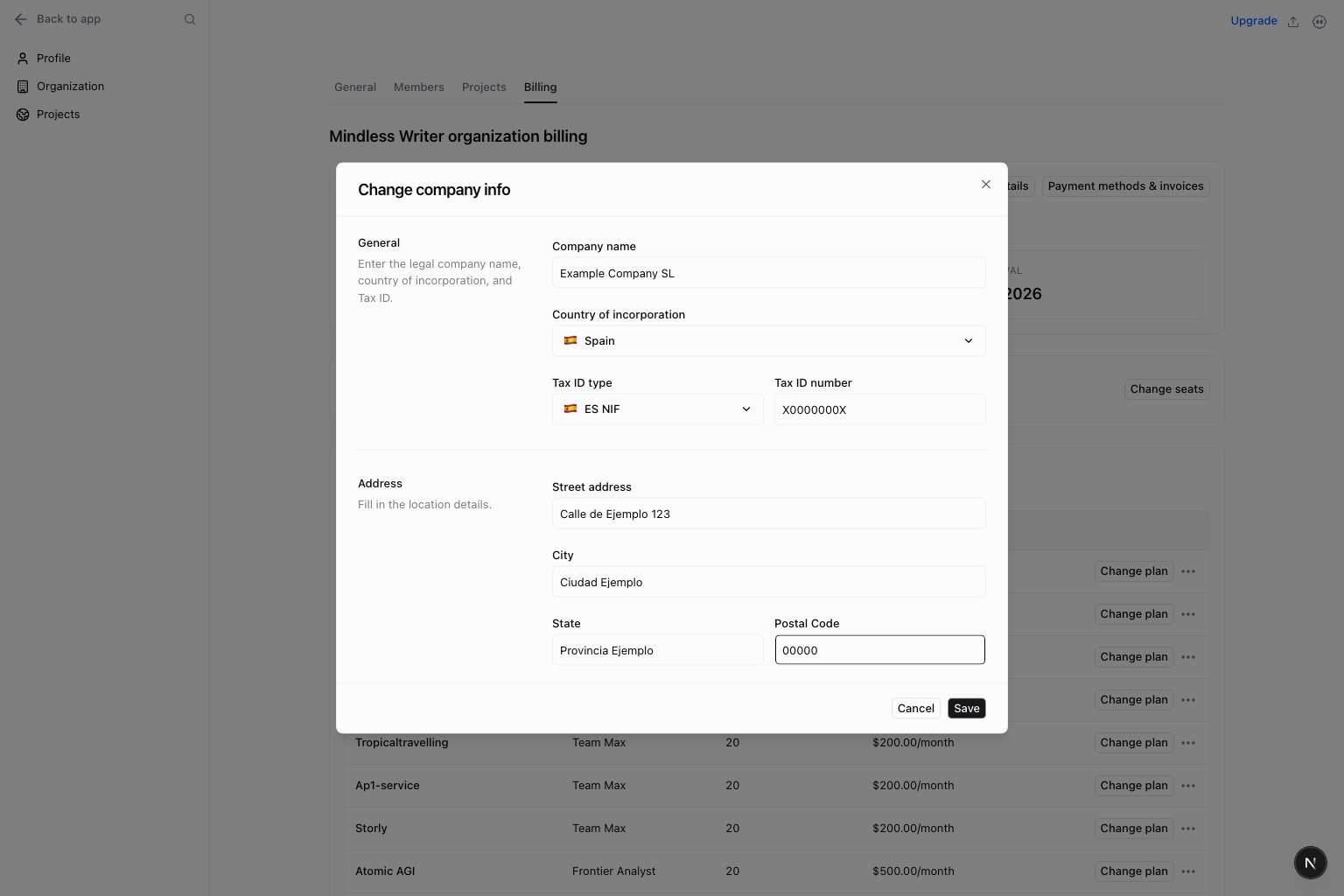
- On the first paid-plan checkout, Stripe collects the billing address and offers company Tax ID entry. Stripe saves the supplied legal company name, address, and Tax ID to the workspace billing customer.
What this page gives you
- One workspace subscription status and renewal date.
- One recurring subtotal for project plans and extra seats.
- The plan and price assigned to every project.
- Seats included by project plans, purchased seats, and seats currently in use.
- One
Company detailsaction for the legal company name, billing address, and Tax IDs stored in Stripe. - One
Payment methods & invoicesaction for payment methods, invoices, billing address, Tax ID, and cancellation.
Change a project plan
SelectChange plan beside a project. The dialog shows the available paid tiers, including the current plan.
- Starter and higher plans include MCP access.
- Team and higher plans include Grids.
- Managed is a custom, done-for-you option for teams that need higher limits, custom models, integrations, workflows, or AI Employees. Select
Book a demoto discuss the setup with Atomic.
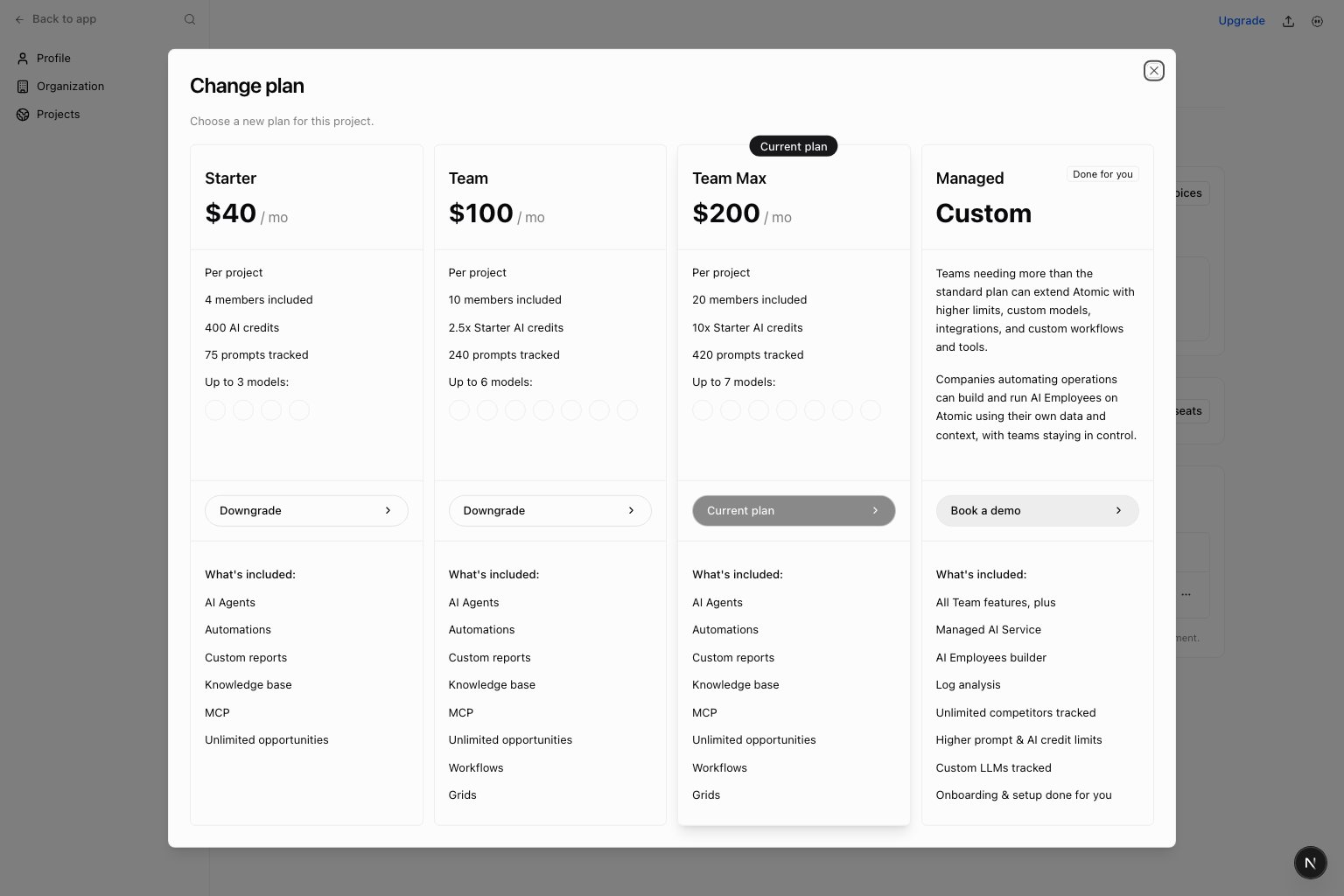
- Selecting Upgrade or Downgrade starts the appropriate action immediately; there is no separate Continue step.
- If a workspace trial already covers one paid project, adding a second paid project first asks for confirmation. Confirming ends the workspace trial and starts billing for all paid projects immediately.
- Upgrades are invoiced immediately.
- Downgrades create a credit for the next invoice.
- The workspace renewal date stays the same.
- A subscription scheduled to cancel cannot be changed or revived.
... menu beside Change plan and select Cancel plan. Confirming moves only that project to Free and removes its recurring item. Other project plans and additional seats stay unchanged. If the project owns the final recurring item, its workspace subscription ends immediately without creating an invalid empty subscription or an immediate final invoice.
Free trials cover one project
The first project on Starter or Team can start the 7-day workspace trial. Team Max starts as a paid plan without a trial. While a workspace trial is active, other Free projects cannot select a paid plan.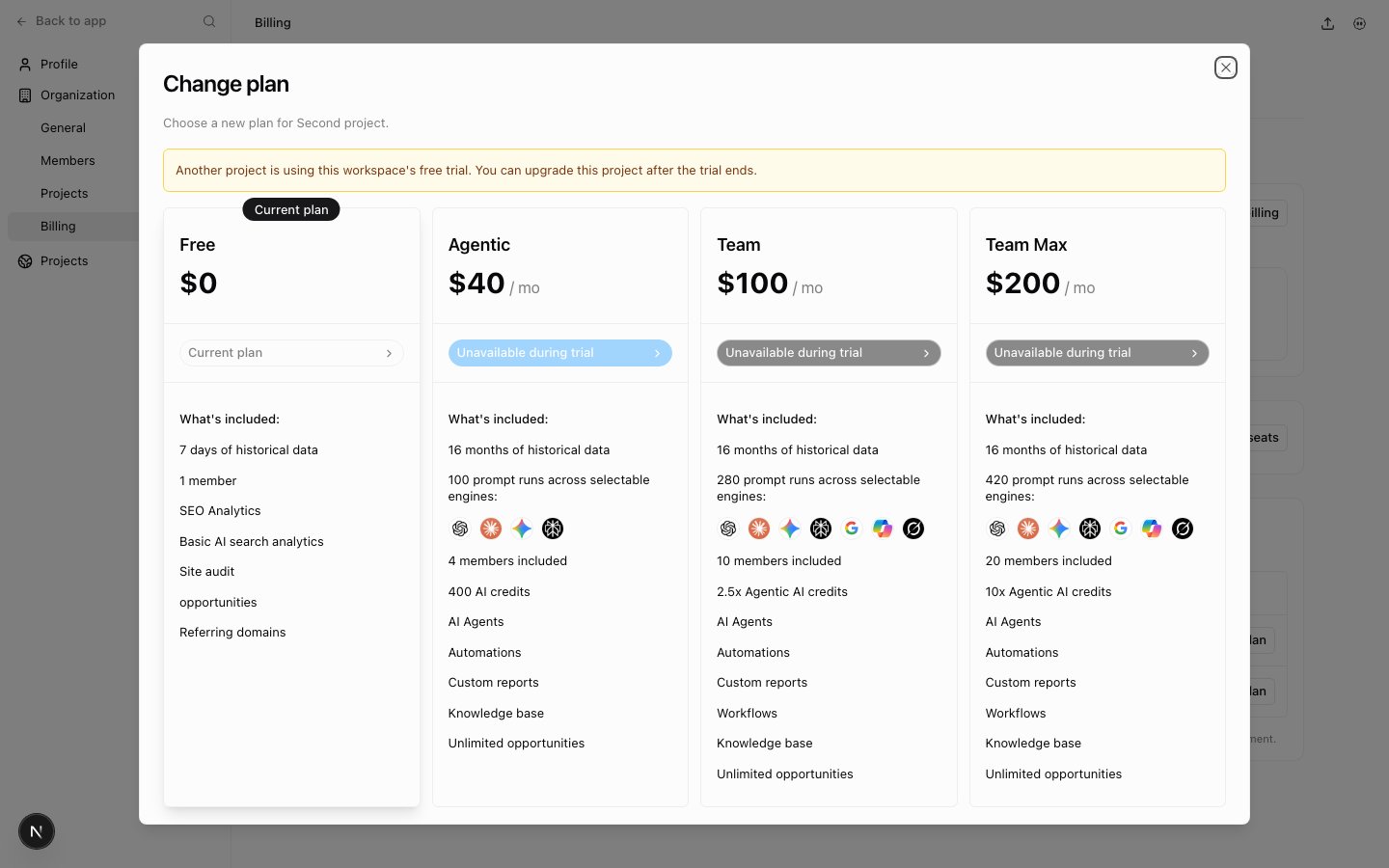
Change additional seats
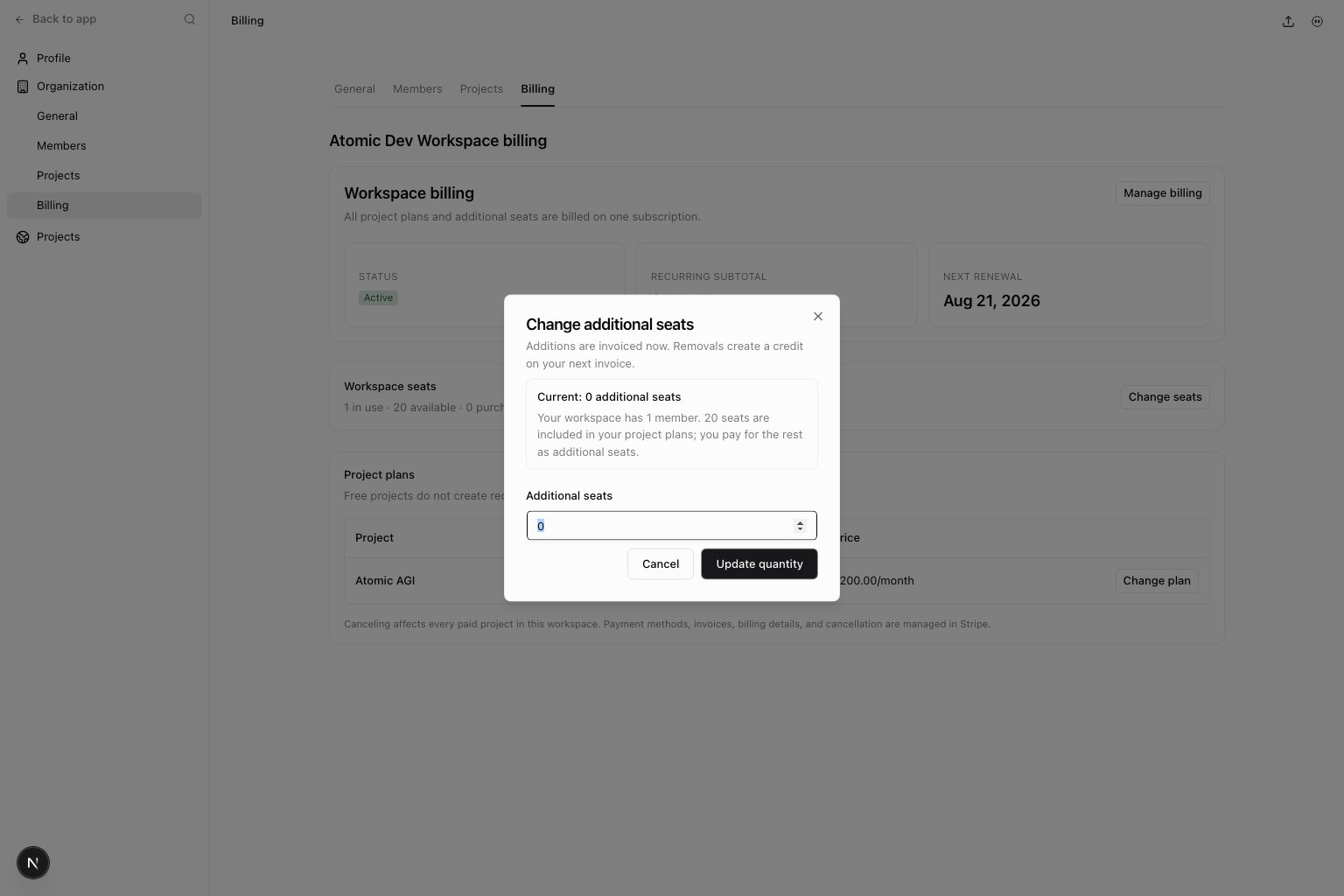
Change seats, enter the total number of separately purchased seats, and confirm the change.
- Adding seats is invoiced immediately.
- Removing seats creates a credit for the next invoice.
- You cannot remove seats that are required by current members.
- Additional seats remain part of the same workspace subscription.
Manage payment and cancellation
SelectCompany details to save the legal company name, registered billing address, and primary Tax ID directly to
the workspace’s Stripe customer. Atomic infers Stripe’s required Tax ID type from the country of incorporation, so
customers only enter the Tax ID number in their country’s valid format. Existing additional Tax IDs remain in Stripe.
Payment methods & invoices to open Stripe. You can update payment methods, download invoices, manage
additional Tax IDs, or manage the whole workspace subscription.
Whole-workspace cancellation affects every paid project. Use Change plan for an individual downgrade, or open the adjacent ... menu and select Cancel plan to move one project to Free.
Quick weekly checklist
- Check subscription status and the next renewal date.
- Compare seats in use with seats available.
- Review project plans before adding a new project or member.
- Resolve past-due invoices before requesting plan or seat changes.
Keep in mind
- One-time additional AI-credit purchases are separate from the recurring subscription.
- Free projects do not add a zero-price item.
- If billing is scheduled to cancel, contact support before making a new commercial decision.